

GitHub integration
Used for: Triggers, Context, and Publishing
Promptless integrates with GitHub through our official GitHub App.
Installation
Section titled “Installation”-
Click “Connect GitHub” from the integrations page.
-
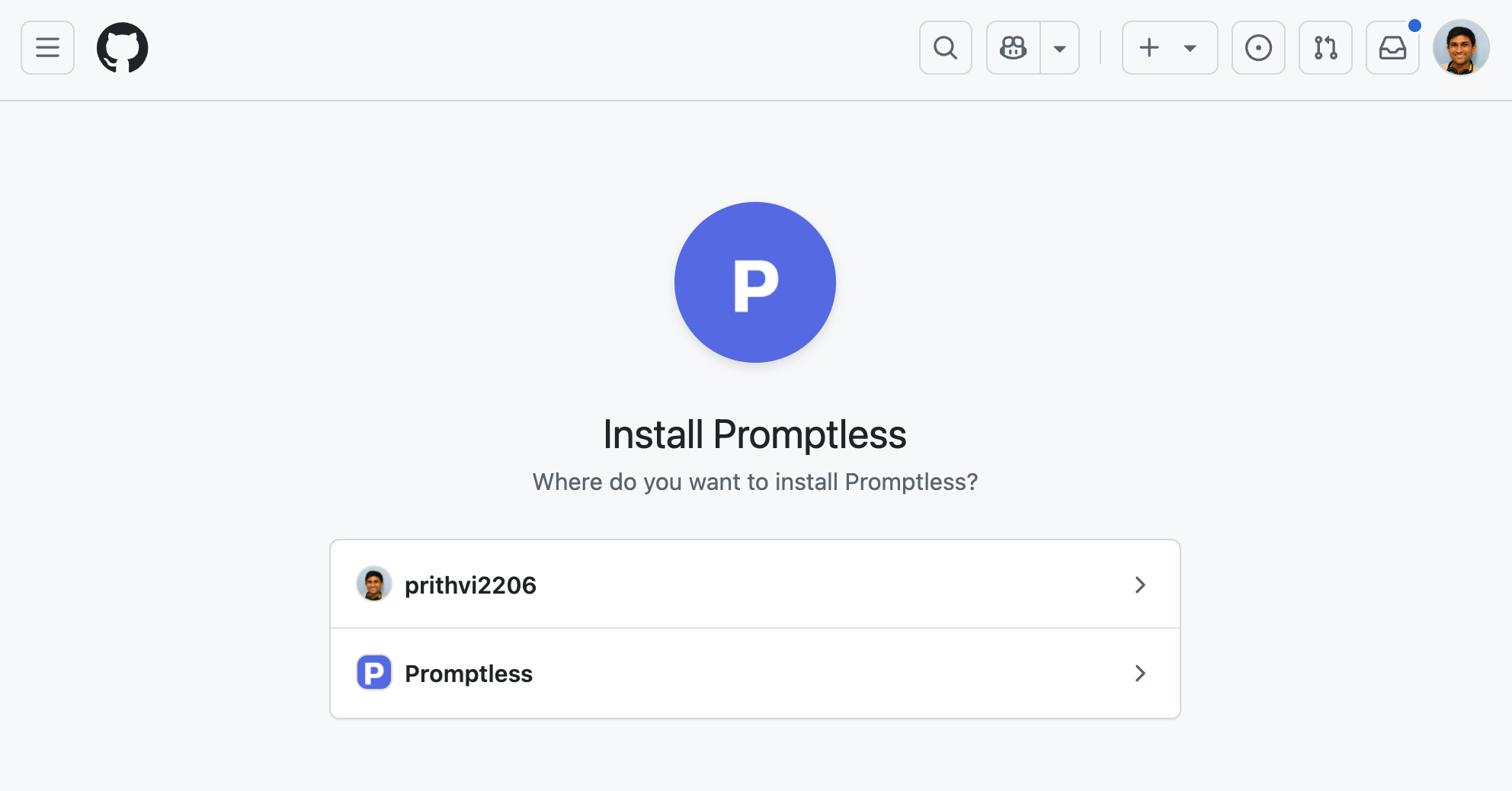
Select which GitHub organization to install Promptless into.
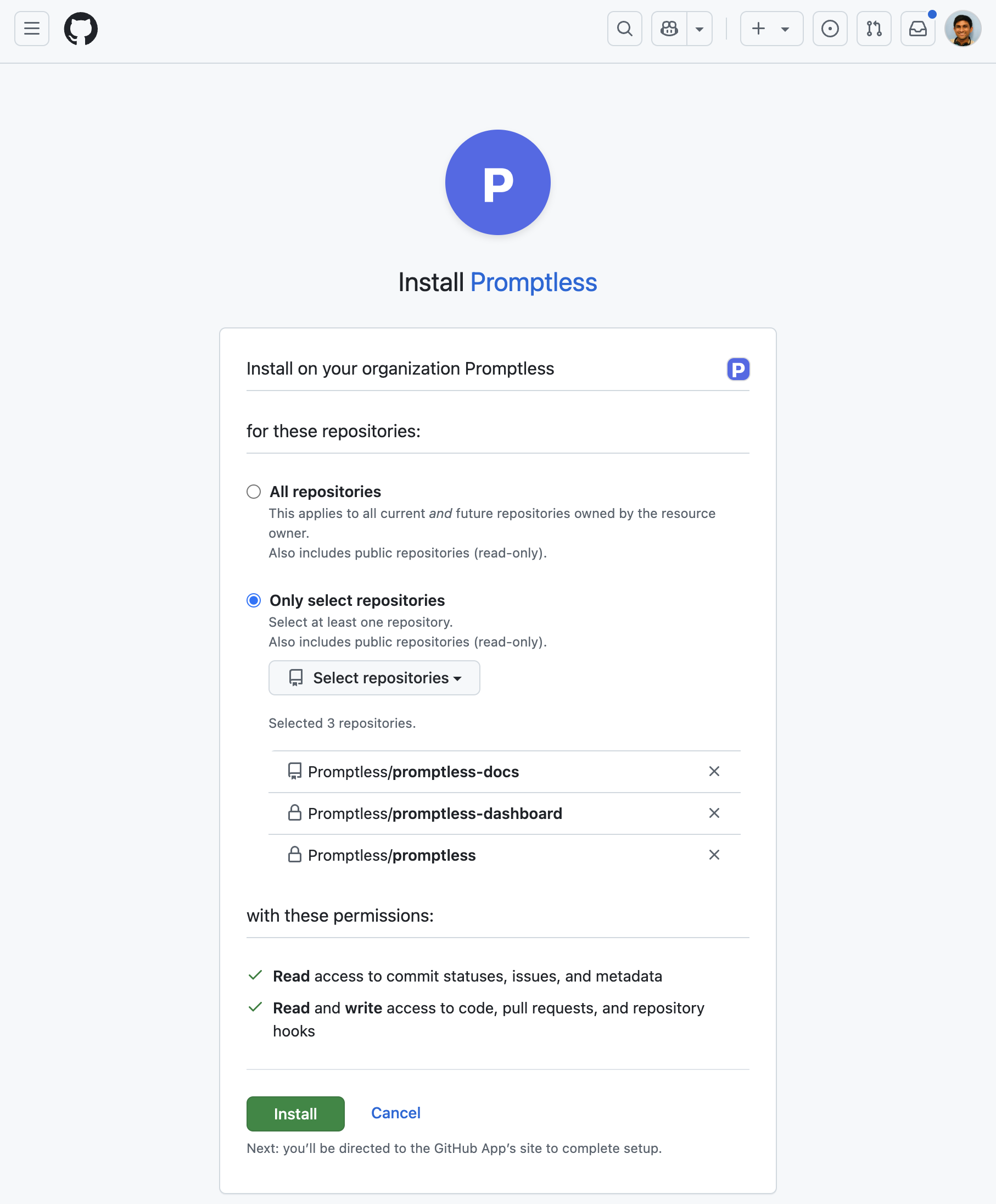
- Select the repositories to give Promptless access to. These are typically your source-code and documentation repositories (when your docs are in GitHub).
- Verify that Promptless is connected on the integrations page.
When owner approval is required
Section titled “When owner approval is required”Some GitHub organizations require owner approval before third-party apps can be installed. If you’re not an owner, GitHub prompts you to request approval instead of installing.
- Submit the request: Complete GitHub’s approval request flow. Promptless tracks it automatically.
- Ask an owner to approve: An owner approves the Promptless GitHub App from the organization’s “Third-party Access” settings.
- Start a fresh connection: Approval installs the App on GitHub but doesn’t connect it to Promptless. A Promptless organization admin then starts a new connection from the integrations page. Completing the connection requires authorizing as a GitHub organization owner, so the admin can share the one-hour link with an owner to finish. If GitHub can’t reuse the approved installation, uninstall the Promptless App in GitHub and reconnect.
Connect multiple GitHub organizations
Section titled “Connect multiple GitHub organizations”You can connect multiple GitHub organizations to your Promptless account.
After you connect your first organization, click the “Connect another GitHub Org” button on the integrations page to add more. Each new organization follows the same installation process.
Each connected organization appears as its own card on the integrations page, showing:
- Organization name
- List of accessible repositories
- Individual refresh and disconnect controls
When creating or editing projects, repositories from all connected organizations are available in the dropdown menus, displayed as organization/repository.
Manage repository access
Section titled “Manage repository access”When selecting a docs repository during setup, Promptless shows the connected GitHub organization above the repository picker. Click Manage repository access at the bottom of the picker to open GitHub’s installation settings and adjust which repositories Promptless can access.
Each connected card on the integrations page also carries a Configure in GitHub button. It opens the Promptless GitHub App’s installation page in a new tab. This button appears on both the main GitHub card and the GitHub (read-only) card. Repository access is always governed in GitHub’s App settings, including any organization admin-approval requirement.
After installation, manage further repository access directly through your GitHub organization settings:
- In your GitHub organization settings, go to “Third-party Access” → “GitHub Apps”, then find “Promptless” and click “Configure”.
- In the “Repository access” section, switch between “All repositories” and “Only select repositories”. Use the “Select repositories” dropdown to add a repository, or click the ”×” next to a repository’s name to remove it.

- Click “Save” to apply your changes.
After you update repository access, the new repositories become available when creating or editing projects in Promptless. Changes may take a few minutes to appear in the dashboard. If newly added repositories don’t show up right away, click the “refresh repos” icon on the integrations page.
Authentication model
Section titled “Authentication model”Promptless uses the official GitHub App specification and authenticates with JWTs generated by the App installation. Promptless has read and write access to the repositories you select, and either party can revoke access at any time.
Organization IP allow lists
Section titled “Organization IP allow lists”If your GitHub organization enforces an IP allow list, Promptless must reach your organization from its own network. Otherwise GitHub blocks its requests, silently stopping it from reading pull requests and publishing updates.
A GitHub organization owner picks one of the following options, both under Settings → Authentication security. If you don’t administer the organization, hand these to whoever does.
- Let installed GitHub Apps bypass the list (recommended): Select Enable IP allow list configuration for installed GitHub Apps. GitHub automatically adds the Promptless GitHub App’s addresses, and this keeps working even when they change.
- Add Promptless’s egress IP address: Add
3.143.177.103to your allow list. This is the NAT gateway address that Promptless’s requests originate from. This address can change, so prefer the bypass option above for a setting you don’t have to maintain.
This applies to standard GitHub.com organizations. If you use GitHub Enterprise, see the GitHub Enterprise Setup Guide for the full list of addresses to allow.
What you can do with GitHub
Section titled “What you can do with GitHub”Once connected, you can use GitHub for:
- Triggers: Monitor pull requests and commits for documentation updates
- Context Sources: Search code repositories and issues for technical context
- Doc Collections: Publish documentation updates to GitHub-based platforms
Frequently asked questions
Section titled “Frequently asked questions”Promptless shows ‘no repositories accessible’ during setup. What do I do?
The Promptless GitHub App is installed but has no repository access yet. Click Manage repository access to open GitHub’s installation settings, where you can grant access to specific repositories or select “All repositories.” After updating access, click Refresh in Promptless to reload the list.
How do I add more repositories after installing the GitHub integration?
Add repositories anytime from your GitHub organization settings. In GitHub, go to Settings -> Third-party Access -> GitHub Apps, find the Promptless GitHub App, and click “Configure.” Add or remove repositories in the “Repository access” section, then click “Save.” The newly added repositories are then available when creating or editing your Promptless projects.
Can I remove GitHub repository access from Promptless?
You can remove access to specific repositories, or uninstall the integration entirely, from the same “Configure” page in your GitHub organization settings. Click the × next to a repository name to remove it from the Promptless GitHub App. To remove the app entirely, click the Uninstall button at the bottom of the page.
How long does it take for repository changes to appear in Promptless?
Repository updates in the GitHub App may take a few minutes to appear in your Promptless dashboard. If newly added repositories don’t show up right away when creating or editing projects, click the “refresh repos” icon on the integrations page.
Can I connect multiple GitHub organizations to one Promptless account?
Yes. After connecting your first GitHub organization, add more by clicking “Connect another GitHub Org” on the integrations page. Each organization appears as its own card, and repositories from all connected organizations are available when setting up projects.
What happens if my GitHub organization requires owner approval for apps?
If your organization requires owner approval before third-party apps can be installed, GitHub shows you a request flow instead of installing. Submit the request, and Promptless tracks it automatically. Approval installs the App but doesn’t connect it to Promptless. After an owner approves, a Promptless organization admin starts a fresh connection from the integrations page and authorizes it as a GitHub organization owner. The connection link stays valid for one hour.