

Slack messages
Overview
Section titled “Overview”Turn Slack conversations into documentation suggestions. Support threads and internal discussions often raise questions your documentation should answer, and Promptless starts the update from the thread where the question came up. It reads the entire thread, including text, images, and file attachments, and creates documentation suggestions based on the conversation.
Start Promptless in one of these ways:
| Method | What you do | Configuration needed |
|---|---|---|
| Message action | Run the Promptless Update Docs message shortcut on any message, without interrupting the conversation. | None |
| Mention in a channel | Tag @Promptless in a thread with instructions or questions. Promptless reads the full thread. | None |
| Direct message | Send a request to @Promptless in a DM, for documentation requests you want to keep private. | None |
| Passive channel listening | Nothing per message. Promptless responds to conversations in channels you select. | A Slack channel (slack_listen) trigger. See Set up passive channel listening. |
Promptless reads only the Slack content you point it to:
| How Promptless is triggered | What it reads |
|---|---|
| @mention, direct message, or Update Docs message action | The thread or conversation where you triggered it. |
| Passive channel listening | Messages in the channels you selected. |
With no passive listening configured, Promptless reads Slack only when someone triggers it.
Before you start
Section titled “Before you start”- The Promptless Slack app, installed in your Slack workspace. If Slack isn’t connected yet, follow the setup steps in Connect Slack.
- For @mentions in a channel, Promptless as a member of that channel. See Add Promptless to a channel.
- For passive channel listening, an admin role in your Promptless organization, to edit the Configuration page.
Connect Slack
Section titled “Connect Slack”Skip this section if Slack already shows as connected on the Integrations page.
-
On the Integrations page, select Connect Slack. Slack opens in a new window. If your browser blocks the window, allow pop-ups for Promptless and select Connect Slack again.
-
In the Slack window, select the workspace where you want to install Promptless.
-
Review and approve the permissions the Promptless Slack app requests. Promptless needs them to respond to the right events in Slack and to notify your team when updates are available. For what each permission does, see Key permissions.
-
On the Integrations page, verify that Slack shows as connected.
Some Slack workspaces require an admin to approve apps before anyone can install them. If you aren’t a workspace admin, Slack sends your request to an admin, and setup waits for their approval. The steps are the same from onboarding and from the Integrations page, and your pending request persists across page reloads and sessions.
-
In the Slack window, follow Slack’s prompts to send the request. Slack may notify you when an admin approves Promptless.
-
Wait for the admin’s decision. Until you finish the install, a pending card in onboarding or on the Integrations page shows that Promptless isn’t installed in Slack yet. Promptless can’t see the admin’s decision, so the card stays pending.
-
After an admin approves, select Continue in Slack on the pending card. Slack runs authorization again and connects Promptless.
If you close the window or lose your network connection before you finish, the request stays pending. Select Continue in Slack to try again. If Slack reports that the attempt was denied or failed, Promptless clears the request, and you start a new one.
Request documentation from a Slack thread
Section titled “Request documentation from a Slack thread”-
In the thread, run the Update Docs message shortcut on a message, or tag @Promptless with your instructions. To keep the request private, send it to @Promptless in a direct message.
-
Optional. To refine the suggestion, reply in the same thread with feedback or more context.
A status line under your message shows what Promptless is doing. It appears after you tag @Promptless, send it a direct message, or reply in a thread it follows. The Update Docs shortcut instead sends you a private “Promptless is hard at work” message.
Include images and files
Section titled “Include images and files”Promptless reads the images and files in a thread you trigger it from, and decides whether each one adds useful context for the documentation:
| Attachment | What Promptless does when it’s relevant |
|---|---|
| Image | Uploads it to a secure S3 bucket, formats it for your documentation platform, and adds it to the suggestion. |
| File, including PDF | Extracts the relevant content, including images inside PDFs, and uses it in the suggestion. |
| Audio, such as a voice message or recording | Transcribes the recording and uses what was said as context for the suggestion. |
When you review the suggestion in the Promptless app, approve or reject each added image at the bottom of the review interface.
Reply in a thread Promptless is in
Section titled “Reply in a thread Promptless is in”Promptless follows a thread after it posts there or is @mentioned there. Reading a message through passive channel listening doesn’t make Promptless follow the thread. Each later reply in a followed thread is a follow-on trigger. No new @mention is needed. Reply with feedback or more context, continue a conversation Promptless started, or send the images, files, or clarifications it asked for.
Promptless decides whether each reply is actionable, so not every reply starts a documentation update. To have Promptless ignore one message, start it with aside or /aside:
aside This is an internal discussion point, not for docs.Change the thread reply trigger mode
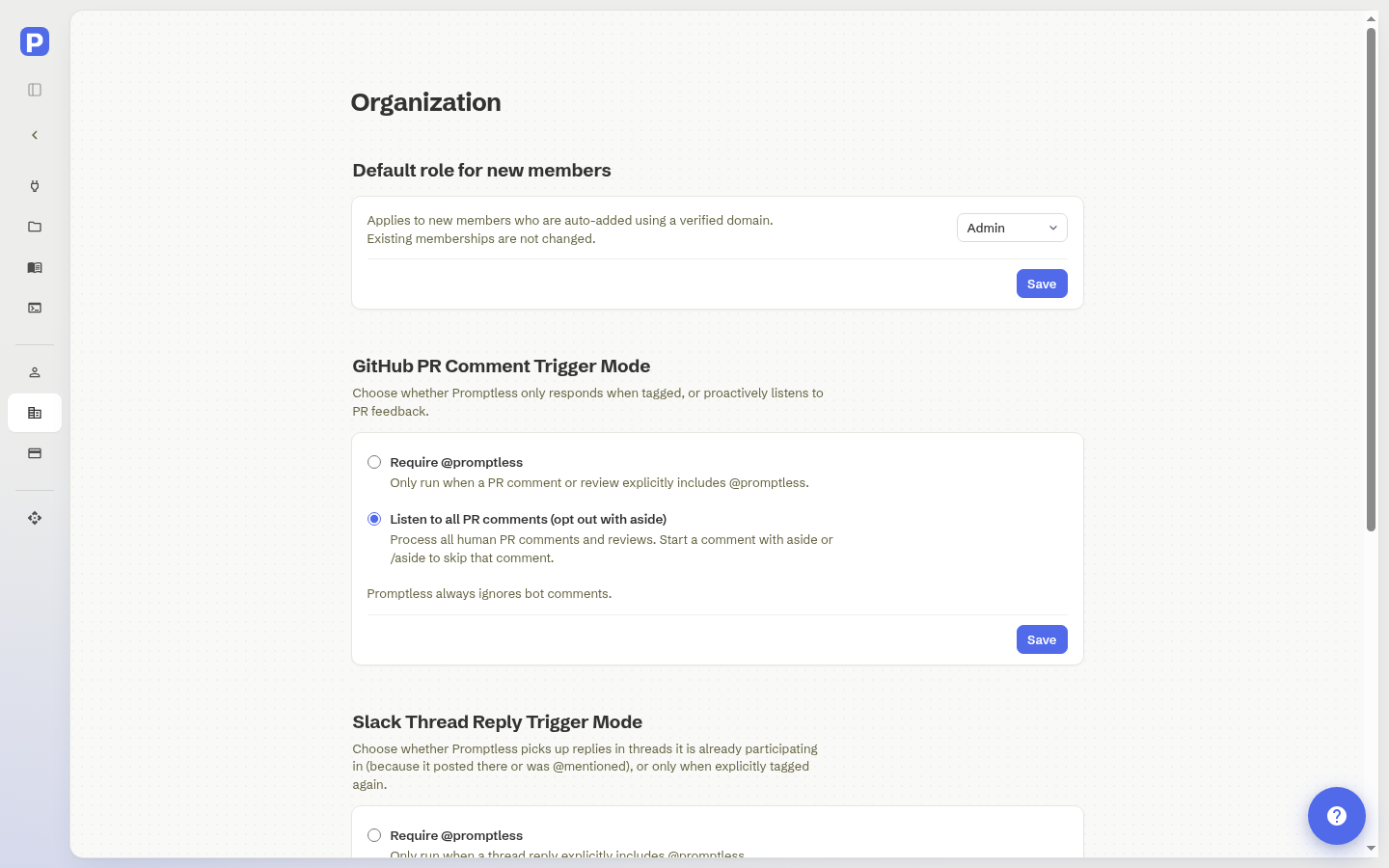
Section titled “Change the thread reply trigger mode”The organization-wide thread reply trigger mode sets which replies Promptless processes:
| Mode | Promptless processes |
|---|---|
| Listen to all replies | Default. Every reply in threads where it’s participating, except replies that start with aside or /aside. |
| Require @promptless | Only replies that @mention Promptless. |
In a channel Promptless watches through passive channel listening, Promptless doesn’t show a status line or reply. That covers both messages that start a thread and replies in one. This holds in both modes until someone @mentions Promptless in the thread or Promptless posts there. After that, the thread follows the mode above. Knowledge Base instructions can make Promptless post in a watched thread, for example to send a suggestion notification there. See Know what to expect from passive listening.
To change the mode, open Settings, select Organization, and choose a mode. The setting applies to all Slack threads in your organization.
Set up passive channel listening
Section titled “Set up passive channel listening”With passive listening, Promptless monitors the channels you select and creates documentation suggestions as messages are posted. It’s opt-in and applies only to the channels you list.
-
Optional. For a private or Slack Connect channel, add Promptless to the channel in Slack. See Add Promptless to a channel. Promptless joins a public channel on its own when you add the channel to a trigger.
-
On the Configuration page, open the Triggers tab.
-
Select Add an automatic or scheduled trigger, then select A Slack channel or A Microsoft Teams channel.
-
Under Which channels should Promptless watch? or Which Teams channels should Promptless watch?, choose the channels to monitor:
-
For Slack, choose channels from the list, or enter channel names without the
#prefix. -
For Teams, choose channels from the list, or paste a channel’s conversation ID, which looks like
19:...@thread.tacv2.
-
-
Select Add trigger.
Promptless tracks Slack channel renames, so renaming a monitored channel doesn’t break the trigger. To stop monitoring a channel, edit or remove its trigger on the Triggers tab.
The Configuration page stores each trigger in promptless.yaml. To manage triggers as configuration, edit the YAML directly. This example has one slack_listen trigger and one msteams_listen trigger:
triggers: support-channels: trigger_type: slack_listen match: - channels: - slack-connect-acme - docs-feedback teams-support: trigger_type: msteams_listen match: - channel_ids: - 19:abc123@thread.tacv2For every match field, see the Configuration Reference.
For how to choose channels and what to expect once listening is on, see Get the most out of passive channel listening.
By default, Promptless uses its own judgment to decide what to document from a monitored channel. To tailor the output, add instructions to the PROMPTLESS.md file in your Agent KB.
See also
Section titled “See also”- Slack integration, for Slack permissions, channel access, and troubleshooting
- Get the most out of passive channel listening, for choosing channels and tuning what Promptless documents from them
- Review from Slack and Teams, to act on suggestions without leaving the thread