

Review from Slack and Teams
Overview
Section titled “Overview”Start documentation work from the Slack or Microsoft Teams conversation where a change comes up, and refine the suggestion without leaving the thread. Promptless reads the thread, including attached images and files, drafts the documentation update, and replies with the suggestion for you to review.
Start Promptless in one of these ways:
| Method | When to use it | Section |
|---|---|---|
| Message action | You don’t want to interrupt the conversation. | Use a message action |
| Channel mention | You want to give instructions in the thread. | Mention Promptless in a channel |
| Direct message | The request is private, or you have detailed instructions. | Send a direct message |
| Passive channel listening | A channel’s discussions often reveal documentation needs. | Passive channel listening |
The sections below describe Slack. For the Teams equivalents, see Microsoft Teams.
Before you start
Section titled “Before you start”- For Slack, the Promptless Slack app, installed in your workspace. See Connect Slack.
- For Microsoft Teams, the Promptless Teams app, installed and linked to your Promptless organization. See Connect Microsoft Teams.
- For passive channel listening, an admin role in your Promptless organization, to edit the Configuration page.
Request documentation in Slack
Section titled “Request documentation in Slack”Use a message action
Section titled “Use a message action”-
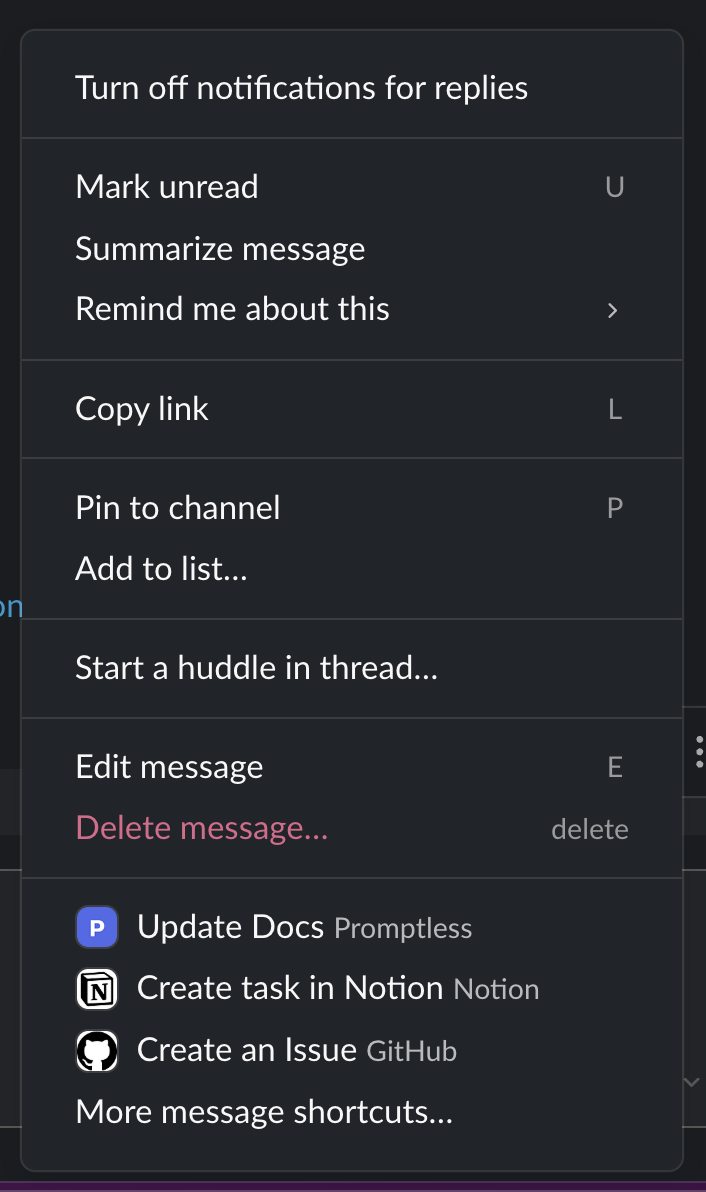
On any Slack message, open the message actions menu (⋯).
Slack message actions menu showing Promptless integrations -
Select Update Docs. If you don’t see it, select More message shortcuts and search for Promptless.
Promptless analyzes the full thread, drafts the documentation updates, and sends you a direct message when it’s done.
Mention Promptless in a channel
Section titled “Mention Promptless in a channel”-
If Promptless isn’t in the channel yet, add it to the channel.
-
In a new message or a thread reply, tag @Promptless with instructions for the docs update. You can include internal and external links, Slack links, and images.
Promptless analyzes the whole thread to understand the discussion. Point it to specific pages, or let it infer them from the context. It replies in the thread when it’s done drafting, and you can refine the suggestion in the same thread.
For example:
@Promptless please also add a troubleshooting section covering the error cases we discussed earlier in this thread@Promptless make sure to mention that this feature is only available in the Enterprise plan@Promptless create a mermaid chart for the system architecture discussed in this threadSend a direct message
Section titled “Send a direct message”-
In Slack, open the Promptless app from the Apps section.
-
Describe your request, or paste the content you want turned into documentation. You can include internal and external links, Slack links, and images. You don’t need to tag Promptless.
Promptless sends the documentation updates to you in a direct message.
Add images, files, and screenshots
Section titled “Add images, files, and screenshots”Attach images and files
Section titled “Attach images and files”Attach screenshots, diagrams, design mockups, API responses, or configuration files in the thread where you tag @Promptless or use Update Docs. Promptless reviews all text and attached files in the thread. When an image or file is relevant to the documentation, Promptless adds it to the suggestion.
For example:
@Promptless please document this new export feature. I've attached a screenshot showing the new export dialog.@Promptless update the technical architecture page with this new system diagram (attached)@Promptless we need to add troubleshooting docs for this error. See the screenshot above for the exact error message users are seeing.@Promptless here's the design spec for the new onboarding flow (PDF attached). Please create documentation that matches this flow.For how Promptless processes and stores images, see the Slack integration.
Ask for a file
Section titled “Ask for a file”Ask Promptless for a file, such as a report or a CSV file it generated. Promptless uploads the file to the Slack thread where you asked. Each file can be up to 10 MiB.
File uploads need the files:write Slack permission. If your workspace connected before Promptless requested it, update your Slack permissions.
Request screenshot captures
Section titled “Request screenshot captures”If your organization has screenshot capture set up, ask Promptless to capture fresh screenshots from your staging or production environment. Promptless navigates to your web application, captures the UI, and adds the screenshot to the documentation.
For example:
@Promptless capture a screenshot of the user settings page from staging and add it to the account management docs@Promptless the dashboard screenshot in our getting started guide is outdated. Can you capture a fresh one from production?@Promptless we need screenshots of the new onboarding flow. Please capture the welcome screen, the team setup page, and the final confirmation from staging.Passive channel listening
Section titled “Passive channel listening”With passive listening, Promptless monitors the Slack channels you select and creates documentation suggestions from their messages, with no mention or message action needed. Use it for documentation-focused or support channels, where discussions often reveal documentation needs. It’s opt-in: Promptless monitors only the channels you list, and you can add or remove channels at any time.
To turn it on:
-
Optional. For a private or Slack Connect channel, add Promptless to the channel in Slack. See Add Promptless to a channel. Promptless joins a public channel on its own when you add the channel to a trigger.
-
On the Configuration page, open the Triggers tab.
-
Select Add an automatic or scheduled trigger, then select A Slack channel or A Microsoft Teams channel.
-
Under Which channels should Promptless watch? or Which Teams channels should Promptless watch?, choose the channels to monitor:
-
For Slack, choose channels from the list, or enter channel names without the
#prefix. -
For Teams, choose channels from the list, or paste a channel’s conversation ID, which looks like
19:...@thread.tacv2.
-
-
Select Add trigger.
Promptless tracks Slack channel renames, so renaming a monitored channel doesn’t break the trigger. To stop monitoring a channel, edit or remove its trigger on the Triggers tab.
The Configuration page stores each trigger in promptless.yaml. To manage triggers as configuration, edit the YAML directly. This example has one slack_listen trigger and one msteams_listen trigger:
triggers: support-channels: trigger_type: slack_listen match: - channels: - slack-connect-acme - docs-feedback teams-support: trigger_type: msteams_listen match: - channel_ids: - 19:abc123@thread.tacv2For every match field, see the Configuration Reference.
For how to choose channels, see Get the most out of passive channel listening.
When new messages arrive in a thread Promptless already processed, Promptless updates its existing suggestion for that thread. You see one suggestion that changes as the thread grows, without a separate suggestion for each message. To have Promptless act on a monitored thread right away, @mention it there.
Thread auto-reply
Section titled “Thread auto-reply”Promptless keeps reading new replies in a Slack thread after a message action, mention, or direct message triggers it there. It does the same in any thread where it has posted. You don’t need to tag @Promptless again to refine the suggestion, add context, or share images and files.
Promptless decides whether each reply is actionable, so not every reply produces a documentation update. To have Promptless ignore a message, start it with aside or /aside:
aside @InlinePizza are these the ones your thing found or were there more?Configure thread replies
Section titled “Configure thread replies”The thread reply trigger mode applies to your whole organization. To change it, open Settings, select Organization, and under Slack Thread Reply Trigger Mode, choose a mode:
- Listen to all replies in participating threads (opt out with aside) (default): Promptless processes every reply in threads where it has posted or been mentioned.
- Require @promptless: Promptless processes only replies that mention it.
For details, see Change the thread reply trigger mode.
Read citations in research replies
Section titled “Read citations in research replies”Some research questions need Promptless to fetch external URLs, such as documentation sites, articles, or video transcripts. Its reply then cites each fact with an inline link to its source. The linked phrase is the specific claim or number, not the whole sentence.
For example, if you ask about API rate limits and Promptless fetches your docs and source code, the reply might look like this:
The hard rate limit on
/v1/embedis 60 requests per minute per API key, enforced by the gateway’srate_limiter.pyconfig.
Each bolded term links to its source. The rate limit links to your API reference, and the file name links to the repository.
If a fetch fails, Promptless says so and still links the URL it tried:
Live status: unverified. Your status page returned 503 when I checked, so I can’t confirm whether you’re currently throttled.
Only sources that shaped the answer appear as citations.
Microsoft Teams
Section titled “Microsoft Teams”Promptless works the same way in Microsoft Teams as in Slack. You start it from a conversation, and it drafts documentation updates for you to review.
Connect Microsoft Teams
Section titled “Connect Microsoft Teams”Skip this section if your Teams tenant is already linked to your Promptless organization.
To install Promptless in Microsoft Teams, you need:
- Microsoft Teams admin center access
- Permissions to manage app setup policies in your organization
- Ability to install and configure third-party apps
Connecting Teams has two stages. First, install the Promptless app into your Teams tenant (steps 1–3). Then link that tenant to your Promptless organization (step 4). The two stages are independent, and you can link before you install. Installing first, as numbered below, is the simplest path.
-
Download the Promptless Teams app package from the Promptless integrations page.
-
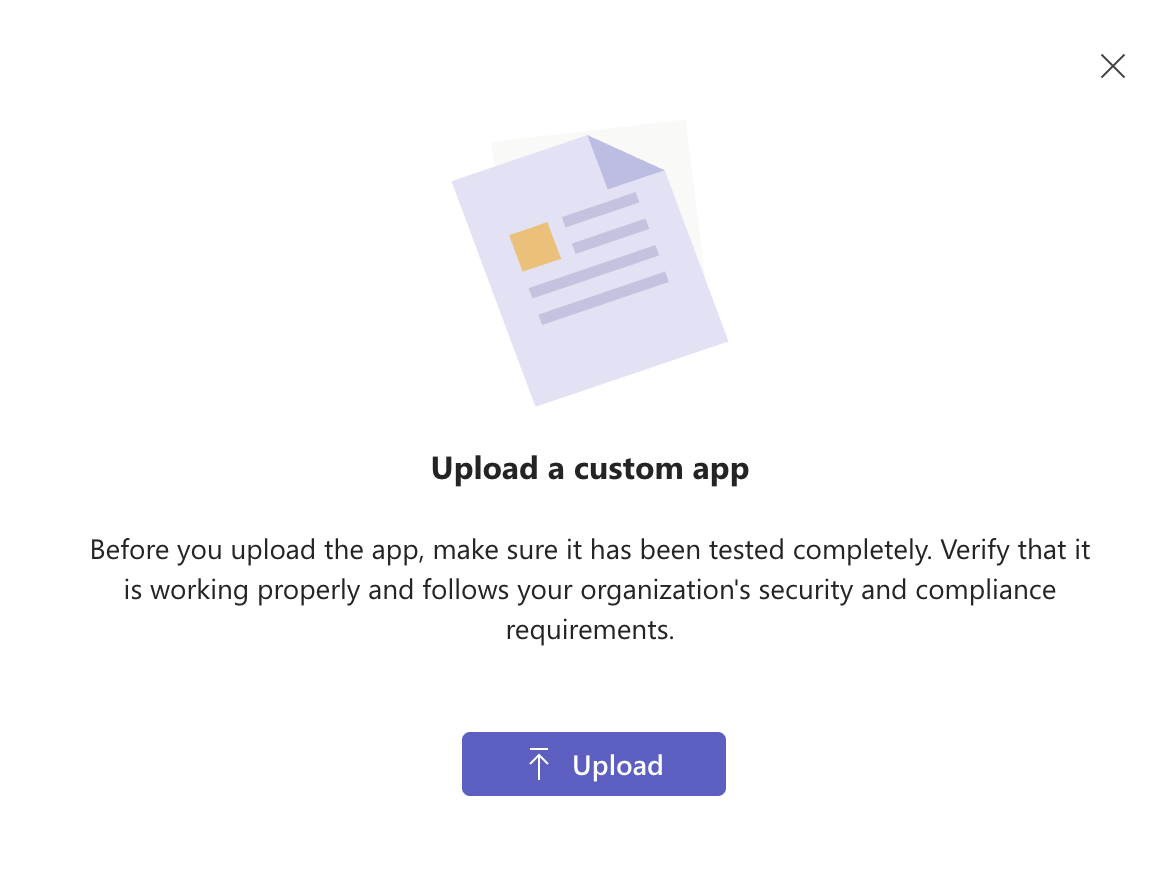
Upload the Promptless Teams app:
- Go to the Microsoft Teams admin center.
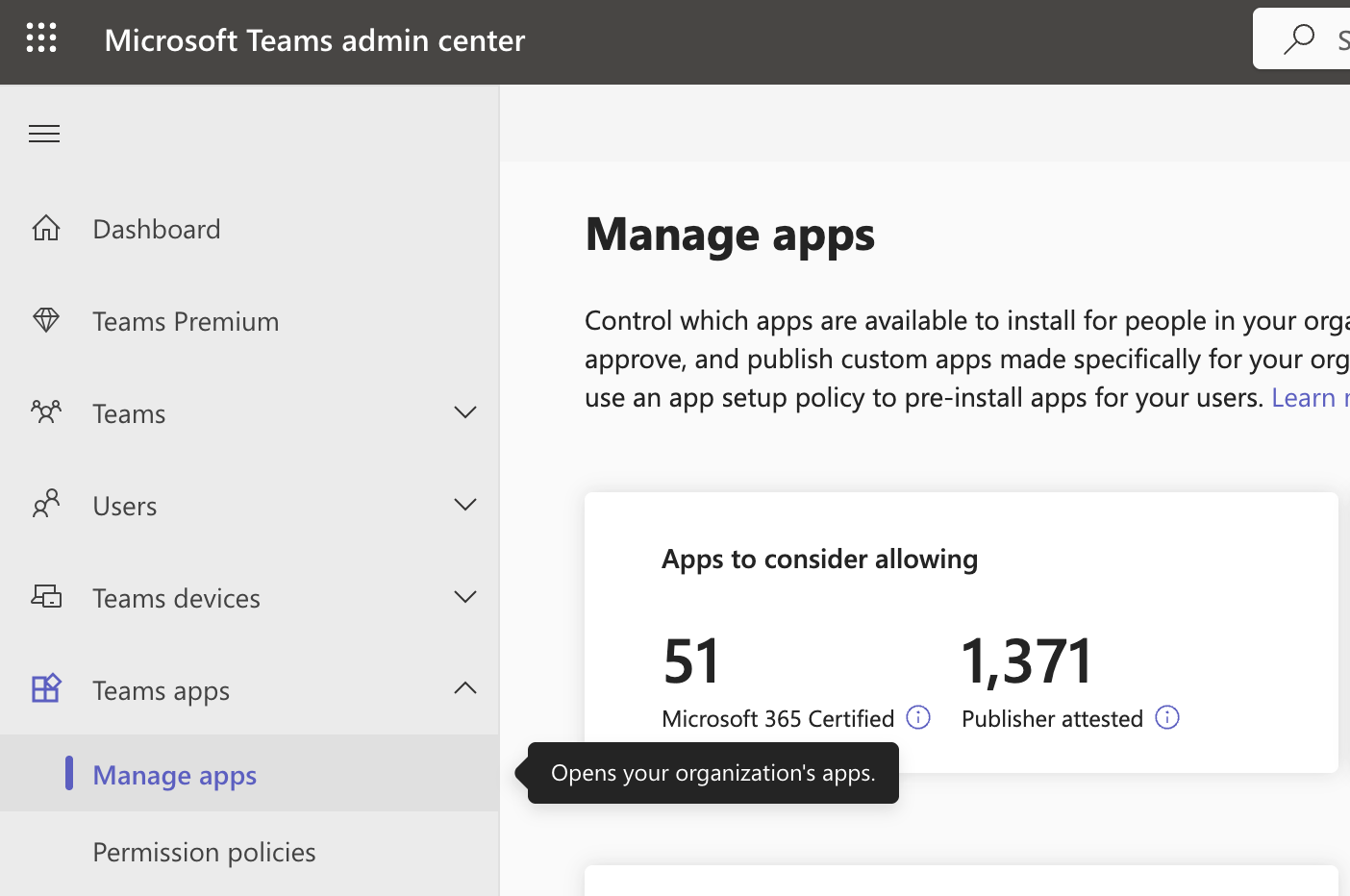
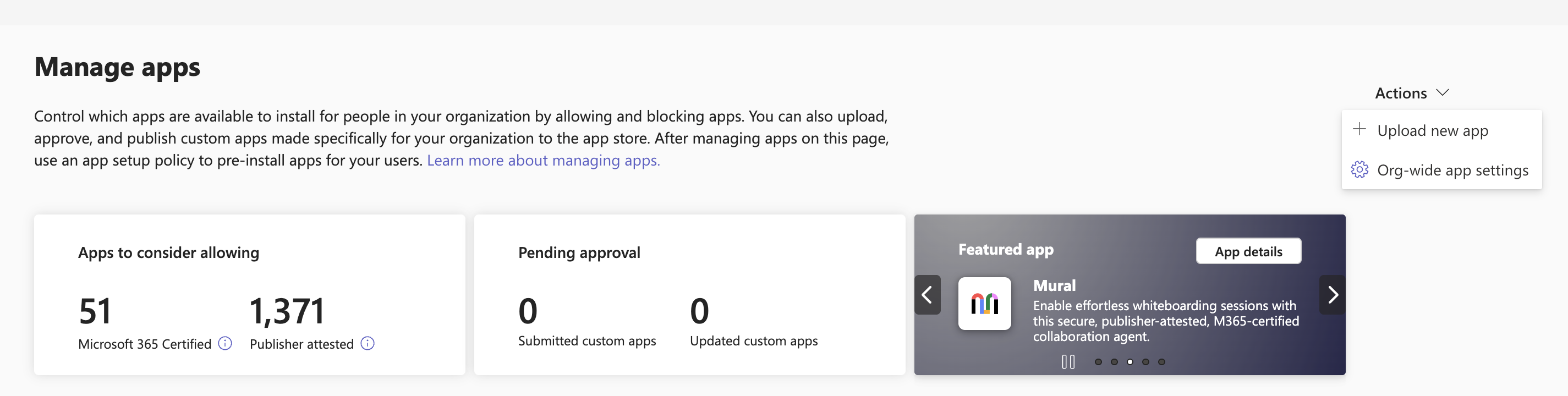
- In the left navigation, under Teams apps, select Manage apps. Manage apps controls which apps users in your organization can install.
- Select Actions > Upload new app.
- Choose the Promptless Teams app package you downloaded.
- Select Upload.
-
Grant users access to the app:
-
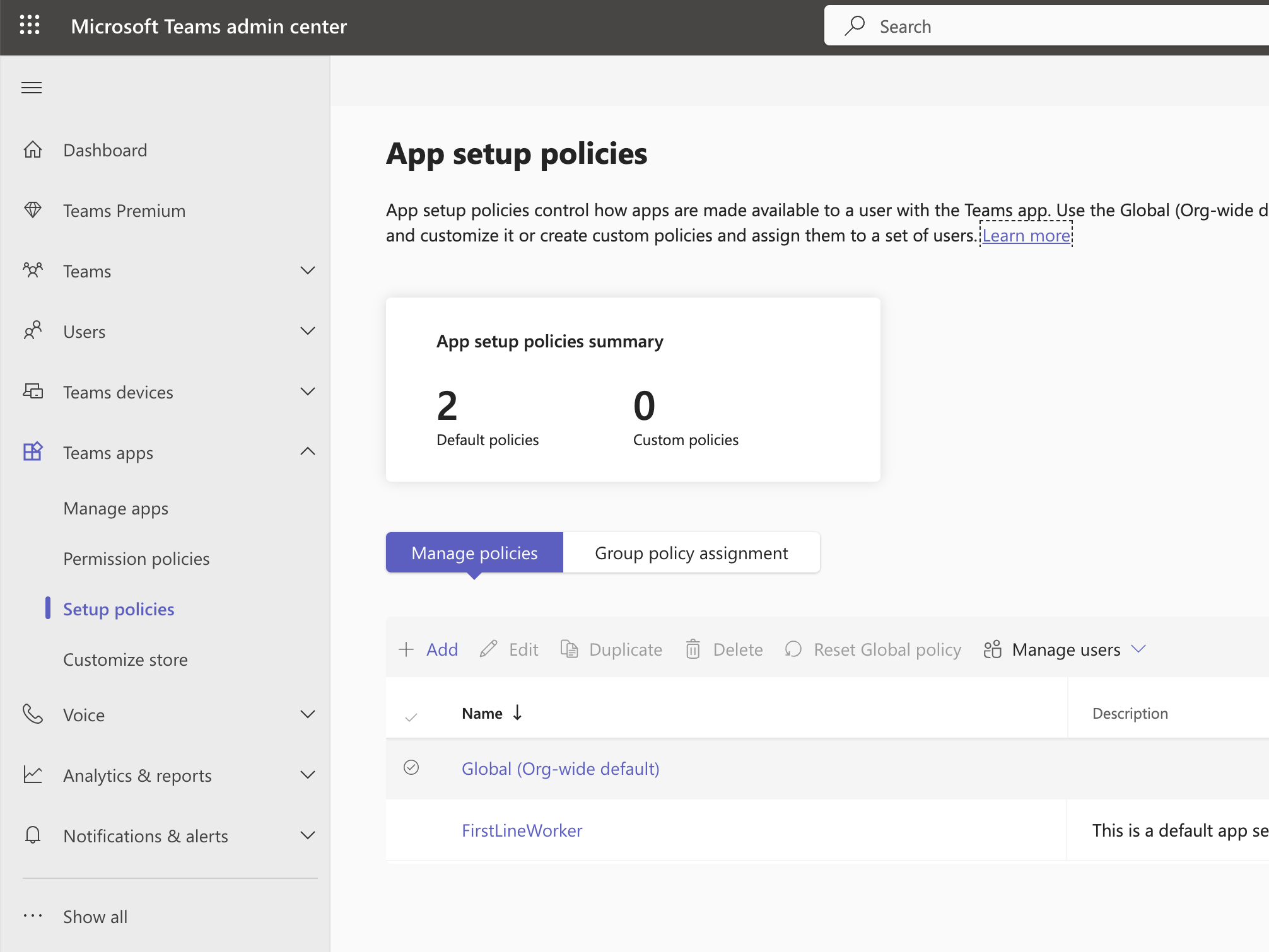
In the left navigation, select Setup policies.
-
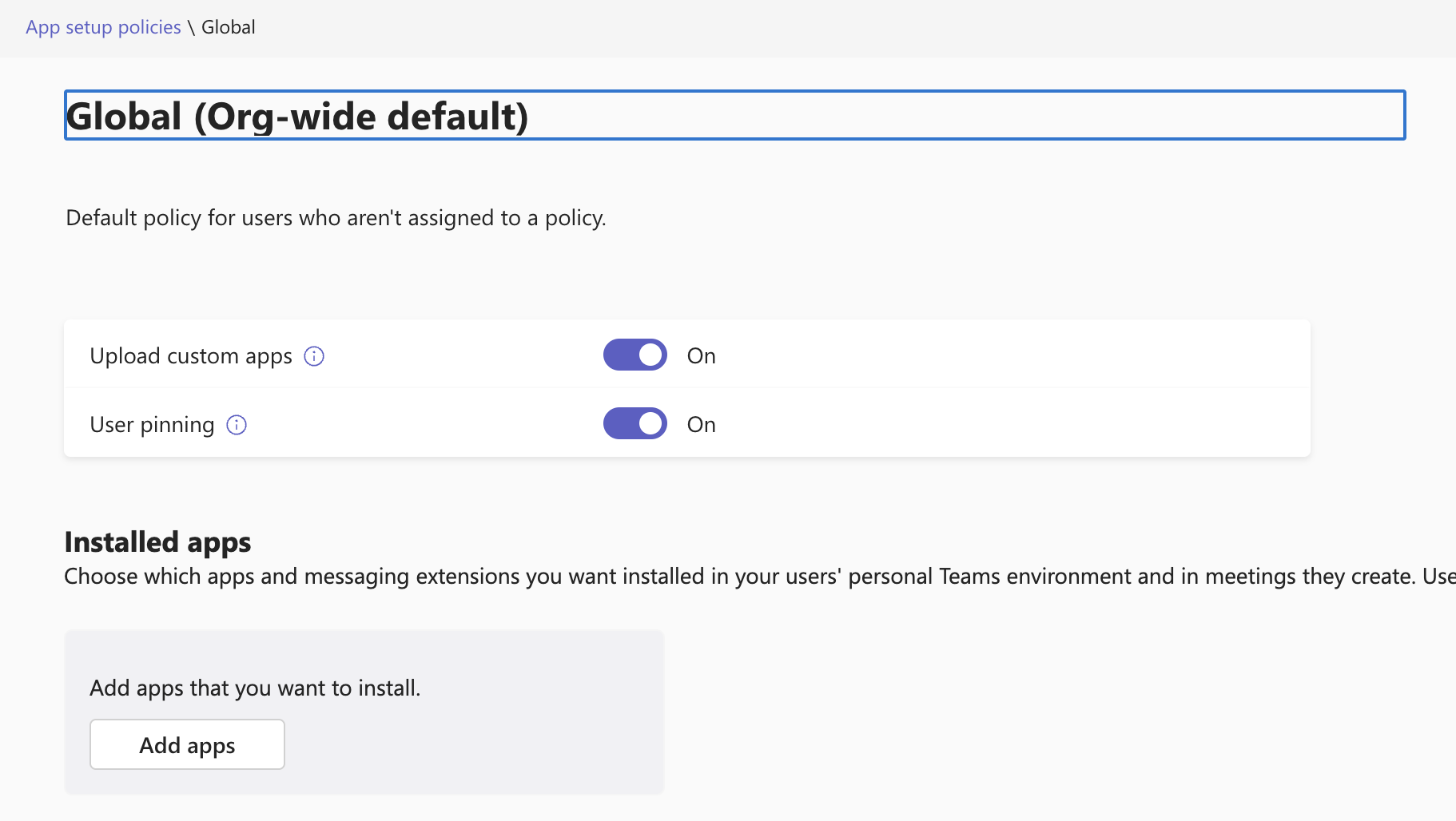
Select the Global (Org-wide default) policy.
-
Turn on Upload custom apps and User pinning if they’re off. Users need these settings to install and pin custom apps like Promptless.
-
Under Installed apps, select Add apps.
-
Search for “Promptless”, and add it to the policy.
-
Select Save.
-
-
Link your Teams tenant to Promptless. This stage happens in Promptless, outside the Microsoft Teams admin center:
- On the Promptless integrations page, find the Microsoft Teams integration.
- Select Link App & Grant Read Channels. This starts a Microsoft admin-consent sign-in that only a Microsoft admin can approve. If you’re not an admin, ask your Microsoft admin to complete this step.
- Approve the sign-in. This links your tenant to your Promptless organization.
Until your tenant is linked, the Promptless bot can’t map incoming Teams messages back to your organization. It replies that no workspace is connected.
If the button reads Contact Promptless, OAuth isn’t configured for your organization yet. Email help@gopromptless.ai to finish connecting.
To let Promptless read files attached in Teams channels, a Microsoft tenant administrator also chooses which SharePoint sites it can read from. See Choose which shared files Promptless can read.
For the permissions the Teams app requests and how Promptless accesses channels, see the Microsoft Teams integration.
Use Promptless in Microsoft Teams
Section titled “Use Promptless in Microsoft Teams”Start Promptless from Teams in any of these ways:
- Use a message action. Open the menu on any Teams message and select Update docs with Promptless. Optionally, add instructions, such as “Focus on the error handling steps.” Teams confirms the request, and the suggestion typically appears within a few minutes.
- Tag @Promptless in a channel. Mention @Promptless in a Teams channel with your instructions. Promptless analyzes the conversation and drafts relevant updates.
- Send a direct message. Message @Promptless directly for private documentation requests.
- Listen to channels passively. Add an
msteams_listentrigger to monitor selected channels and draft suggestions without a mention. Like Slack listening, it’s opt-in and covers only the channels you select. See Passive channel listening.
Once Teams is connected, @Promptless mentions work with no further configuration. Thread replies work the same way as in Slack. See Thread auto-reply.
Act from the suggestion card
Section titled “Act from the suggestion card”When Promptless creates a suggestion from Teams, it replies in the thread with a suggestion card. The card shows the title, description, status, creation date, branch, and affected files. Use its buttons to act without leaving Teams:
- Publish: Merges the docs PR and publishes the changes. The card updates to show the result.
- Create PR: Opens a docs pull request. The card refreshes to show the new PR link.
- View PR: Opens the docs PR in your browser.
- Review in Promptless: Opens the suggestion in the Promptless dashboard.
Publishing behavior and notifications follow your policies configuration.
See also
Section titled “See also”- Slack messages, for Slack setup and attachments
- Customize notifications, for the Slack preview card and where suggestion notifications go
- Give feedback on a suggestion, to refine a suggestion in the dashboard
- Slack integration and Microsoft Teams integration, for permissions and troubleshooting
- Get support, for help with Slack or Teams interactions