

Account management
Manage your Promptless organization, team members, and access controls through the account management interface.
Create an account
Section titled “Create an account”You can sign up for an account at accounts.gopromptless.ai, or contact the team at hello@gopromptless.ai.
Manage team members
Section titled “Manage team members”Add team members
Section titled “Add team members”To add other users to your team account:
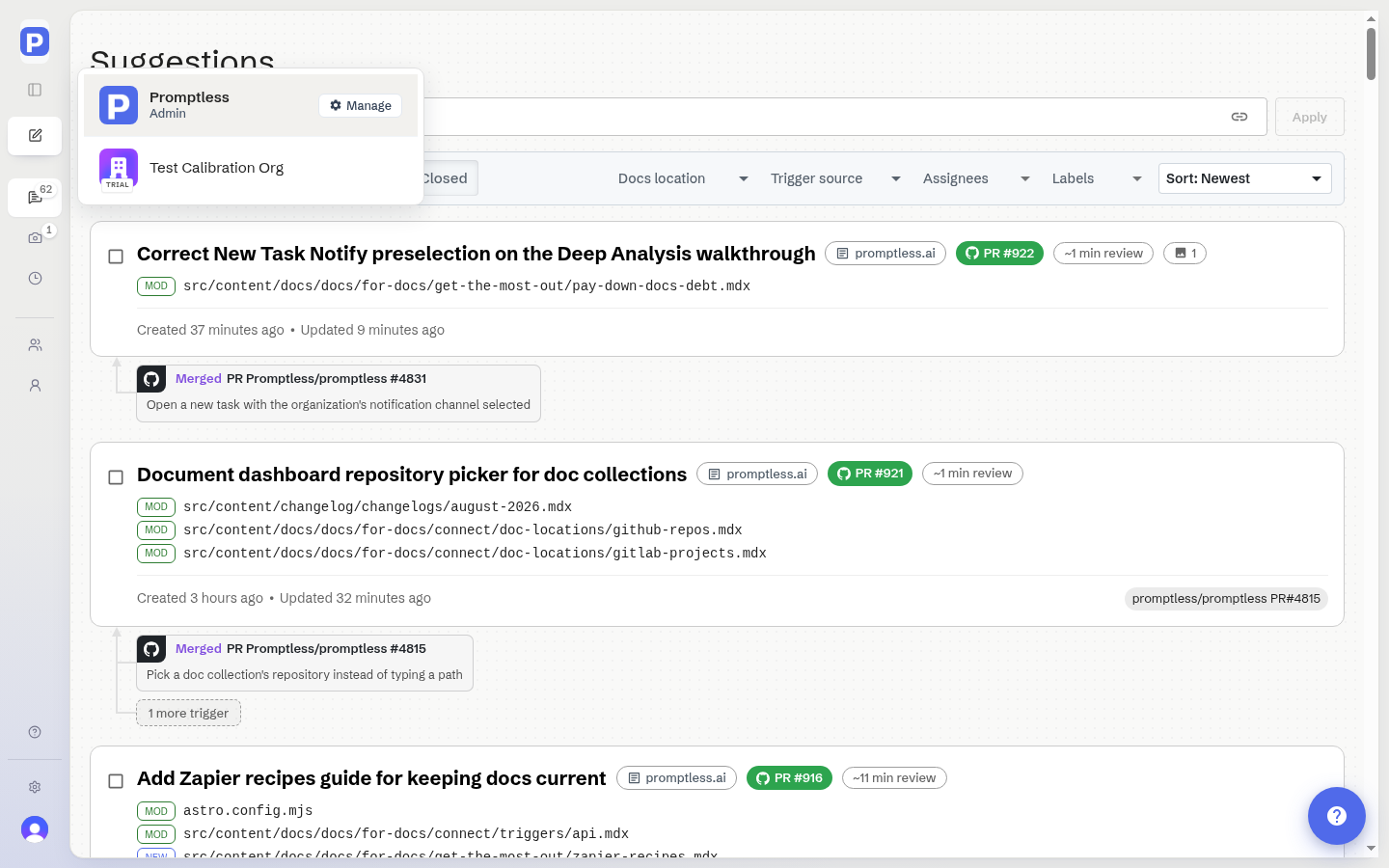
- Click on your organization name in the upper left corner of the dashboard
- Select “Manage” from the dropdown menu
- In the management modal, you’ll find options to invite new team members
User roles
Section titled “User roles”Promptless supports different user roles with varying levels of access:
Admin (role)
Full access to organization settings, team management, and all documentation suggestions. Can edit suggestions, manage integrations, configure projects, and edit the Agent Knowledge Base.
Editor (role)
Can edit documentation suggestions and create new tasks, but cannot manage organization settings, integrations, or team members. Perfect for team members who work directly on docs without needing admin access.
Collaborator (role)
Can view documentation suggestions and leave comments for feedback, but cannot edit or modify suggestions. Perfect for stakeholders who need to review content without making direct changes.
Domain verification and auto-enrollment
Section titled “Domain verification and auto-enrollment”Set up automatic team member joining
Section titled “Set up automatic team member joining”You can add domains to your organization to simplify the process of adding new members with email addresses from your company domain. When a verified domain is added, users with email addresses from that domain can join your organization based on your selected enrollment mode.
- Click on your organization name in the upper left corner of the dashboard
- Select “Manage” from the dropdown menu
- In the “Verified domains” section, click “Add domain”
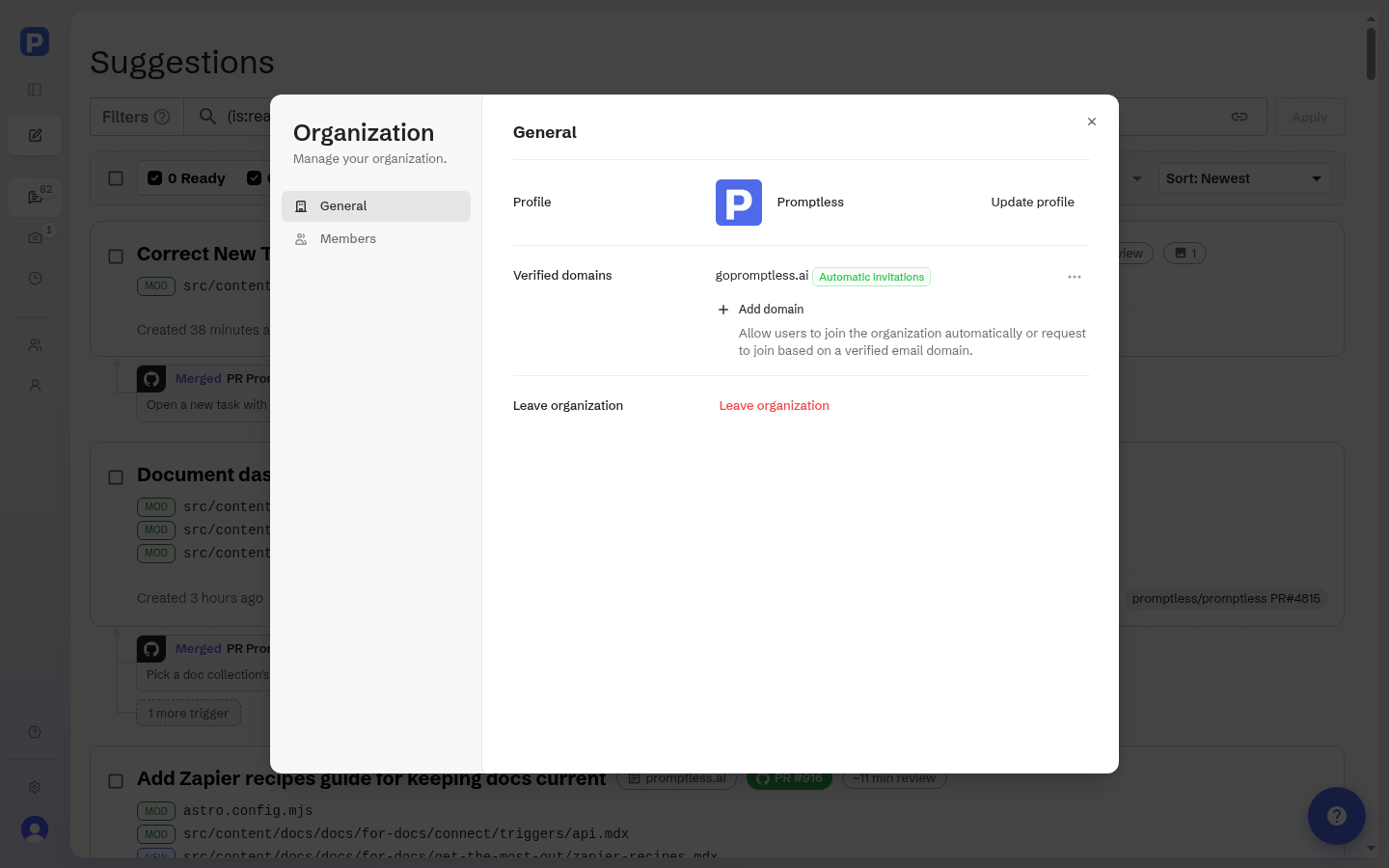
- Enter your domain (e.g., “yourcompany.com”) and click “Save”
- After verification, you’ll be prompted to select an enrollment mode:
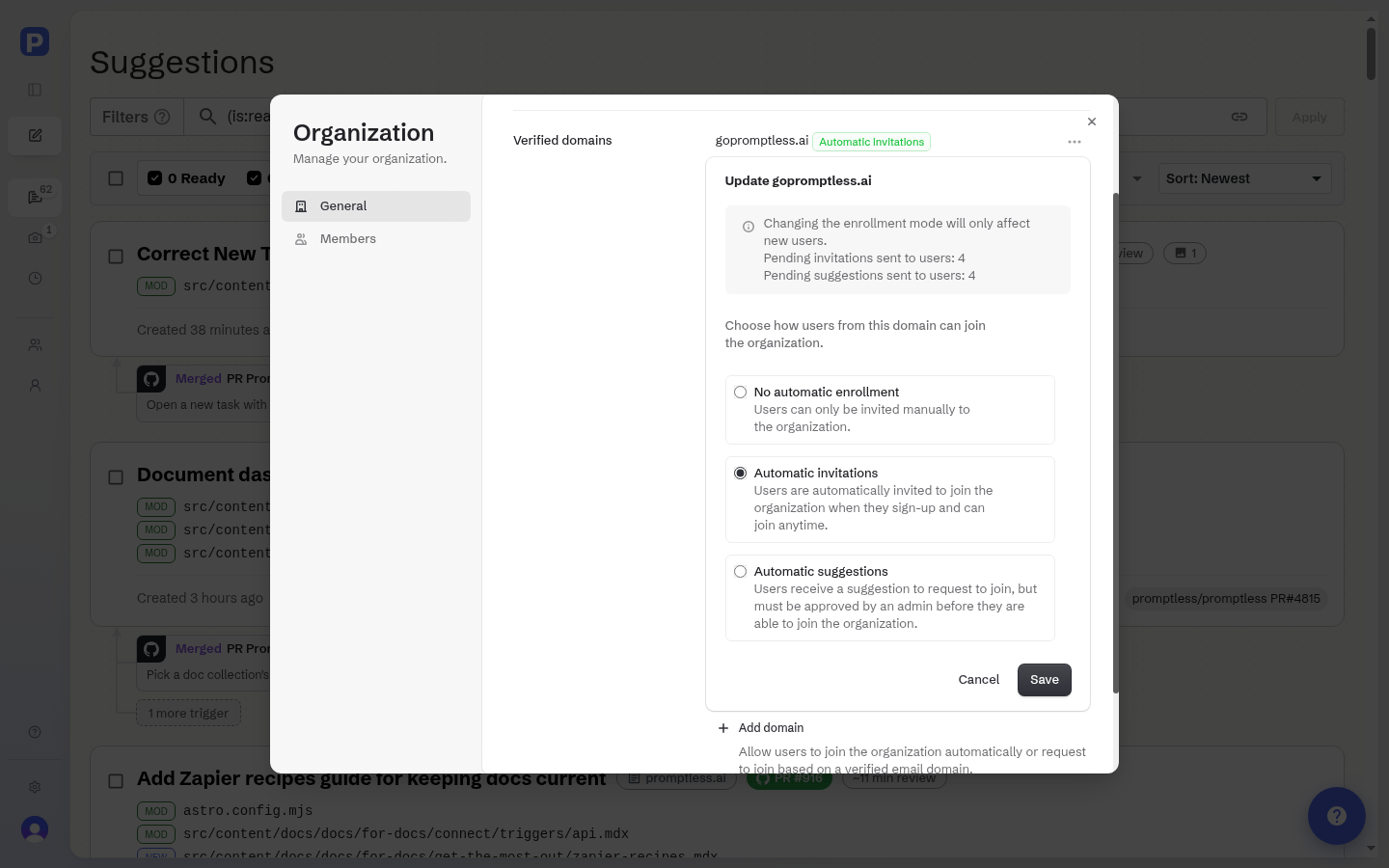
- Click “Save” to apply your selected enrollment mode
Once configured, new users with email addresses matching your verified domain will be able to join your organization. They join according to the enrollment mode you’ve selected.
Set the default role for new members
Section titled “Set the default role for new members”The Default role for new members setting controls which role auto-enrolled members receive when they join through a verified domain. In the dashboard, open Settings and select Organization.
Only an organization admin can change this setting. An admin can set the default role to any of the available roles: Admin, Editor, or Collaborator.
This setting applies only to members who are auto-added through a verified domain. It does not change the roles of existing members.
Organization settings
Section titled “Organization settings”Security and access controls
Section titled “Security and access controls”Promptless provides enterprise-grade security features for organization management:
- Single Sign-On (SSO): Integration with Google, GitHub, and enterprise identity providers
- Two-Factor Authentication (2FA): TOTP-based authentication for enhanced security
- SAML 2.0: Just-in-time provisioning for enterprise customers
- OpenID Connect (OIDC): Modern authentication standards support
Billing
Section titled “Billing”Billing is a page in the dashboard Settings, visible only to Admin users in organizations on a paid plan. Organizations that aren’t on a paid plan (including free and trial organizations) and non-admins won’t see it. Anyone who navigates to it directly sees a restricted-access message.
View your current plan
Section titled “View your current plan”The Billing page (visible to admins on a paid plan) shows a Current plan section that summarizes your organization’s active subscription. It’s one section on the page, not the whole page, and its information is read-only:
- Plan name: the subscription’s product name, for example “Promptless Startup”.
- Price and billing cadence: a fixed amount and frequency, for example “$500/month”. Some prices can’t be shown as a simple fixed amount (for example, usage-based, tiered, or non-USD subscriptions). For those, the view shows “Custom pricing” with the billing frequency instead of a calculated number.
- Subscription status: a status label, for example “Active”, “Trial”, “Payment overdue”, “Unpaid”, “Paused”, or “Setup incomplete”.
- Next billing event: a single line, for example “Renews Aug 7, 2026”. Depending on the subscription, this line instead shows a trial’s end date or the scheduled end date when a cancellation is pending. It can also show when the current billing period ends.
Updating the card on file or changing your plan is covered in the following sections.
Update your payment method
Section titled “Update your payment method”Admins can update the card on file themselves through Stripe’s secure hosted billing portal. A button in the dashboard opens the portal directly to the card-update flow. After updating, you’re returned to the Billing page. This self-serve flow covers card updates only. Subscription changes and cancellation are not handled here.
Change or cancel a subscription
Section titled “Change or cancel a subscription”Subscription changes, including plan upgrades, seat changes, and cancellation, aren’t self-serve. For any of these, or for other billing questions, email our support team at help@gopromptless.ai.
Need help?
Section titled “Need help?”If you have questions about account management or need assistance with team setup, please reach out to our support team at help@gopromptless.ai.