

Linear
Overview
Section titled “Overview”Connect Linear as a context source so Promptless documents the intent behind a code change, which usually lives on the Linear issue for that work. Promptless reads Linear in two ways:
- When a GitHub PR mentions a Linear issue, Promptless reads that issue.
- Promptless searches Linear for related issues and projects to understand a feature’s requirements.
Linear access is read-only. Promptless queries Linear in real time when a documentation task needs it, and doesn’t store your Linear data. It never creates, updates, or deletes issues.
Example
Section titled “Example”A developer merges a GitHub PR that links to ENG-238, the Linear issue for a new scheduled-reports feature. The issue records what the diff doesn’t show. Reports run daily or weekly and post to a Slack channel. Only workspaces on the Business plan can use them.
When Promptless picks up the merged PR, it reads ENG-238 and searches Linear for related issues in the same project. Its suggestion covers the scheduling options, the Slack delivery, and the plan requirement, so the docs explain what users can do and who has access.
Before you start
Section titled “Before you start”- An admin role in your Promptless organization, to connect Linear and edit the Configuration page.
Connect Linear
Section titled “Connect Linear”Skip this section if Linear is already connected on the Integrations page.
You need an admin role in your Promptless organization to connect Linear. Promptless reads Linear with the permissions of the Linear account that signs in during the connection.
-
On the Promptless Integrations page, select Connect Linear.
-
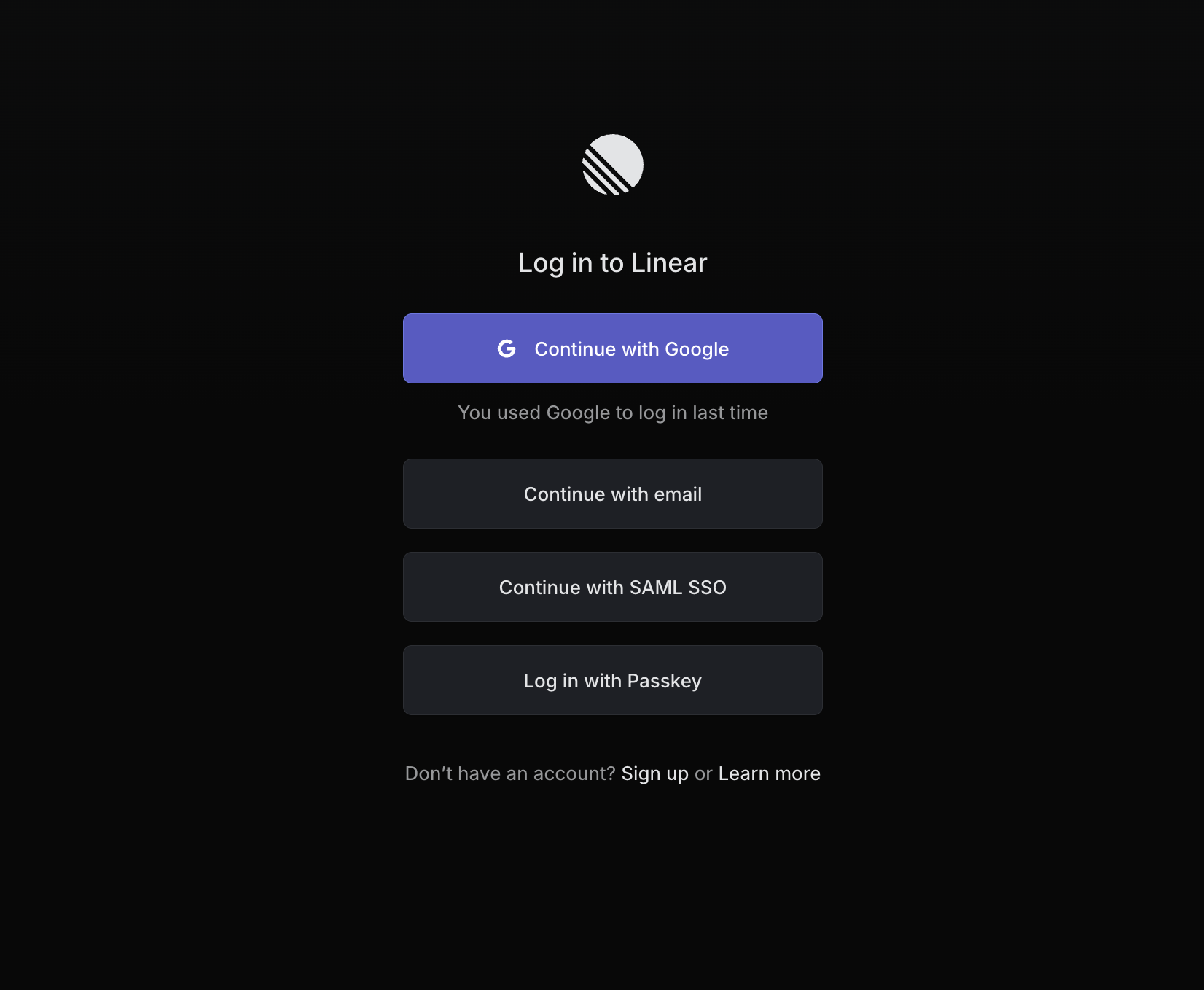
If Linear asks you to log in, log in to the Linear workspace you want to connect.
-
After Linear redirects you to Promptless, confirm that Linear shows as connected on the Integrations page.
Limit Promptless to specific teams
Section titled “Limit Promptless to specific teams”Promptless can read every team in the connected Linear workspace. To keep it to the teams that hold relevant work, scope the Linear context source:
-
On the Context sources tab of the Configuration page, expand the Linear source. If it isn’t listed, select Add a context source, and then select Linear.
-
In Which Linear teams should Promptless read?, add the key of each team.
-
Select Save changes. For a new source, select Add context source.
In YAML, the scope is the team_keys list on a linear entry:
context_sources: linear: source_type: linear team_keys: - engineering - productAn entry with no team keys, or no entry, gives Promptless the whole workspace. For every context source field, see the Configuration Reference.
See also
Section titled “See also”- Linear integration, for the authentication model and how to reconnect Linear
- Jira, to read issues when your team tracks work in Jira
- Context sources, to compare every context source Promptless supports