

Customize notifications
Overview
Section titled “Overview”Promptless posts a notification to Slack or Microsoft Teams when a documentation suggestion is ready for review. Customize notifications to:
- Send suggestion notifications to the channels your team watches, per doc collection.
- Send escalations, the messages about configuration and access problems that block Promptless, to a separate channel or email address.
- Change when Promptless notifies and what its messages contain.
Before you start
Section titled “Before you start”- An admin role in your Promptless organization, to edit the Configuration page and the Agent Knowledge Base.
- Slack or Microsoft Teams, connected to Promptless.
Choose notification channels
Section titled “Choose notification channels”Set the default notification channel in the policies section on the Configuration page, and add rules that override it for specific doc collections or triggers:
policies:  default:    notification:      slack_channel: docs-updates      msteams_channel: "19:0a1b2c3d@thread.tacv2"
  rules:    - if:        doc_collection: acme/internal-docs      then:        notification:          slack_channel: internal-docs-team
Slack channel names don’t need the # prefix. When a Slack channel is renamed, Promptless updates your configuration automatically. slack_channel and msteams_channel are independent, so a policy can notify Slack, Teams, both, or neither.
Disable an inherited channel
Section titled “Disable an inherited channel”A rule can turn off a channel that it would otherwise inherit from policies.default or an earlier rule by setting the field to null:
policies:  default:    notification:      slack_channel: docs-updates
  rules:    - if:        doc_collection: acme/internal-docs      then:        notification:          slack_channel: null
Here, suggestions for acme/internal-docs send no Slack notification, while every other collection still notifies docs-updates. Setting slack_channel: null disables the inherited channel, and omitting the field inherits it. msteams_channel works the same way, and you disable each channel independently.
Notify a Microsoft Teams channel
Section titled “Notify a Microsoft Teams channel”To announce suggestions in a Teams channel, set msteams_channel in a policy. Teams channels are addressed by their conversation ID, a value that looks like 19:…@thread.tacv2. Copy it from Teams. It’s the same ID you use for an msteams_listen trigger.
See the Configuration Reference for the complete policies schema.
Escalation channel
Section titled “Escalation channel”Escalation channels receive problem reports, which describe configuration and operational problems that someone on your team needs to fix. Promptless sends two kinds:
- A trigger problem is one Promptless hits while working on a trigger. For example, a PR references a Jira issue Promptless can’t read because the Jira integration isn’t connected. Or the test account lacks the feature flags to reach a screen Promptless needs to screenshot.
- A connection alert comes from the daily connection check, such as an integration that needs reconnecting.
Route problem reports to a dedicated channel on Slack, Teams, or both, with an escalation section next to notification. It takes the same channel fields, plus email:
policies: default: notification: slack_channel: docs-updates msteams_channel: "19:0a1b2c3d@thread.tacv2" escalation: slack_channel: docs-escalations msteams_channel: "19:4e5f6a7b@thread.tacv2" email: - docs-team@example.comProblem reports reach these channels even when suggestion notifications are off or no notification channel is set. slack_channel routes them to Slack; msteams_channel routes them to Teams.
If escalation leaves out a platform’s channel, trigger problems go to your notification channel on that platform instead. Connection alerts never do. The next section spells out the rules.
When problem reports go to the notification channel
Section titled “When problem reports go to the notification channel”Promptless picks the destination for Slack and for Teams separately. On each platform, a problem report goes to the notification channel only when all three of these are true:
- It’s a trigger problem. Connection alerts never go to a
notificationchannel. escalationleaves out that platform’s field:slack_channelfor Slack,msteams_channelfor Teams. If the field names a channel, the report goes there. If the field isnull, the report goes nowhere on that platform.- A
notificationchannel is set for that platform for the trigger.
Promptless resolves both sections for a trigger problem from policies.default plus the rules that match the trigger. Connection alerts use only the escalation channels in policies.default; rules don’t change where they go.
When someone asks Promptless for the work by tagging it in a Slack or Teams thread, Promptless reports a trigger problem in that thread instead.
For example, this policy sets an escalation channel for Slack and leaves Teams out:
policies: default: notification: slack_channel: docs-updates msteams_channel: "19:0a1b2c3d@thread.tacv2" escalation: slack_channel: docs-escalations| Problem report | Slack | Teams |
|---|---|---|
| A PR references a Jira issue Promptless can’t read | docs-escalations | 19:0a1b2c3d@thread.tacv2 (notification channel) |
| The connection check finds GitHub needs reconnecting | docs-escalations | Nothing |
To keep the Jira problem out of Teams, add msteams_channel: null under escalation.
To also escalate by email, list one or more addresses under escalation.email. Promptless emails only the addresses you list, and only for escalations. Suggestion notifications don’t use email, and notification has no email setting, so Promptless emails escalations only when you set escalation.email. Email escalation requires email delivery for your deployment. It’s on by default for Promptless-hosted deployments, and self-hosted deployments must configure it.
Trigger problems include blockers such as these:
- A test or staging account that can’t reach a needed screen
- An unreachable or unconfigured integration
- An expired or rejected credential
- A missing permission
- A configuration mismatch
Every escalation opens with a bold banner line that names its kind:
Blocked — one thing needed from you: A blocker names the resource, quotes what Promptless saw, and notes any workaround it applied. It ends with aNeed:line naming the one action that clears the blocker and aNext:line saying what happens once you answer.Heads up — worth a look: A pointer names something Promptless noticed that you can act on. For example, a published page might link to an anchor that no longer exists. It ends with oneSuggested:action.
Notification preferences file
Section titled “Notification preferences file”Promptless reads the doc_workflow/notification_preferences.md file in your Agent Knowledge Base whenever it writes a notification. Write your preferences there in plain language. Anything you leave out keeps Promptless’s default behavior.
To edit the file, open Settings in the Promptless dashboard, select Agent Knowledge Base, and open doc_workflow/notification_preferences.md.
What you can customize
Section titled “What you can customize”The preferences file overrides these defaults:
- When to notify. Which events send notifications, and when to skip them.
- Delivery. Where a notification goes, such as a reply in the originating Slack thread or a comment on the GitHub pull request.
- Message format. The fields, order, and links your suggestion notifications carry. A format you state replaces the default format completely.
Example customizations
Section titled “Example customizations”Teams commonly add instructions like these:
Change notification timing:
Only send notifications for suggestions that modify more than one file.Skip notifications for automated triggers that don't yield documentation updates.Adjust delivery preferences:
Always reply in the originating Slack thread when the trigger came from Slack.Use GitHub comments when reviewers are already engaged with the source PR.Customize message style:
Use a casual, friendly tone in all notification messages.Include enough context that someone new to the thread can understand why Promptless is posting.An instruction that only sets tone, like this one, keeps the default fields and links and changes how the message reads.
Define a message format:
Format suggestion notifications as:What changed: <one-line summary>Promptless suggestion: <dashboard link>MR: <docs PR/MR link>Assigned: <assignee>cc: <mentions>A full format like this one replaces the default message format. Promptless posts exactly the fields and links you list, in the order you list them, and adds nothing else. The example lists no Knowledge Base link, so its notifications carry none. A stated format applies to suggestion notifications only. Escalations keep their own format, and a blocker always ends with what Promptless needs from you and what happens next. A mention rule you state applies to every message Promptless sends.
When no format is stated, Promptless sends one or two sentences on what changed and why, followed by labeled link lines:
<what changed and why it changed>
Triggered by: <link to the pull request, merge request, or ticket that started the work>Review: <dashboard suggestion URL>Docs PR: <docs pull request or merge request URL>Recorded: <Knowledge Base file URL>Open question: <a decision only you can make>
Recorded: repeats once for each Knowledge Base file the work changed. Open question: appears at most once, and only when a decision rests with you alone. Promptless leaves out any line that has no value for a given notification. A requested mention still appears where one applies. This default format applies when the preferences file is absent or still holds only its placeholder text. If the file exists but can’t be read, Promptless holds the notification and sends nothing in the default format.
A message can name a ticket, issue, or merge-request key, such as INC-879. When Promptless knows that key’s target, it renders the key as a link. The ticket that started the work is one such target. Any other key stays plain text. This linking adds no field, so it also applies when you’ve stated your own format.
Slack notification features
Section titled “Slack notification features”In Slack, Promptless posts each suggestion notification as a preview card. Select the card to open the suggestion in Promptless, or use its buttons to publish the suggestion or open its PR without leaving Slack.
Suggestion preview cards
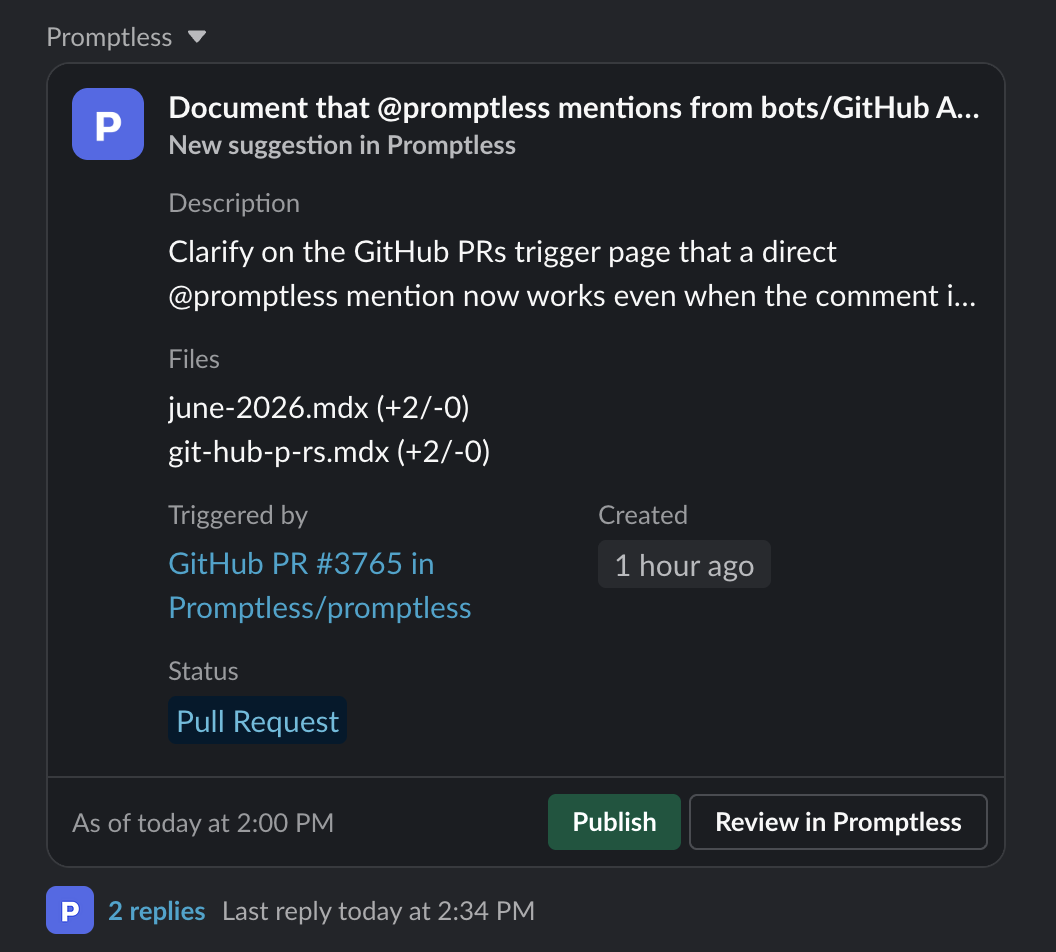
Section titled “Suggestion preview cards”Each preview card shows:
- Title: The suggestion title
- Status badge: Shows “New suggestion” for first notifications or “Updated suggestion” for follow-ups
- Description: A short excerpt of the suggestion description
- Triggered by: A descriptive label linking to the source that triggered the suggestion. Examples include “Merged GitHub PR #123 in acme/docs” or “Slack direct @mention”
- Files: The number of files changed
- Status: The current suggestion lifecycle status (Open, Pull Request, Published, or Rejected)
Direct messages to MCP submitters
Section titled “Direct messages to MCP submitters”Someone can submit a documentation task through an MCP editor, such as Claude Code or Cursor. Promptless then sends that person a Slack direct message when the suggestion is ready for review. The suggestion then isn’t also posted to the channel. Direct messages to submitters are available in Slack only.
If Promptless can’t reach the submitter by direct message, it posts to the configured notification channel. That happens when Slack isn’t connected, the users:read.email permission is missing, or no Slack account matches the submitter’s email.
Weekly digest
Section titled “Weekly digest”Every Friday at 15:00 UTC, Promptless posts a weekly digest for each doc collection to that collection’s Slack notification channel. Use it to follow up on suggestions still waiting for review, especially ones assigned to someone. The schedule is fixed. A collection with no Slack notification channel or no open suggestions gets no digest. To stop the digest for one collection, disable that collection’s Slack notification channel. That also stops the collection’s Slack suggestion notifications.
The digest counts the collection’s open and assigned suggestions and lists up to five of them, assigned ones first. If archiving is on, it flags the suggestions due to be archived the following Monday. To see every assigned suggestion in the collection, select View assigned suggestions in the digest.
The digest names the assignees of the collection’s open suggestions. It @-mentions an assignee only when their Slack account is verified on the People page. For other assignees, the digest links to the People page. To have the digest mention those assignees, an admin can confirm or add their Slack account, or the assignees can link their own.
Post status updates in Slack threads
Section titled “Post status updates in Slack threads”Promptless knows when a suggestion resolves. Its docs PR merges or closes, someone closes the suggestion in the dashboard, or Promptless archives it after a period of inactivity. To have Promptless reply in the suggestion’s Slack thread when that happens, give it an instruction. The people who asked for the update then see how it ended.
Add the instruction to PROMPTLESS.md in your Agent Knowledge Base. Promptless reads that file at the start of every session. Write it as an “If, then” hook, the same form that activates a custom task. For example:
If a suggestion's docs PR merges or closes, or a suggestion is closed or archived,then reply in the Slack thread where you announced that suggestion. Say how itresolved and link the docs PR.Narrow the hook to the cases your team cares about, such as merged suggestions only or suggestions in one doc collection. You can also ask Promptless to add the instruction for you, from Slack, Microsoft Teams, or the dashboard’s New Task page.
See also
Section titled “See also”- Shape how Promptless communicates with your team, for every message Promptless sends and how to steer each one
- Configuration Reference, for every notification and escalation field
- Route and assign suggestions to the right people, for who Promptless notifies and assigns
- Slack integration, for Slack permissions and private channel access
- Microsoft Teams integration, for how Promptless accesses Teams channels
- Get support, for help setting up notification preferences