

GitHub commits
Overview
Section titled “Overview”A GitHub commit trigger starts documentation work from commits pushed to a branch you monitor. Promptless reads each commit’s diff and message, and creates documentation suggestions when the change needs a documentation update. Add one when changes reach your default branch without a pull request:
| Use case | Why a commit trigger fits |
|---|---|
| Changelog monitoring | Updates documentation when changelog files change. Scope it with trigger_directories. |
| Hotfix documentation | Catches documentation needs from emergency fixes that skip the normal PR process. |
| Direct-to-main workflows | Covers teams that commit directly to the default branch. |
| Automated updates | Starts documentation updates from commits that automated processes push. |
This guide covers choosing between commit and PR triggers, adding the trigger, and setting how Promptless notifies you and publishes its suggestions.
Before you start
Section titled “Before you start”- An admin role in your Promptless organization, to connect GitHub and edit the Configuration page.
- The GitHub organization that holds the repositories you want to monitor, connected to Promptless. Promptless can’t save a GitHub commit trigger until it is. If the organization isn’t connected yet, connect it first.
Connect GitHub
Section titled “Connect GitHub”Skip this section if the organization already has a card on the Integrations page.
You need an admin role in your Promptless organization to start a GitHub connection. GitHub then asks you to authorize the Promptless GitHub App with your GitHub account. The connection completes only if that account administers the organization or account you connect. For a GitHub organization, that’s an organization owner. For a personal account, it’s the account owner.
On GitHub Enterprise Server, or on GitHub Enterprise Cloud when a policy blocks third-party apps, connect through a custom GitHub App. See GitHub Enterprise integration.
-
In the Promptless dashboard, open the Integrations page.
-
Select Connect GitHub.
-
In GitHub, select the organization to install Promptless into.
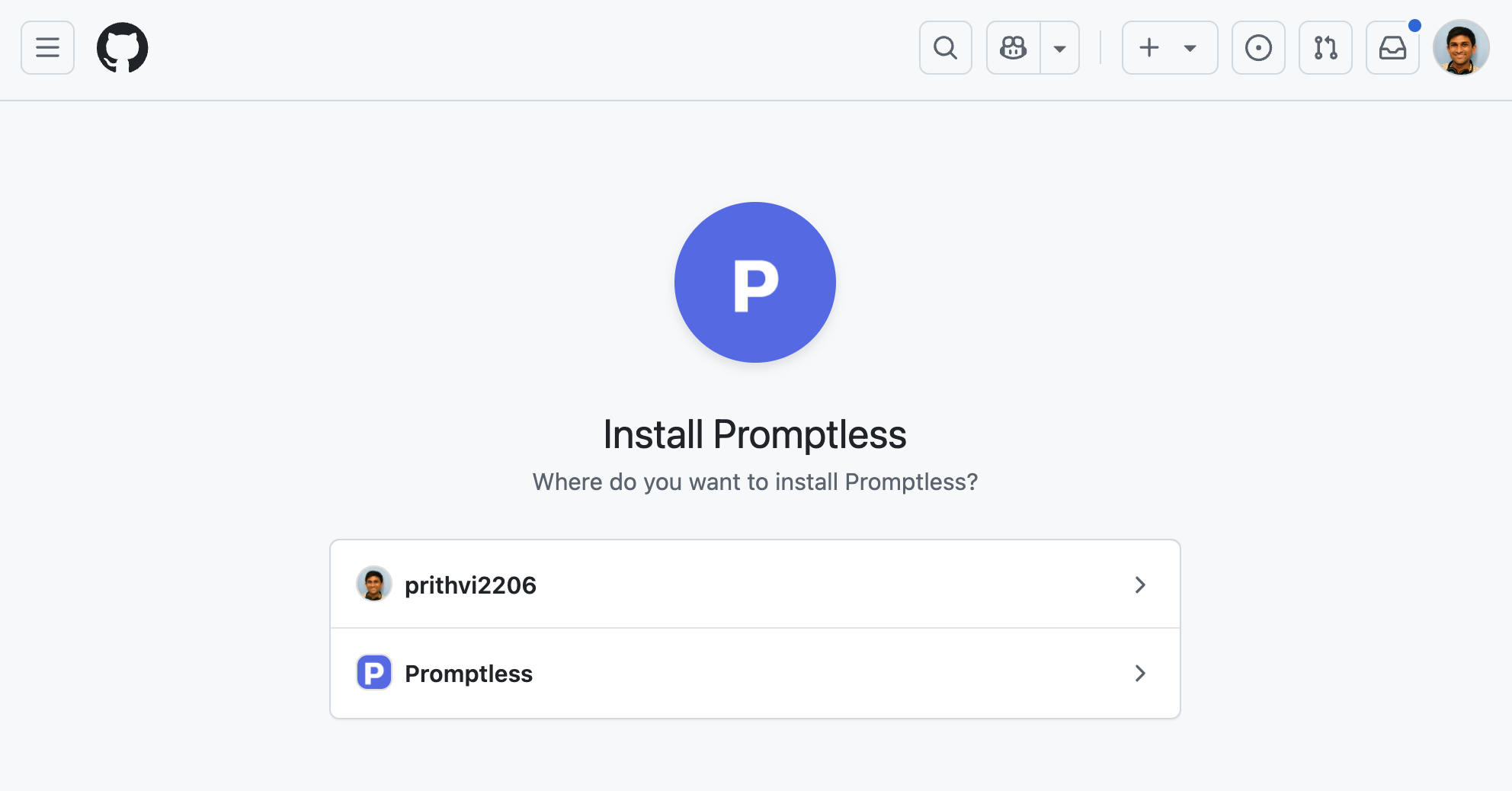
-
Select the repositories Promptless can access. These are typically your source code repositories and, if your docs live in GitHub, your documentation repository.
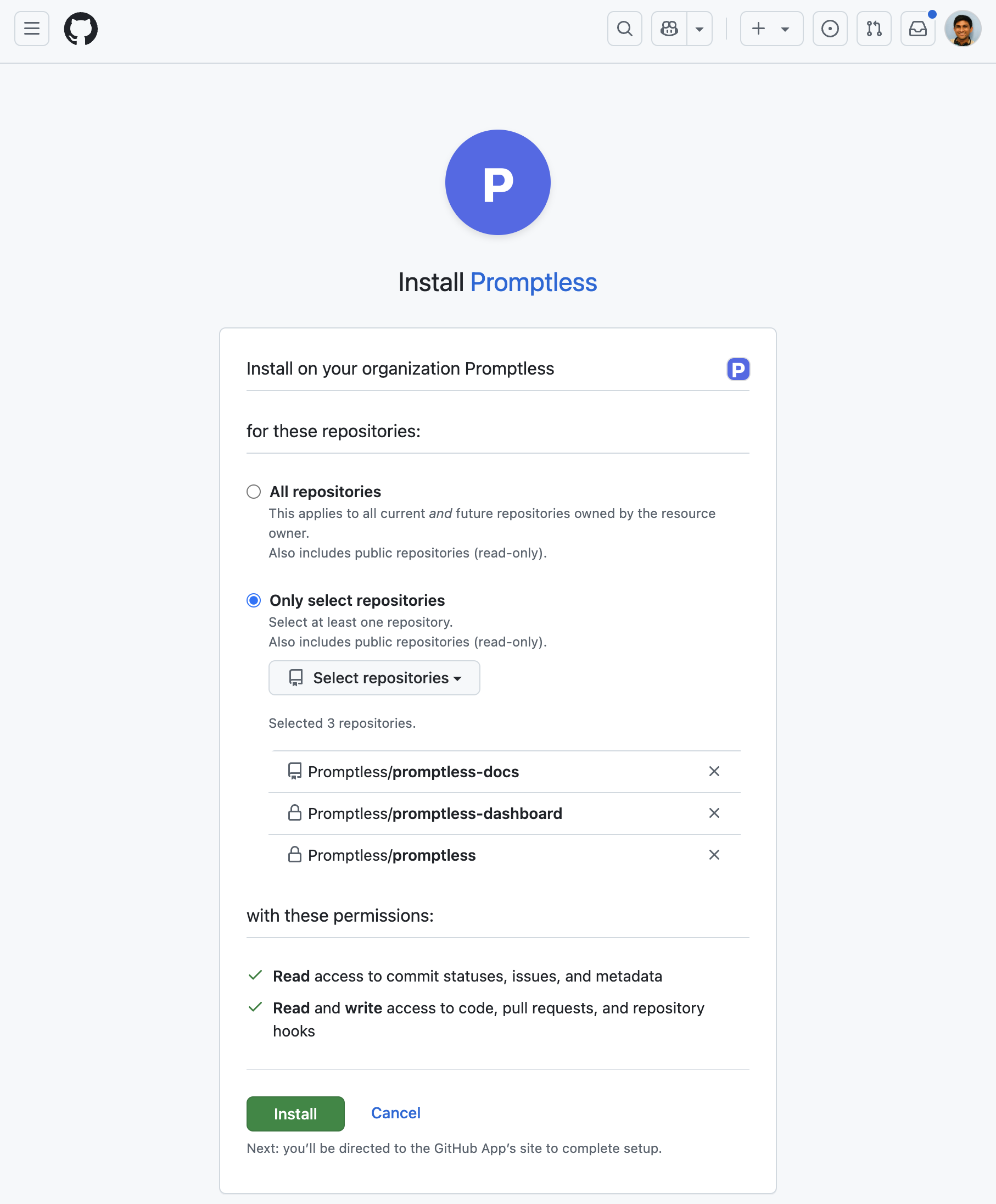
-
On the Integrations page, confirm that the organization appears on its own card.
The connection link stays valid for one hour. If it expires before you finish, start the connection again from the Integrations page.
Some GitHub organizations require an owner’s approval to install a third-party app. If yours does and you aren’t an owner, GitHub asks you to request approval. To connect in that case:
-
Complete GitHub’s approval request flow. The GitHub card on the Integrations page shows Waiting on an organization owner while the request is open.
-
Ask a GitHub organization owner to approve the Promptless GitHub App in the organization’s Third-party Access settings.
-
After the owner approves, confirm that the organization appears on its own card. Promptless connects the approved installation automatically. To check right away, select Check for approval on the card.
If GitHub can’t reuse the approved installation, uninstall the Promptless GitHub App in GitHub, and connect again.
If your GitHub organization enforces an IP allow list, GitHub blocks requests from Promptless until an owner allows them. See Organization IP allow lists.
Choose commit triggers, PR triggers, or both
Section titled “Choose commit triggers, PR triggers, or both”A commit trigger activates on commits pushed to a monitored branch. A GitHub PR trigger activates on pull request activity. The two overlap in a standard GitHub workflow. When a pull request merges, its merge commit lands on the default branch. The commit trigger then activates along with the PR trigger’s merge event.
Use a commit trigger on its own or alongside PR triggers for the same repositories:
| Setup | When Promptless runs | Comments on PRs | Choose it when |
|---|---|---|---|
| Commit and PR triggers | While the PR is open, and again after it merges | Yes | You want documentation feedback during review, and suggestions updated with the final merged content. |
| Commit trigger only | After changes merge to the monitored branch | No | PR triggers create too much notification noise. Send notifications to a Slack channel to hear about new suggestions. |
Add a commit trigger
Section titled “Add a commit trigger”-
On the Configuration page, switch to YAML mode.
-
In the
triggerssection, add agithub_committrigger with a match clause for the repositories you want to monitor:triggers:main-commits:trigger_type: github_commitmatch:- repos:- acme/backend- acme/frontendbranches:- main # omit to match only the repository's default branchtrigger_directories:- src/- lib/ -
Save the configuration.
Each match clause takes these fields:
| Field | Required | Description |
|---|---|---|
repos | Yes | The repositories to monitor, or the literal all. |
branches | No | The branches to monitor. Omit it to monitor only each repository’s default branch. |
trigger_directories | No | Only commits that change files in these directories trigger documentation updates, such as a changelog directory. |
For every field, including repository exclusions and topic and owner filters, see the Configuration Reference.
Set how Promptless publishes suggestions
Section titled “Set how Promptless publishes suggestions”Commit triggers don’t comment on PRs, so tell Promptless where to report suggestions and how far to automate publishing. Set these options in your publishing policies:
| Option | Policy setting | Effect |
|---|---|---|
| Slack notifications | notification.slack_channel | Posts to a Slack channel when Promptless creates or updates suggestions. |
| Automatic PR creation | publishing.auto_create_pr | Opens a documentation PR for each suggestion. |
| Auto-merge | publishing.auto_merge | Merges documentation PRs into the default branch as soon as Promptless creates them. Requires automatic PR creation. |
Send notifications to a Slack channel
Section titled “Send notifications to a Slack channel”For a private Slack channel, first invite Promptless by tagging @Promptless in the channel. Then set the channel in a policy:
policies: default: notification: slack_channel: docs-updatesTurn on auto-merge mode
Section titled “Turn on auto-merge mode”Auto-merge publishes documentation PRs without human review. Use it for internal documentation, high-confidence workflows that want full automation, or changelog updates that should publish immediately.
Turn on both automatic PR creation and auto-merge in a policy rule scoped to the commit trigger:
policies: rules: - if: trigger: main-commits then: publishing: auto_create_pr: true auto_merge: trueSee also
Section titled “See also”- GitHub integration, for repository access, IP allow lists, and the authentication model
- GitHub PRs, to start documentation work from pull request activity
- Triggers, for how triggers work and how to follow what one did
- Configuration Reference, for every trigger and policy field