

GitHub Enterprise integration
Overview
Section titled “Overview”Create a custom GitHub App for Promptless when your organization uses GitHub Enterprise Server (self-hosted). Do the same on GitHub Enterprise Cloud when a policy blocks third-party GitHub Apps. You register the app in your enterprise environment, and Promptless connects to your repositories through it.
In the steps below, you register and configure the app, allow Promptless IP addresses through your firewall, and generate credentials. Then you install the app and connect it in the Promptless dashboard.
Before you start
Section titled “Before you start”- GitHub Enterprise admin access, to create and configure GitHub Apps.
- A GitHub Enterprise instance that Promptless can reach at a public HTTPS address. See Hostname requirements.
- A secure place to store the private key and client secret you generate in Step 7.
Hostname requirements
Section titled “Hostname requirements”Promptless connects to your instance from its own infrastructure. The GitHub Enterprise URL you enter must point to a publicly reachable GitHub Enterprise server over HTTPS. You can still restrict access to the Promptless IP addresses. GitHub Enterprise Server instances reachable only from inside a private network aren’t supported through this integration.
Promptless validates the hostname when you connect the integration and again each time the connection refreshes. It rejects the hostname, and stores nothing, if the URL:
- uses any scheme other than HTTPS.
- embeds a username or password.
- resolves to a private, internal, loopback, or otherwise non-routable address, whether directly or through DNS.
- does not respond as a genuine GitHub Enterprise server.
Enter the same public host you use to reach your instance in a browser, such as github.example.com. Promptless adds the API path for you.
Step 1: Register a new GitHub App
Section titled “Step 1: Register a new GitHub App”-
In your GitHub Enterprise admin settings, go to GitHub Apps and select New GitHub App.
-
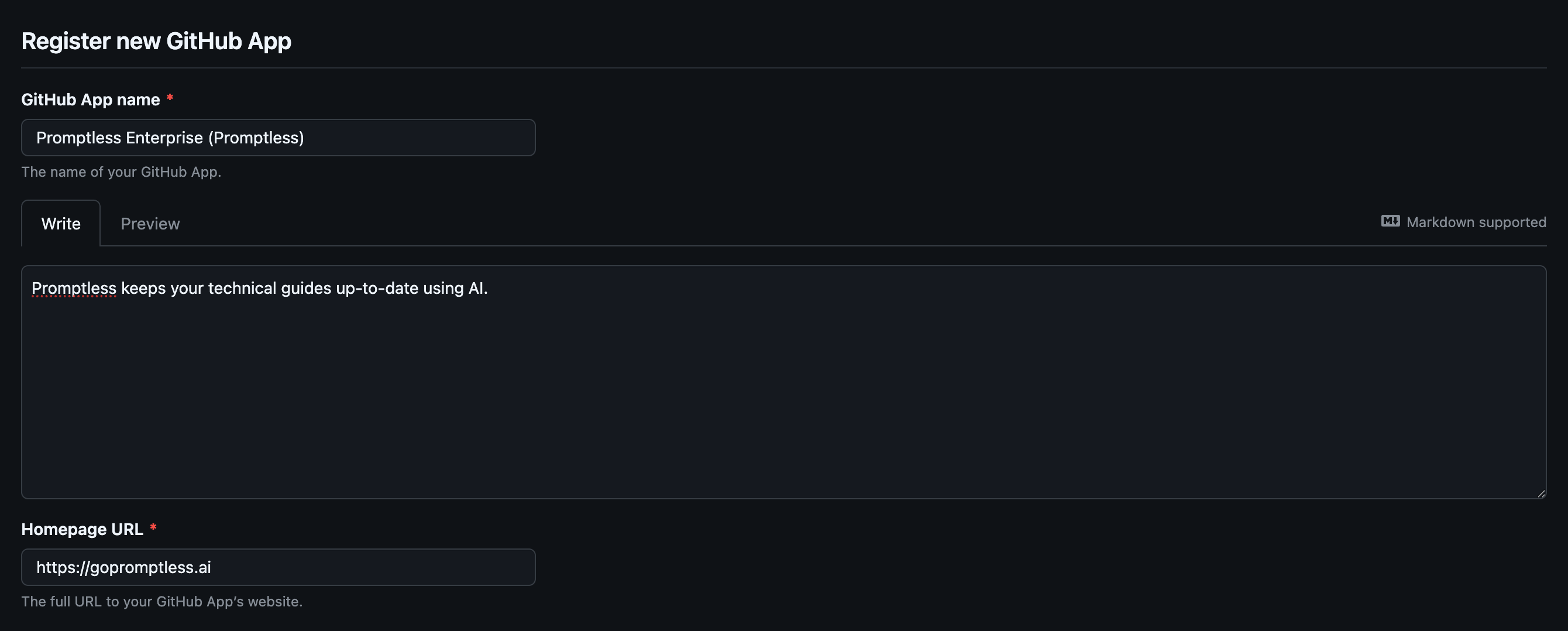
Fill in the basic app information:
-
GitHub App name (required): a descriptive name, such as
Promptless EnterpriseorPromptless (Your Company Name). -
Description:
Promptless keeps your technical guides up-to-date using AI. -
Homepage URL (required):
https://gopromptless.ai
-
Step 2: Configure authentication URLs
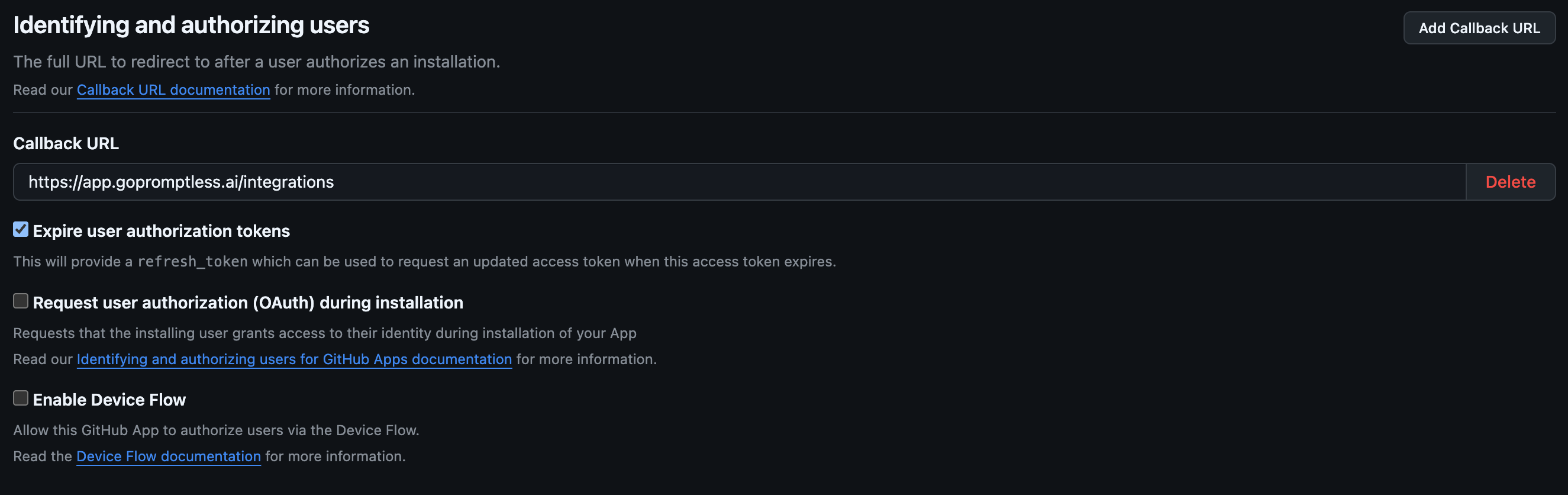
Section titled “Step 2: Configure authentication URLs”Promptless uses these URLs to complete authentication and return you to the dashboard after you install or update the app.
-
Set Callback URL (required) to
https://app.gopromptless.ai/integrations. -
Set Setup URL (Post installation) (required) to
https://app.gopromptless.ai/integrations/github-redirect. -
Select Redirect on update, so users return to the setup URL when an installation changes, such as when repositories are added or removed.

Step 3: Configure webhook settings
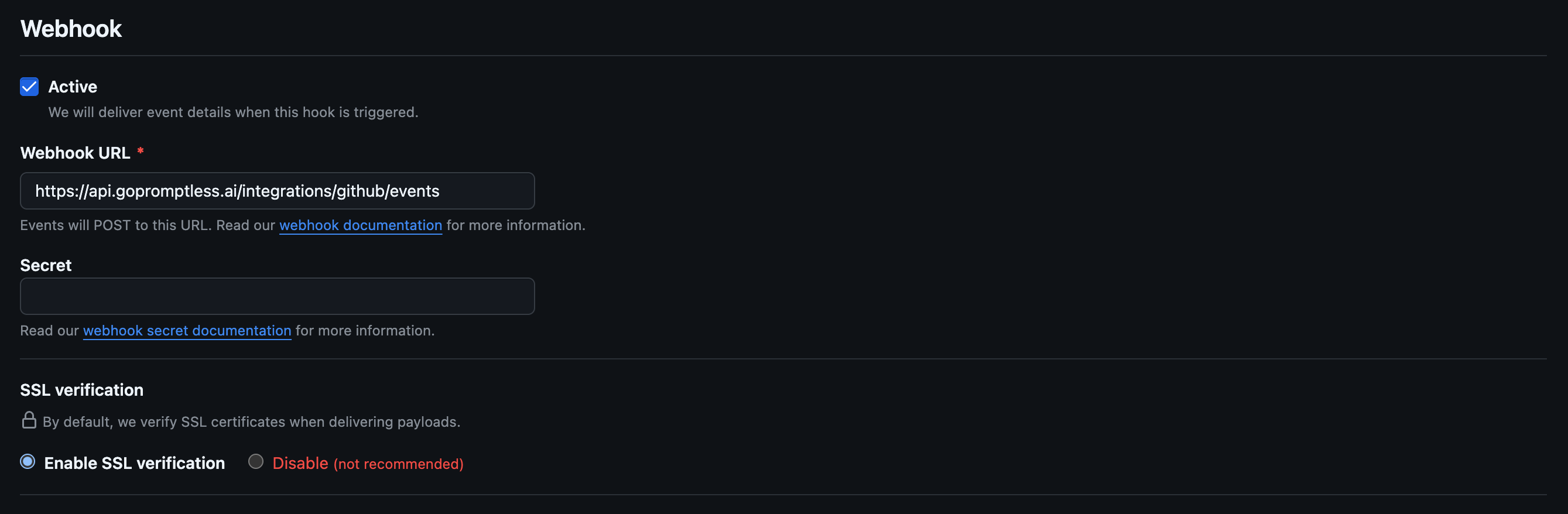
Section titled “Step 3: Configure webhook settings”The webhook delivers repository events from GitHub Enterprise to Promptless as they happen.
- Webhook URL (required):
https://api.gopromptless.ai/integrations/github/events - Webhook secret (optional): leave it empty, or generate a secure secret if your security policies require one.
- SSL verification (required): enable it.
Step 4: Configure repository permissions
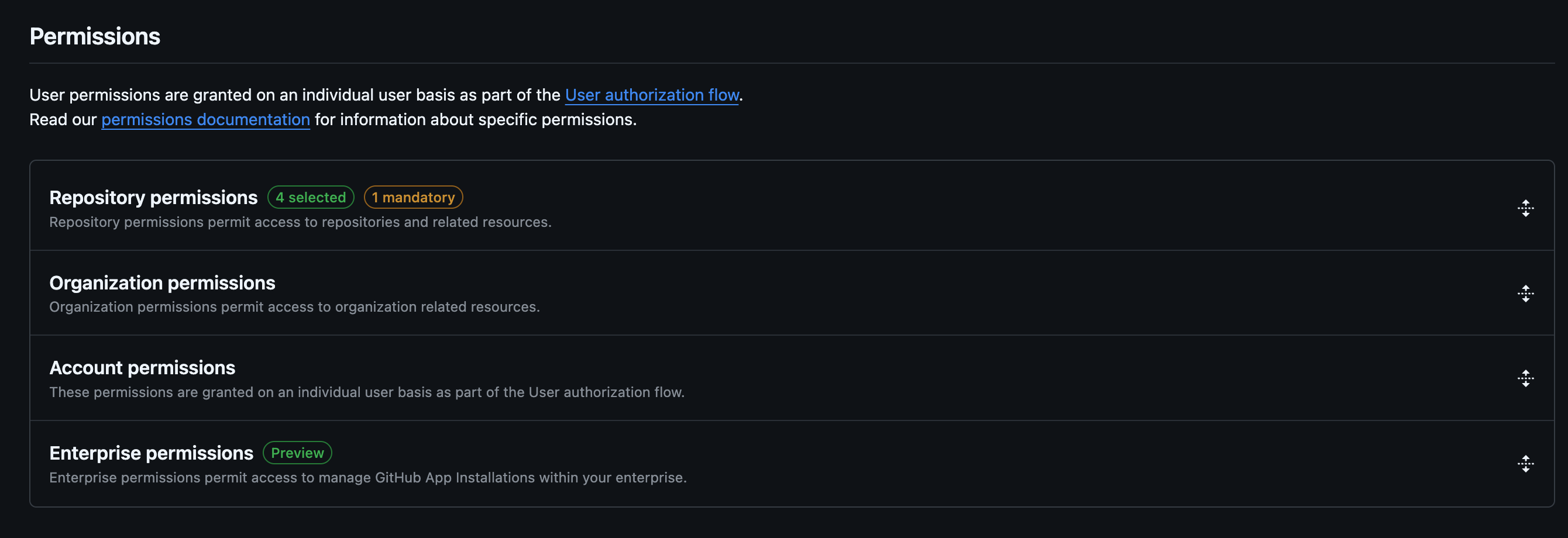
Section titled “Step 4: Configure repository permissions”Grant the app these repository permissions:
| Permission | Access | What Promptless uses it for |
|---|---|---|
| Pull requests | Read and write | Reads pull request content and metadata, opens documentation pull requests, and comments on pull requests. |
| Contents | Read and write | Reads repository files and structure, and creates and updates documentation files. |
| Commit statuses | Read-only | Reads the status of commits and pull requests. |
| Checks | Read-only | Receives check suite events and reads failing check runs, so it can fix CI failures on its documentation pull requests. |
| Issues | Read-only | Reads repositories and pull requests while it researches changes, and receives pull request comments, such as feedback on a documentation pull request. |
| Webhooks | Read and write | Manages webhook configuration and receives repository events as they happen. |
Without the Checks permission, Promptless can’t detect or fix CI failures on its documentation pull requests.
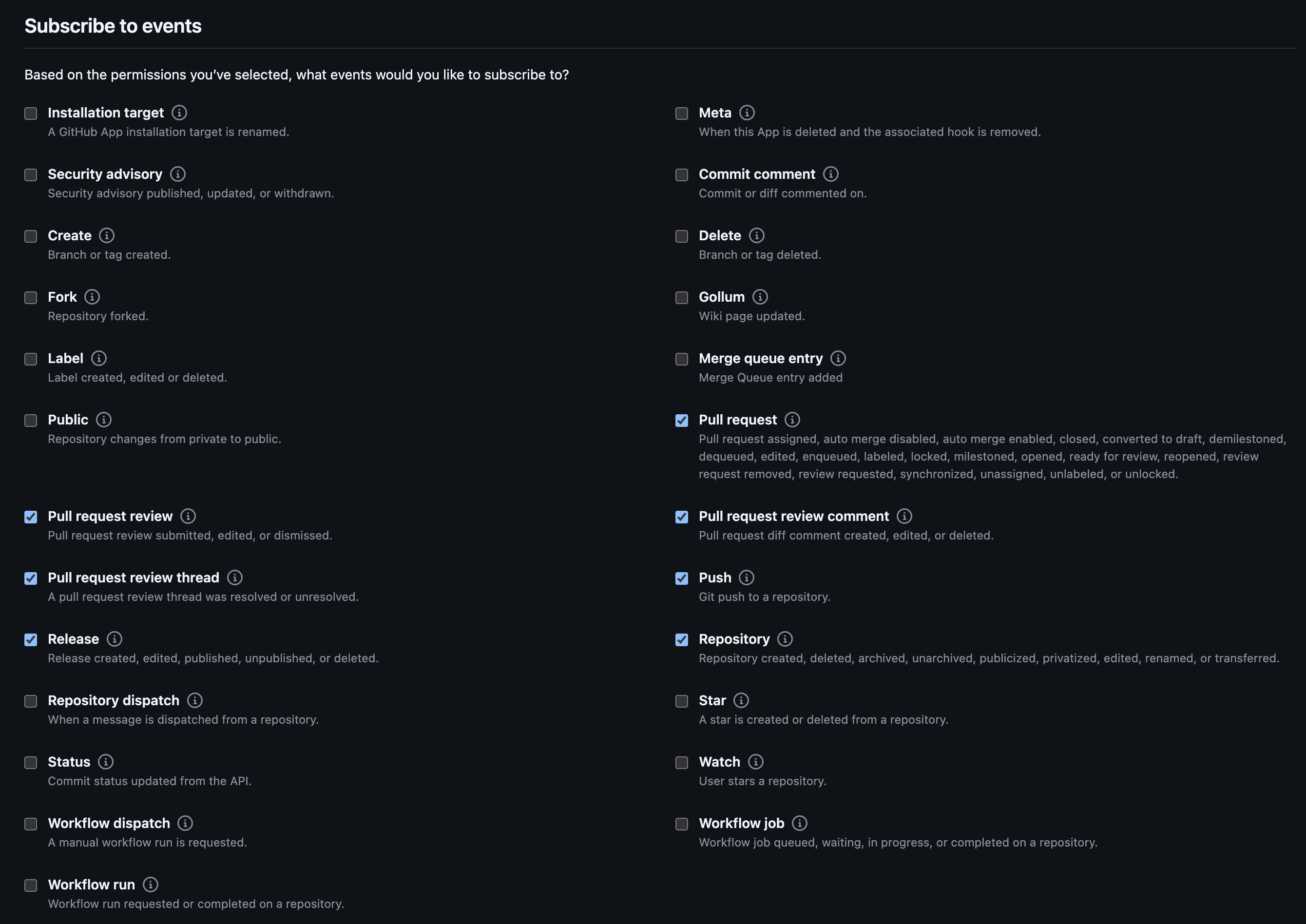
Step 5: Subscribe to webhook events
Section titled “Step 5: Subscribe to webhook events”Select these events, so Promptless receives every notification it acts on:
| Event | Sent when |
|---|---|
| Pull request | A pull request is opened, updated, or closed. |
| Pull request review | A pull request review is submitted. |
| Pull request review thread | A review thread is created or updated. |
| Pull request review comment | A review comment is made. |
| Issue comment | A comment is added to a pull request, including feedback on a documentation pull request. |
| Check suite | CI checks finish, so Promptless can fix failures on its documentation pull requests. Requires the Checks permission from Step 4. |
| Push | Code is pushed to a repository. |
| Release | A release is created or updated. |
| Repository | Repository settings change. |
Step 6: Allow Promptless IP addresses
Section titled “Step 6: Allow Promptless IP addresses”If your GitHub Enterprise instance is behind a firewall or uses IP restrictions, add these addresses to your allow list. Promptless needs them for webhook delivery and API calls. If they’re blocked, Promptless can’t receive GitHub events or access your repositories.
3.143.177.1033.131.121.2503.13.184.17518.223.104.40API requests from Promptless appear in your GitHub Enterprise logs from 3.143.177.103, the primary egress address (NAT gateway) for Promptless infrastructure.
Step 7: Generate credentials
Section titled “Step 7: Generate credentials”On the GitHub App settings page, generate the credentials you enter when you connect Promptless:
-
At the bottom of the page, select Generate a private key, and save the downloaded
.pemfile. -
In the Client secrets section, select Generate a new client secret, and copy the secret.
-
Note the App ID at the top of the page, and the Client ID from the same settings page.
Step 8: Install the app
Section titled “Step 8: Install the app”-
Install the GitHub App on your organization.
-
Choose the repositories Promptless can access.
-
Complete the installation, and note the installation ID.
Step 9: Connect the app to Promptless
Section titled “Step 9: Connect the app to Promptless”Have these values ready:
| Value | Where to find it |
|---|---|
| GitHub Enterprise URL | Your instance’s public host. See Hostname requirements. |
| App ID and Client ID | Your GitHub App settings |
Client secret and private key (.pem file) | Step 7 |
| Installation ID | Step 8 |
Then connect the integration:
-
In the Promptless dashboard, open the Integrations page.
-
On the GitHub Enterprise tile, select Connect GitHub Enterprise, and enter the values.
When the connection succeeds, the dashboard confirms that the GitHub Enterprise integration is active. If the hostname fails validation, the connection fails with an error.
Troubleshoot the connection
Section titled “Troubleshoot the connection”Webhook deliveries fail
- Confirm that the Promptless IP addresses are allowed.
- Check that your GitHub Enterprise instance can reach the webhook URL.
- Make sure the SSL verification setting matches your security requirements.
- Review the GitHub Enterprise logs for webhook delivery errors.
Authentication fails
- Check the callback and setup URLs from Step 2.
- Confirm that the private key and client secret are valid.
- Check that the App ID matches your GitHub App.
- Confirm that the installation completed.
Promptless reports permission errors
- Confirm that every permission in Step 4 is granted.
- Check that the app is installed on the right repositories.
- Confirm the webhook events from Step 5.
- If Promptless doesn’t fix failed CI checks on its pull requests, confirm the Checks read-only permission and the Check suite event.
- Check that users have access to the repositories.
For help with configuration or troubleshooting, email help@gopromptless.ai. For other questions, email hello@gopromptless.ai.
See also
Section titled “See also”- GitHub integration, for standard GitHub.com organizations
- Source control, to compare GitHub, GitHub Enterprise, and GitLab connections
- GitHub pull requests, to start documentation updates from pull requests