

Atlassian integration
Used for: Context and triggers
Permissions required
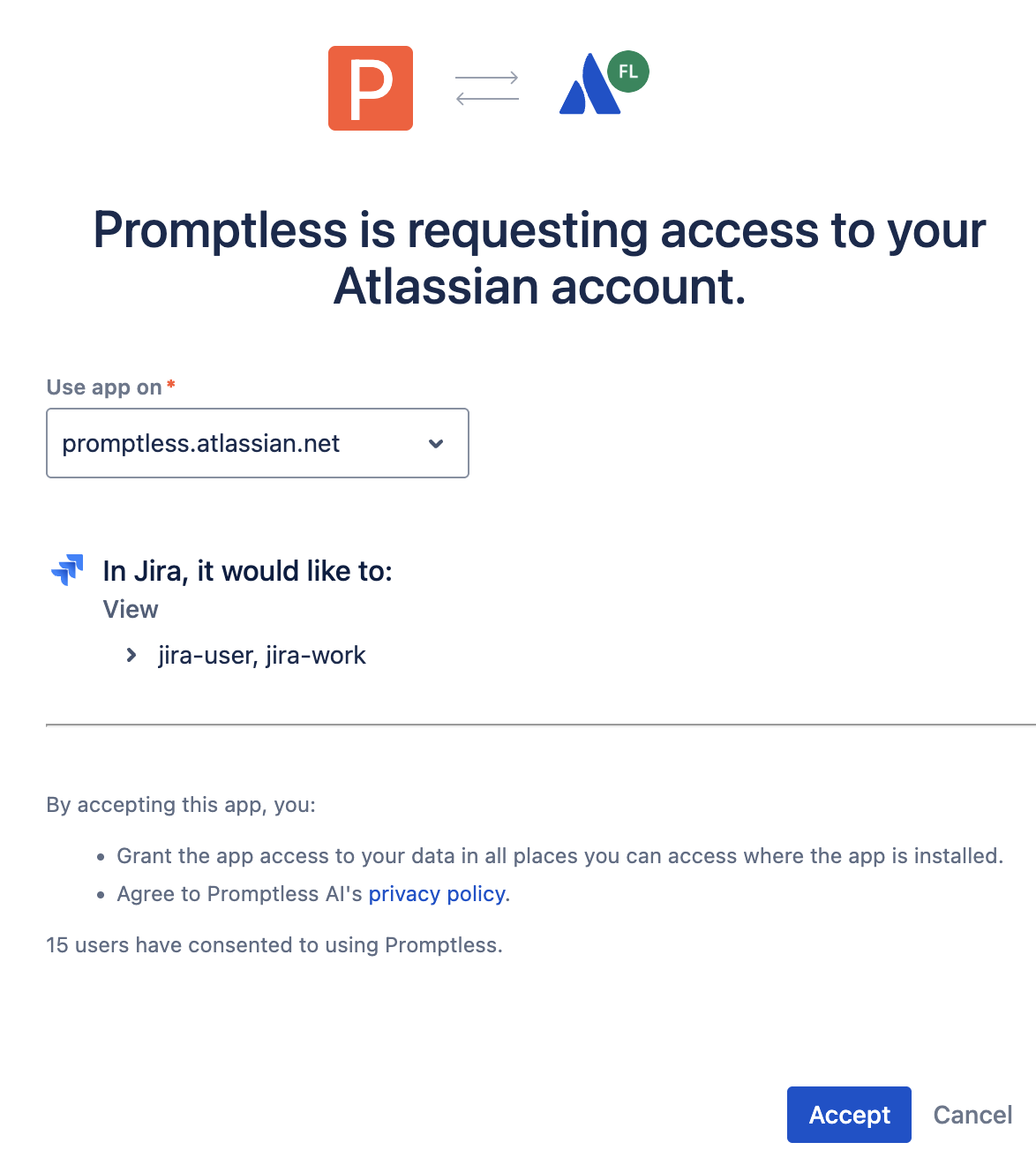
Section titled “Permissions required”The OAuth consent screen displays the permissions Promptless requests when you connect Atlassian. Promptless requests only the scopes needed to read Jira issues and Confluence pages for documentation context.
Jira scopes
Section titled “Jira scopes”| Scope | Purpose |
|---|---|
read:jira-work | Read Jira issues, projects, and work data |
write:jira-work | Reply on a ticket and attach the documentation PR as a remote link when a Jira trigger runs. Also create a Jira issue on request |
read:jira-user | Read user information for issue context |
Confluence scopes
Section titled “Confluence scopes”| Scope | Purpose |
|---|---|
read:confluence-space.summary | Read space names and metadata |
read:confluence-content.all | Read page content for documentation context |
read:space:confluence | Read space information (granular scope) |
read:page:confluence | Read individual pages (granular scope) |
read:content:confluence | Read content body (granular scope) |
search:confluence | Search spaces with CQL to find relevant pages (granular scope) |
read:content-details:confluence | Read content metadata returned by search (granular scope) |
Additional scopes
Section titled “Additional scopes”| Scope | Purpose |
|---|---|
offline_access | Allow Promptless to refresh tokens without re-authentication |
Permissions for an invited Promptless user account
Section titled “Permissions for an invited Promptless user account”These permissions are for a standard Atlassian user you invite by email. They are distinct from the client-credentials Atlassian service account authenticated with a Client ID and secret. When creating a dedicated Atlassian account for Promptless, the account needs:
- Jira access: The “User” role (not “User access admin”) on projects you want Promptless to reference
- Confluence access: “Can view” permission on spaces you want Promptless to search
The account does not need administrative permissions. See Provision an Atlassian account for Promptless for step-by-step instructions.
Jira Cloud installation
Section titled “Jira Cloud installation”For Atlassian Cloud-hosted Jira instances:
-
Connect Jira Cloud. Click “Connect Jira Cloud” from the integrations page.
-
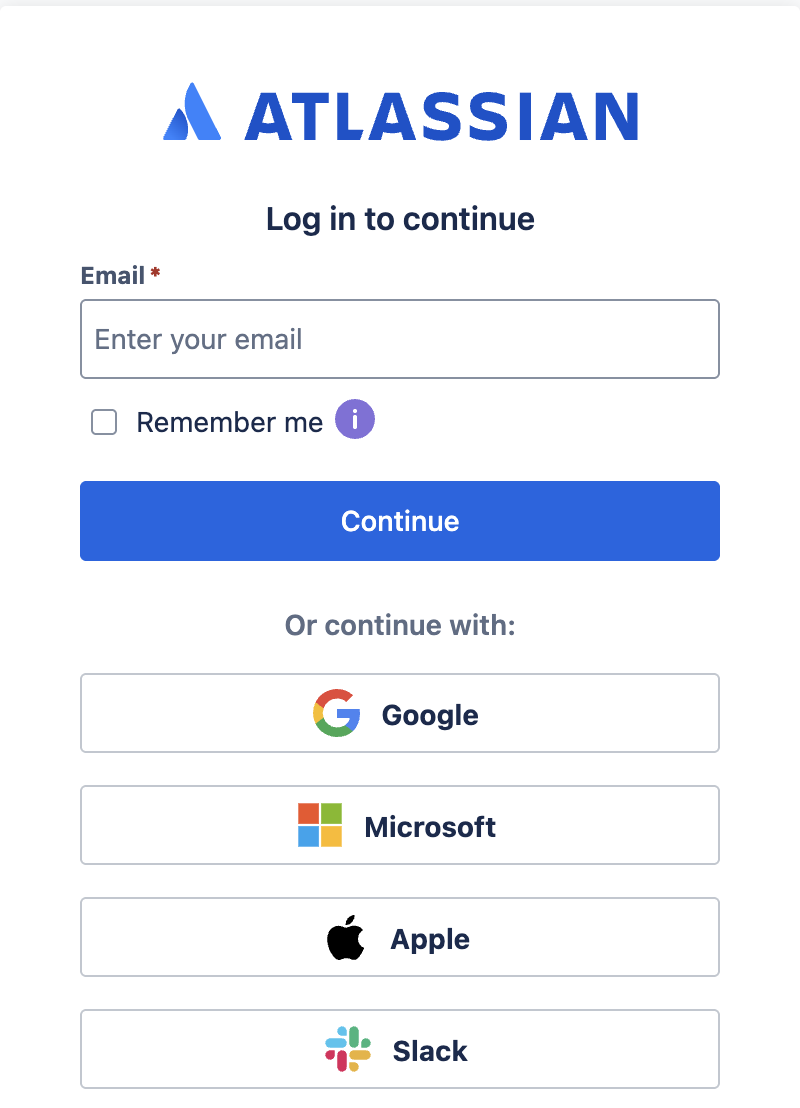
Atlassian Login. If you’re not already logged in, you’ll see the Atlassian login screen:
-
OAuth Consent. Review the permissions Promptless is requesting on the OAuth consent screen:
-
Complete Connection. Click “Accept” and verify the connection in Promptless. If you don’t see the option to accept, you may not have the required permissions. Contact your Jira administrator or invite them to Promptless. For more information about adding new members, see our Account Management page.
When Atlassian is connected, the Atlassian integration card’s header shows the connected site’s hostname as a link. Selecting it opens that site in a new browser tab, and hovering over the link shows the full site URL. The header shows no hostname when no valid site URL is stored.
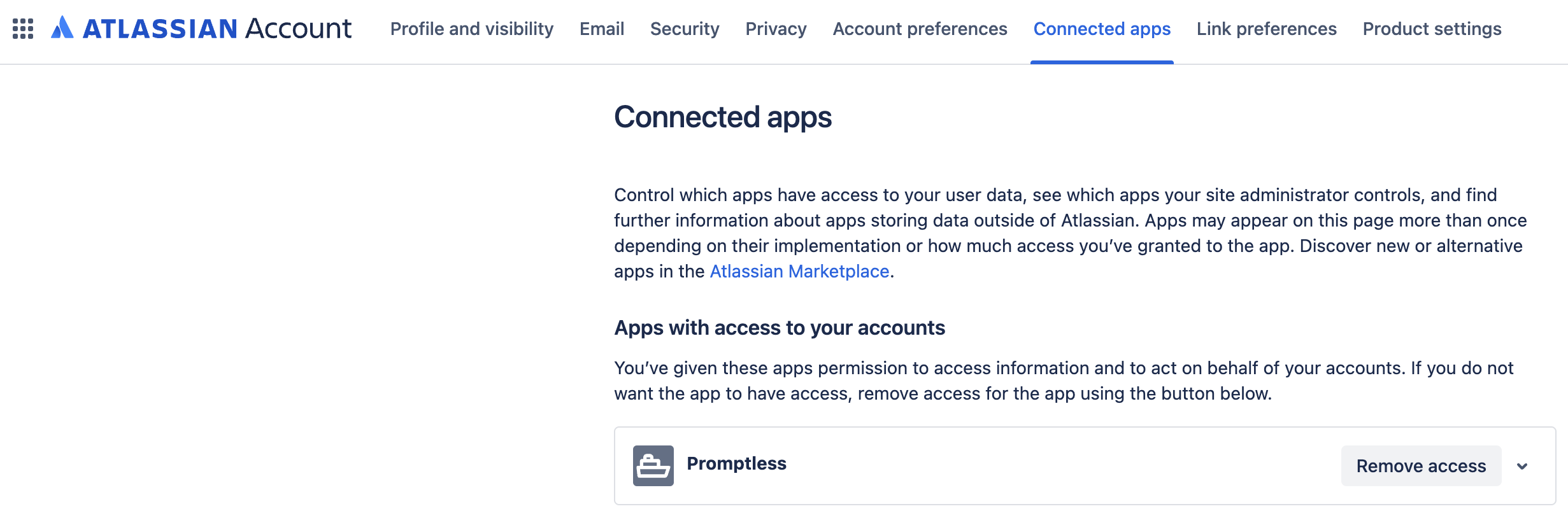
After connecting, manage Promptless access by going to your avatar > Account settings > Connected apps in Atlassian:
What you can do with Atlassian
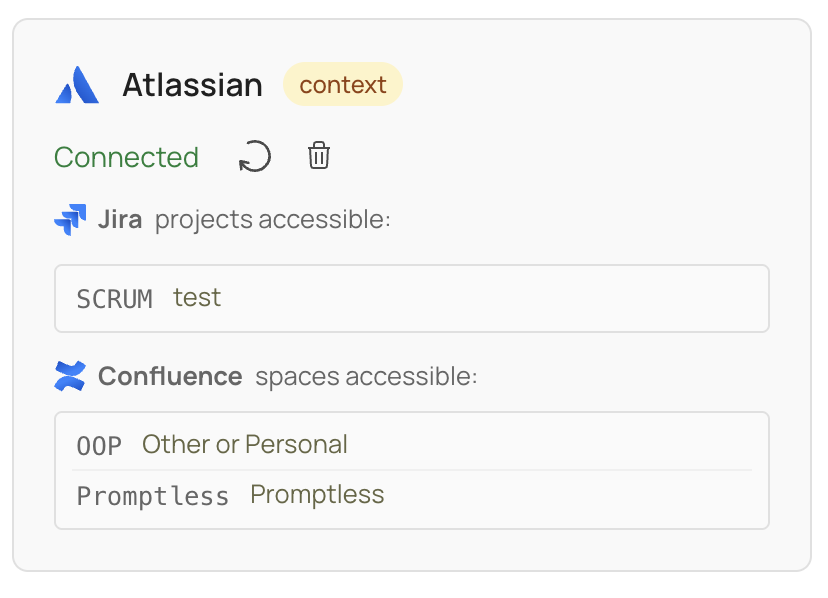
Section titled “What you can do with Atlassian”Once connected, you can use Jira and Confluence as context sources to enhance documentation suggestions:
- Jira: Automatically retrieve ticket information and search for related issues using JQL queries. See the Jira Context Source page for details.
- Confluence: Search your Confluence spaces for existing documentation patterns, terminology, and architectural decisions. See the Confluence Context Source page for details.
Atlassian service account
Section titled “Atlassian service account”Attaching an Atlassian service account gives Promptless its own bot identity and enables the Jira mention and assignment paths to start sessions. The built-in promptless-label path and configured Jira triggers already start sessions without a service account. What the service account adds is the mention and assignment paths, plus a dedicated identity to post replies as. See the Jira trigger page for the full path breakdown. This is distinct from the invited-user account described in Provision an Atlassian account for Promptless. That account is a standard Atlassian user you invite by email and authenticate through the normal OAuth connect flow. The client-credentials service account described here is authenticated directly with a Client ID and secret. It is what gives Promptless a dedicated write identity for Jira triggers.
How to attach. An Atlassian organization admin first creates OAuth 2.0 credentials for a service account in Atlassian admin (Directory → Service accounts → create OAuth 2.0 credentials). From the Atlassian integration card, enter the service account’s Client ID and Client secret, plus an optional Atlassian Admin address, then click Attach. The admin address isn’t required. Attaching works without it. If Atlassian rejects the credentials, Promptless leaves the account unattached and shows an error notification. The card then shows the attached account’s display name, email, account ID, and client ID.
Token handling. The service account uses a client-credentials grant with 60-minute tokens that Promptless re-mints as needed; there is no refresh token.
Required scopes and role. The service account needs the following OAuth scopes, plus the Jira User application role:
read:meread:jira-userread:jira-workwrite:jira-work
These scopes are Jira-only (there is no Confluence scope), so the service account is used for Jira trigger writes, not Confluence.
Identity implications. Whichever account Promptless acts as is the identity behind mention matching, assignment triggering, and ignoring its own activity. Attaching a service account moves that identity onto a dedicated bot and enables the mention and assignment paths. Without a service account, those two paths start no session at all. A mention or assignment delivery is dropped. The built-in promptless-label path and configured Jira triggers still start sessions and post as the connecting account. Self-echo suppression applies either way: Promptless ignores its own ticket activity. The gating exists because the alternative is costly. If the acting identity were a real person, any colleague who @mentioned or assigned them during ordinary Jira work would summon Promptless. That is a noisy experience for that person and their team. A dedicated, non-personal identity avoids that noise. Inviting a standard Atlassian user (see Provision an Atlassian account for Promptless) gives Promptless a separate audit trail. It also gives a distinct read-and-comment identity for the built-in label path and configured triggers. It does not enable the mention or assignment paths. Only an attached service account does that.
The Atlassian integration card shows a connecting-account panel naming the account that authorized the connection, with the connecting account’s display name and email. Promptless always reads Jira and Confluence as this account, whether or not a service account is attached. What changes with a service account is who Jira comments post as:
- No service account attached: the panel reads “Reading Jira and Confluence, and commenting on Jira, as this person.” That commenting covers the built-in
promptless-label path and configured Jira triggers, which post as this account. Mentioning or assigning this account does not start a session. The connecting-account panel names the connecting account and states that @mentioning or assigning it does nothing. - Service account attached: comment identity moves to the service account, and the connecting account is scoped to reads. The mention and assignment paths start sessions and post replies as the service account.
The panel’s secondary line shows the account’s email, falling back to the account ID when Atlassian hides the email. When no Atlassian account is recorded and no service account is attached, the panel shows a warning. It warns that mentioning or assigning Promptless on a Jira issue does not start a session until you reconnect Atlassian.
Service-account health. The Atlassian integration card’s service-account section expands into a drawer; its collapsed line carries a health badge. It reads Not working (red) when Atlassian refuses the credential. Examples include a rotated or revoked secret, or an account that has lost its Jira User application role. It reads Unconfirmed (amber) when Promptless can’t reach Atlassian to check. Opening the drawer shows a health message alongside Last worked… · Checked… timings.
To fix a broken service account, re-attach it: re-enter its Client ID and secret on the integrations page. Reconnecting (re-consenting) the Atlassian OAuth connection does not fix a broken service account, because the OAuth connection and the service-account credential are separate. If you’re troubleshooting from a symptom instead, see Connection health.
Attaching a service account does not change the read-only context-source behavior. Reading Jira for context still works the same way (see the Jira context source page). The next section covers inviting a standard Atlassian user account instead.
Provision an Atlassian account for Promptless
Section titled “Provision an Atlassian account for Promptless”You can also provision a dedicated Atlassian account by inviting a standard user rather than attaching a service account. We recommend creating a dedicated Atlassian account for Promptless to access both Jira and Confluence. A dedicated account gives you complete audit trail visibility and lets you configure fine-grained permissions for both services.
Create the account using an email alias like your_email+promptless@company.com, or ask your IT admin to provision a new email account like promptless@company.com.
-
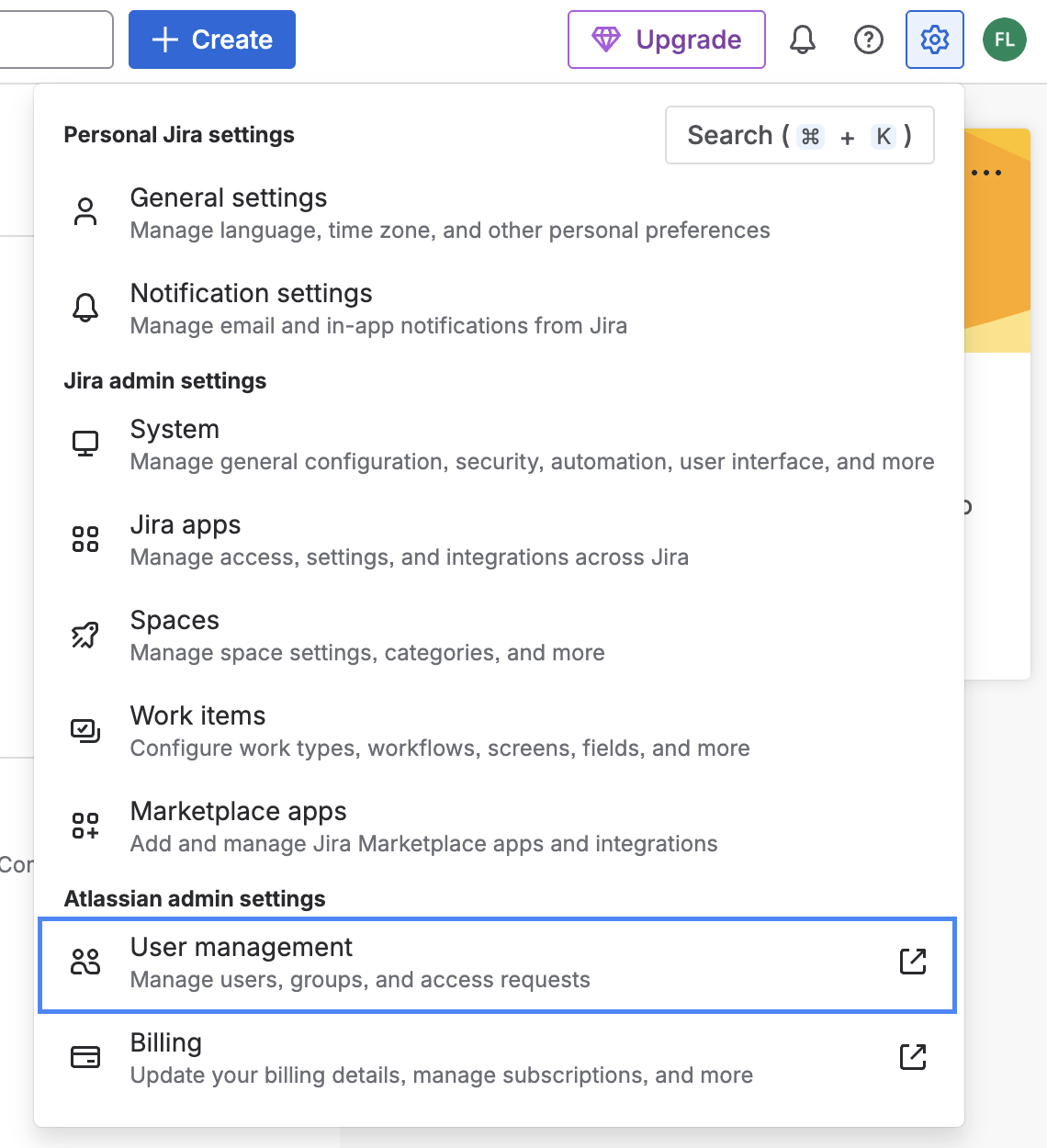
Navigate to User management. In Atlassian, go to your settings and select User management under Atlassian admin settings.
-
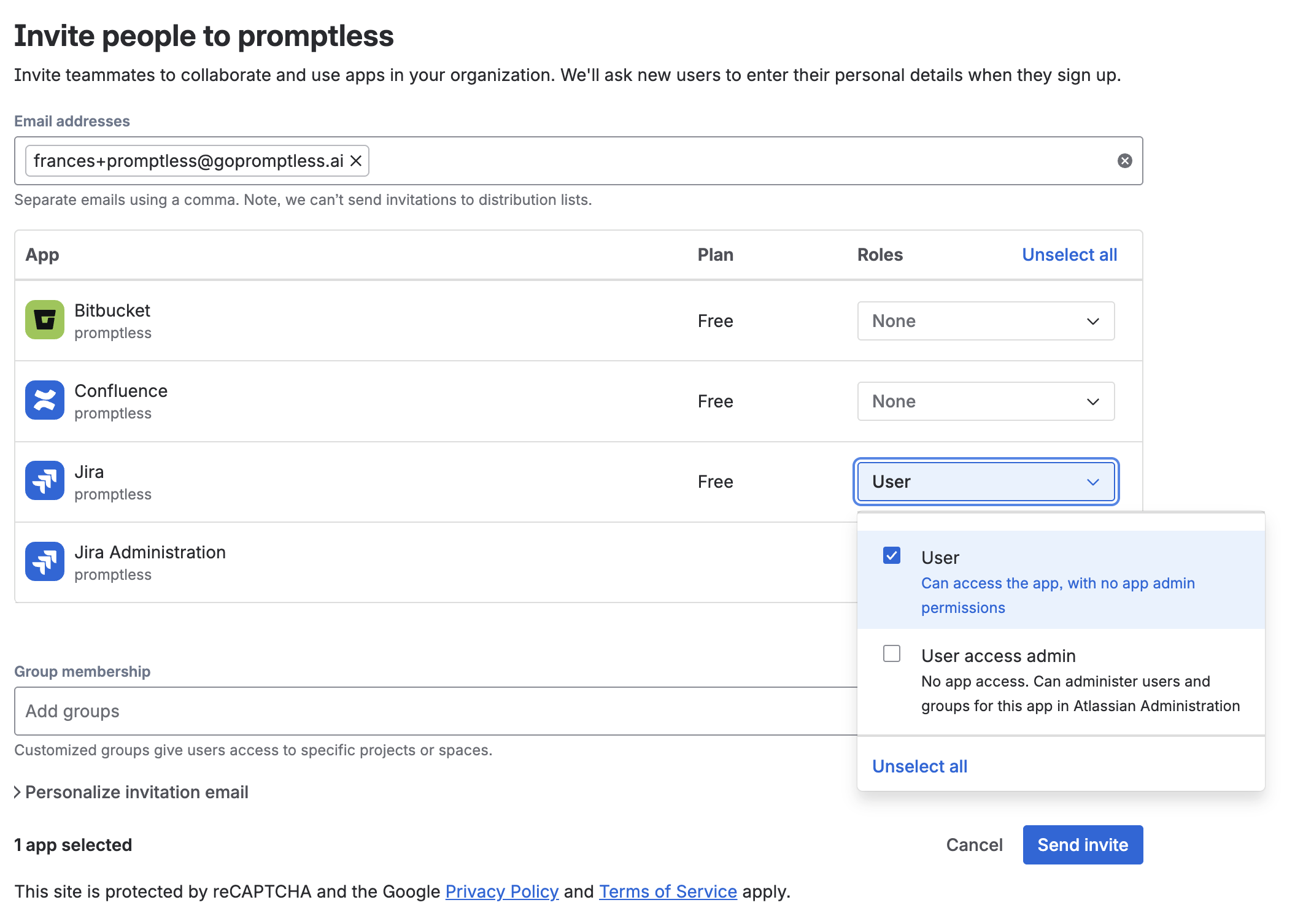
Invite the Promptless account. Click “Invite people” and enter the email address for your Promptless account. Under the Jira app, select the User role (not User access admin).
-
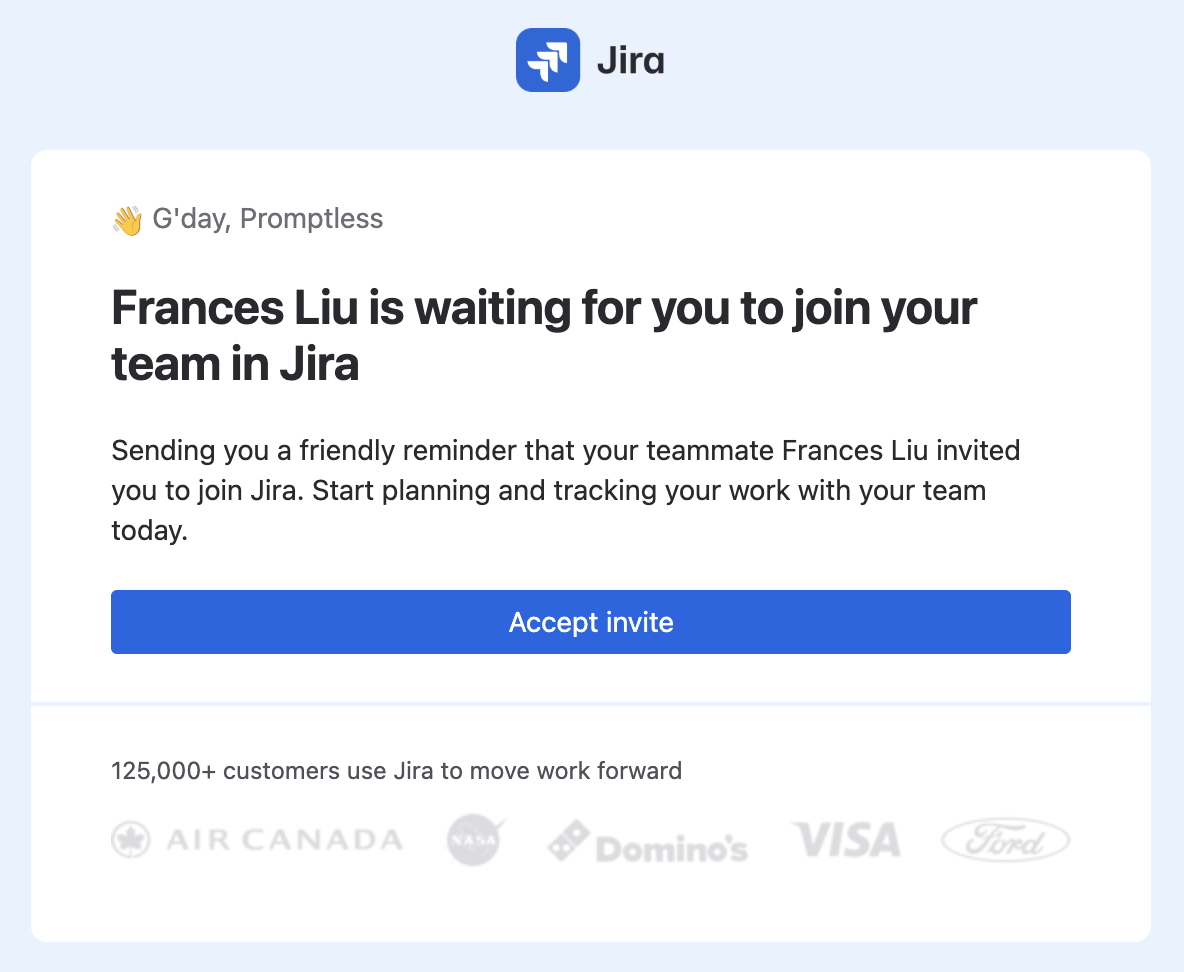
Accept the invitation. Check your own email inbox (if you’re using the alias), or Promptless’s email inbox.
When setting up the account, you can use the name “Promptless Bot”.
Once complete, you’ll see the account listed as ACTIVE. It might take up to an hour for the status to update from INVITED to ACTIVE after you accept the invite.

Create a Jira issue on request
Section titled “Create a Jira issue on request”Promptless can create a Jira issue when you ask it to during a session. A message in Slack or Microsoft Teams that names a target project is enough. This is the only change this path makes to Jira.
Promptless never creates an issue automatically or in response to a trigger. Contrast this with the reply it posts automatically when a Jira trigger runs. Before creating an issue, Promptless checks the target project for one with a matching title. When it finds a match, it reuses that issue rather than creating a new one. Promptless cannot set custom fields on an issue it creates this way. Issue creation uses the write:jira-work scope Promptless already holds, so no reconnect is needed.
A created issue’s Reporter is always the connecting account, the Jira user who authorized the Atlassian OAuth connection. This stays the connecting account even when an Atlassian service account is attached. Replies do move to the service account once one is attached, but a created issue keeps the connecting account as its reporter. The only comment Promptless posts to Jira is its reply on the issue that started a session (see the Jira trigger page).
You can build on this in a custom workflow. Pair on-request issue creation with your own trigger and written instructions, so Promptless opens issues within a task you define. See Teach Promptless a custom task for how to set that up.
Data processing and security
Section titled “Data processing and security”For information about how Promptless processes Jira data, including redaction capabilities and privacy controls, see the Jira Context Source page.
Troubleshooting
Section titled “Troubleshooting”How do I restrict Promptless from accessing confidential Jira projects or Confluence spaces?
Promptless inherits the permissions of the Atlassian account used during OAuth connection. There are several ways to manage access depending on your security requirements:
Standard approach: After connecting Atlassian, configure which Jira projects and Confluence spaces Promptless should search in your Configuration page using the context_sources section. Promptless won’t access projects or spaces you don’t explicitly configure, even if the connected account has permission to see them.
For highly confidential content: Create an Atlassian user account that only has access to non-confidential projects and spaces. Then connect Atlassian to Promptless using this limited-access account. This restricts access at the Atlassian permissions level, adding an extra security layer.
For granular control: Provision a dedicated Atlassian account for Promptless. Configure fine-grained permissions for both Jira projects and Confluence spaces in Atlassian’s user management before connecting it to Promptless.
Promptless doesn’t respond to Jira @mentions or ticket assignments
The mention and assignment paths require an attached Atlassian service account; without one, those deliveries do nothing. Attach a service account (see Atlassian service account) to enable those paths. The built-in promptless-label path and configured Jira triggers start sessions without a service account.
Promptless actions are attributed to my personal account
- Disconnect Atlassian from the integrations page
- Sign out of your personal Atlassian account in your browser
- Sign in to the Promptless bot account you created
- Reconnect Atlassian to Promptless while signed in to the bot account