

Manage environment variables
Overview
Section titled “Overview”Environment variables store credentials, API keys, and configuration values that Promptless uses when it works with your systems. The most common use is login credentials for Promptless Capture, so Promptless can sign in to your application and capture product screenshots. Custom tasks, such as turning docs analytics into doc-gap suggestions, read API credentials the same way.
Promptless sees each variable’s name, so use a name that says what the value is for, such as TEST_ACCOUNT_USER, QA_USERNAME, or STAGING_LOGIN_EMAIL. Mark passwords, API keys, and other sensitive values as secrets.
Before you start
Section titled “Before you start”- An admin role in your Promptless organization. Only organization admins can view and manage environment variables.
- For screenshot credentials, a dedicated test or service account. See Keep secrets secure.
Add an environment variable
Section titled “Add an environment variable”-
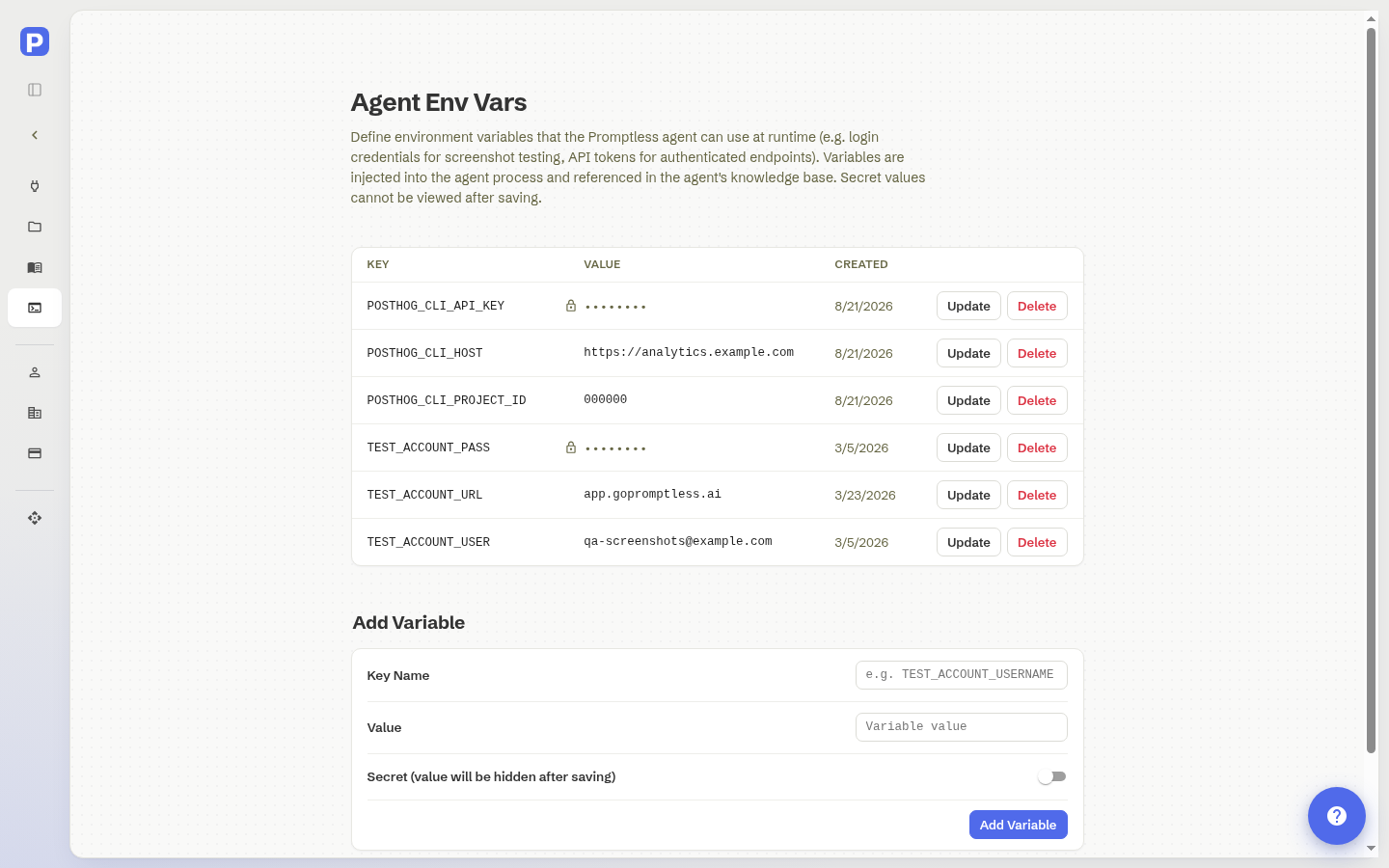
In the Promptless dashboard, open Settings and select Agent Env Vars.
-
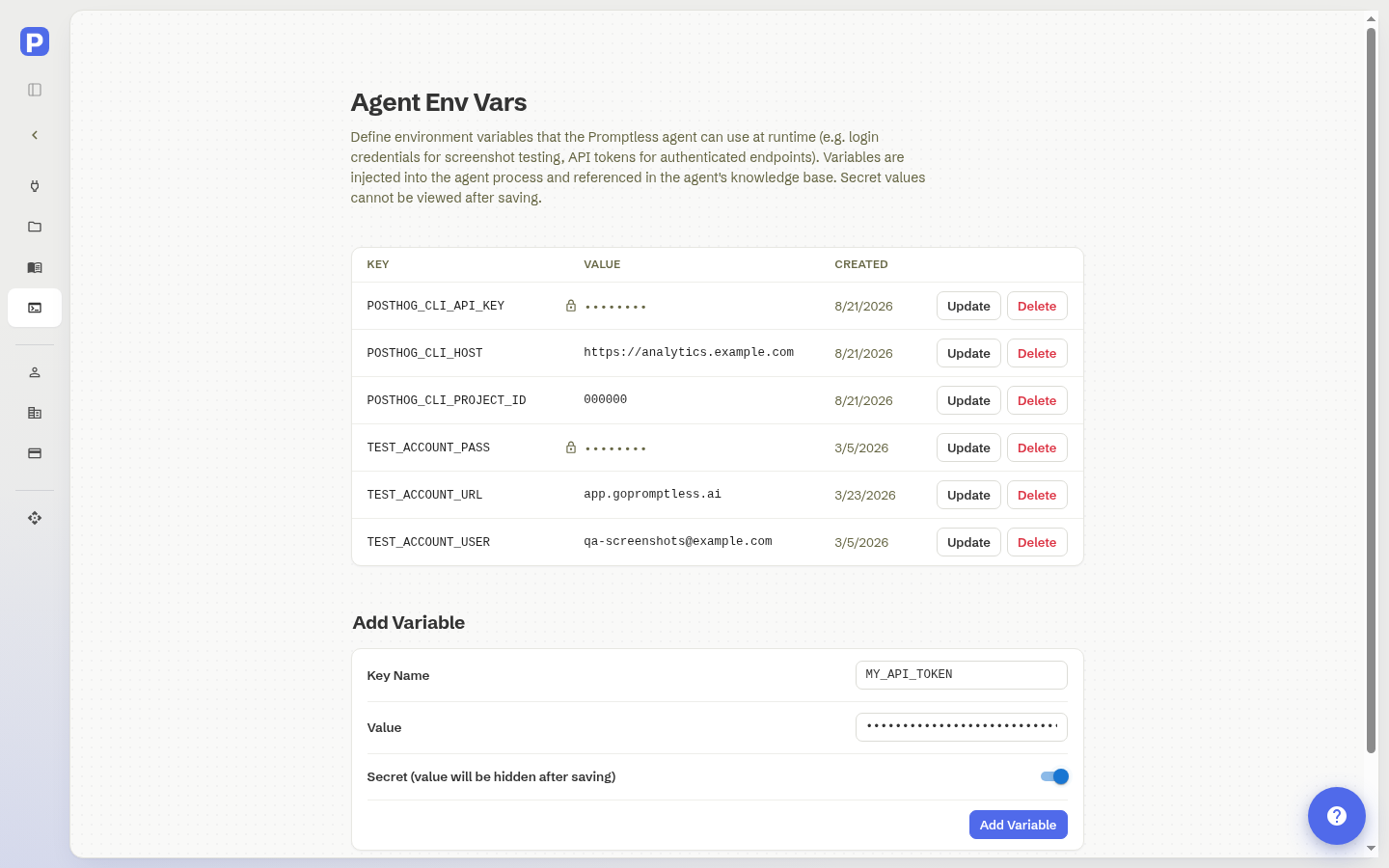
In the Add Variable form, enter a Key Name. Key names use uppercase letters, numbers, and underscores, up to 100 characters. The form converts the letters you type to uppercase.
-
Enter the Value.
-
If the value is a password, API key, or other sensitive value, turn on the Secret toggle. The Value field then masks what you type.
-
Select Add Variable. The variable appears in the table above the form.
Keep secrets secure
Section titled “Keep secrets secure”After you save a secret, the dashboard hides its value, and no one can view it again. Promptless also redacts secret values from the records it logs, stores, and transmits. See How Promptless protects secrets and sensitive data.
Example: Screenshot capture credentials
Section titled “Example: Screenshot capture credentials”For Promptless Capture, add these variables so Promptless can log in to your application:
| Variable | Example value | Secret |
|---|---|---|
TEST_ACCOUNT_URL | https://app.yourcompany.com/login | No |
TEST_ACCOUNT_USER | qa-screenshots@yourcompany.com | No |
TEST_ACCOUNT_PASS | (your password) | Yes |
Update or delete a variable
Section titled “Update or delete a variable”You can change a variable’s value, but not its key name. To rename a variable, delete it and add it again under the new name.
To change a variable’s value:
-
In the variable’s row, select Update.
-
Enter the new value. The field starts empty, so enter the whole value.
-
Select Save.
To delete a variable:
-
In the variable’s row, select Delete.
-
Select Confirm.
Promptless removes the variable, and the agent can no longer use it.
See also
Section titled “See also”- Keep screenshots current with Promptless Capture, to set up screenshot capture with your test-account credentials
- How Promptless protects secrets and sensitive data, for how Promptless redacts secret values and credential formats
- Build an agent knowledge base, to name a variable in your instructions and tell Promptless when to use it
- help@gopromptless.ai, for help with environment variables