
Keep screenshots current with Promptless Capture
Overview
Section titled “Overview”Promptless Capture keeps the product screenshots in your docs in sync with your UI. When a code change affects a documented feature, Promptless identifies which screenshots need updating and captures new ones from your current interface. To reach screens behind a login, Promptless needs credentials for a test account in your application.
Promptless updates screenshots when:
- A GitHub PR modifies UI components referenced in documentation.
- A commit changes routes, layouts, or visual styling.
- You ask for a screenshot update in Slack or the Promptless dashboard.
- Promptless edits a page for any reason and finds a screenshot on it that no longer matches your interface.
Promptless captures new screenshots only when it detects changes that likely affect documented UI. Code changes that don’t affect the interface leave screenshots alone.
Before you start
Section titled “Before you start”- A dedicated test account for screenshot capture, not a personal or production account. A test account keeps sensitive data out of screenshots and gives a consistent UI state.
- Access for that account to every feature you want to document, including any features that need specific permissions or plan tiers.
Set up credentials
Section titled “Set up credentials”Store the test account’s credentials as environment variables that Promptless can read when it captures screenshots.
-
Go to the Agent Env Vars page in Settings.
-
In the Add Variable form, enter a Key Name and Value for one credential.
-
For a password or other secret, turn on Secret. Promptless hides secret values after you save them.
-
Select Add Variable.
-
Repeat steps 2 through 4 for each credential.
For example, add these variables:
| Key Name | Holds | Secret |
|---|---|---|
TEST_ACCOUNT_URL | The login URL for your application | No |
TEST_ACCOUNT_USER | Username or email for the test account | No |
TEST_ACCOUNT_PASS | Password for the test account | Yes |
You can use other names, such as STAGING_LOGIN_URL or QA_USER, to fit your organization’s conventions.
Test your setup
Section titled “Test your setup”-
On the New Task page, request a documentation update that involves screenshots.
-
When the suggestion is ready, check its screenshots for:
-
Successful authentication, with no login screens
-
The intended feature, which shows Promptless reached the right page
-
Cropping that keeps the relevant UI elements visible
-
-
If the screenshots aren’t right, adjust your environment variables, or add navigation guidance to
PROMPTLESS.mdin your Agent Knowledge Base. See Troubleshoot screenshot capture.
Edit a screenshot
Section titled “Edit a screenshot”Refine a captured screenshot in the Screenshot Editor before you publish the suggestion.
-
In the suggestion, select one of the images it added to open the Screenshot Editor.
-
Edit the image with the editor’s tools:
Tool Use it to Crop Focus on specific UI elements. Select Apply Crop to keep the crop, or Cancel Crop to leave crop mode without applying it. Highlight Draw attention to an area of the screenshot. Outlined Box, Outlined Circle Outline a control or region. Shaded Box, Shaded Circle Shade a region to call it out. Undo, Redo Step back or forward through your edits. -
Select Save edits. To discard unsaved changes and return to the last saved version, select Reset edits.
Saved edits appear in your documentation suggestion right away.
Review screenshot changes
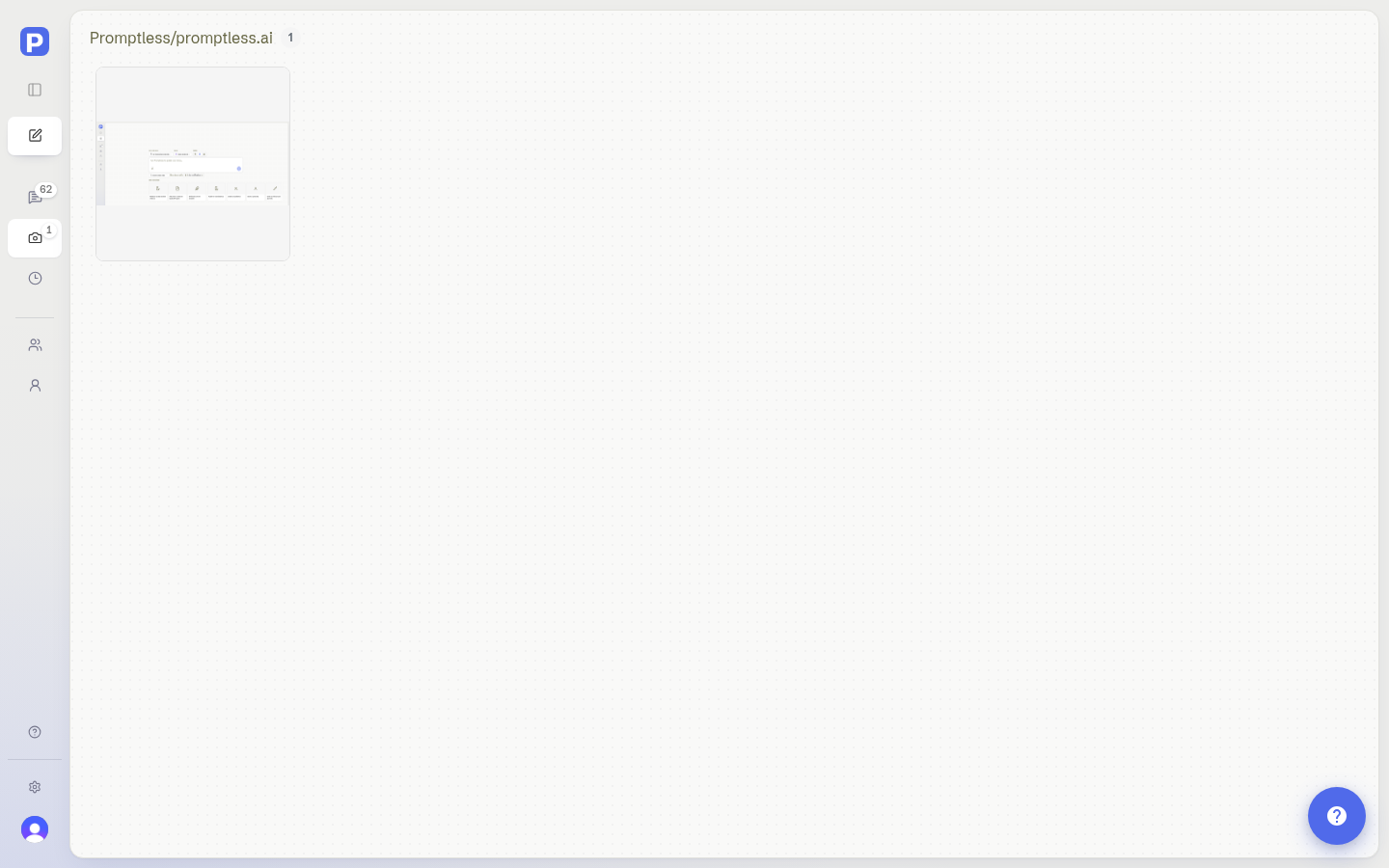
Section titled “Review screenshot changes”The Screenshot Updates tab in the dashboard sidebar collects every screenshot on your open suggestions in one gallery. Use it to check regenerated screenshots without opening each suggestion. Its badge shows how many screenshots are waiting. The gallery includes the images Promptless uploads and the screenshots a suggestion commits to your docs repository.
-
In the sidebar, select Screenshot Updates.
-
Select a card to open that screenshot in its suggestion.
-
Compare the screenshot with its previous version, then reject it, or publish the suggestion to accept it.
For more on reviewing a suggestion’s changes, see Check how changes render.
Troubleshoot screenshot capture
Section titled “Troubleshoot screenshot capture”Promptless can’t log in to my application
Check that your TEST_ACCOUNT_URL, TEST_ACCOUNT_USER, and TEST_ACCOUNT_PASS variables match what you use to log in by hand. If your screenshots show the login page, the credentials may be wrong, or the login flow may need more steps. If your application uses multi-factor authentication (MFA), create a test account that skips MFA. For guidance on MFA flows, email help@gopromptless.ai.
Screenshots capture the wrong page
Promptless may need navigation guidance. In PROMPTLESS.md in your Agent Knowledge Base, describe how to reach specific features, such as menu paths, URL patterns, or the buttons to select.
Screenshots show features that should be hidden
The test account may have access to features that typical users don’t see. Check your feature flag configuration, and consider a test account with permissions that match your documentation’s audience.
Cropping cuts off important elements
Adjust the crop in the Screenshot Editor, or give feedback on the suggestion so Promptless crops future captures better.
Screenshots show loading states or spinners
The page may not have finished loading before capture. Email help@gopromptless.ai if you see loading states in your screenshots consistently.
See also
Section titled “See also”- Manage environment variables, for how Promptless stores and uses the variables you add
- Review and edit Promptless PRs, to review and publish the suggestions that carry new screenshots
- Get support, for help setting up Promptless Capture