
Customize notifications
Promptless sends notifications to your team when documentation suggestions are ready for review. You can configure notification channels in your organization’s promptless.yaml file using the policies section.
Notification channel configuration
Section titled “Notification channel configuration”Set the default notification channel and create trigger-specific overrides in your Configuration page:
policies:  default:    notification:      slack_channel: docs-updates      msteams_channel: "19:0a1b2c3d@thread.tacv2"
  rules:    - if:        doc_collection: acme/internal-docs      then:        notification:          slack_channel: internal-docs-team
Slack channel names don’t need the # prefix. When Slack channels are renamed, Promptless automatically updates your configuration. slack_channel and msteams_channel are independent—set either, both, or neither.
Disable an inherited channel
Section titled “Disable an inherited channel”A rule can turn off a channel that it would otherwise inherit from policies.default or an earlier rule by setting the field to null:
policies:  default:    notification:      slack_channel: docs-updates
  rules:    - if:        doc_collection: acme/internal-docs      then:        notification:          slack_channel: null
Here, suggestions for acme/internal-docs send no Slack notification, while every other collection still notifies docs-updates. Channels resolve by field presence: slack_channel: null disables the inherited channel, and omitting the field entirely inherits it. msteams_channel works the same way, and the two channels are disabled independently.
See the Configuration Reference for the complete policies schema.
Notification preferences file
Section titled “Notification preferences file”Notification preferences are stored in the doc_workflow/notification_preferences.md file within your Agent Knowledge Base. This file is a lightweight scaffold where you add overrides and customizations—Promptless handles the underlying templates and message formatting automatically.
Note
If your organization previously used a notification_skill.md file, Promptless automatically migrates it to the new notification_preferences.md format. Your customizations are preserved during migration.
What you can customize
Section titled “What you can customize”The preferences file lets you override:
- When to notify: Control which events trigger notifications and when to skip them
- Delivery channels: Set preferences for Slack vs. GitHub notifications
- Message style: Adjust the tone and context included in notification messages
Example customizations
Section titled “Example customizations”Here are some common ways teams customize their notifications:
Change notification timing:
Only send notifications for suggestions that modify more than one file.Skip notifications for automated triggers that don't yield documentation updates.Adjust delivery preferences:
Always reply in the originating Slack thread when the trigger came from Slack.Use GitHub comments when reviewers are already engaged with the source PR.Customize message style:
Use a casual, friendly tone in all notification messages.Include enough context that someone new to the thread can understand why Promptless is posting.Slack notification features
Section titled “Slack notification features”With the Slack integration connected, Promptless sends rich notifications that include:
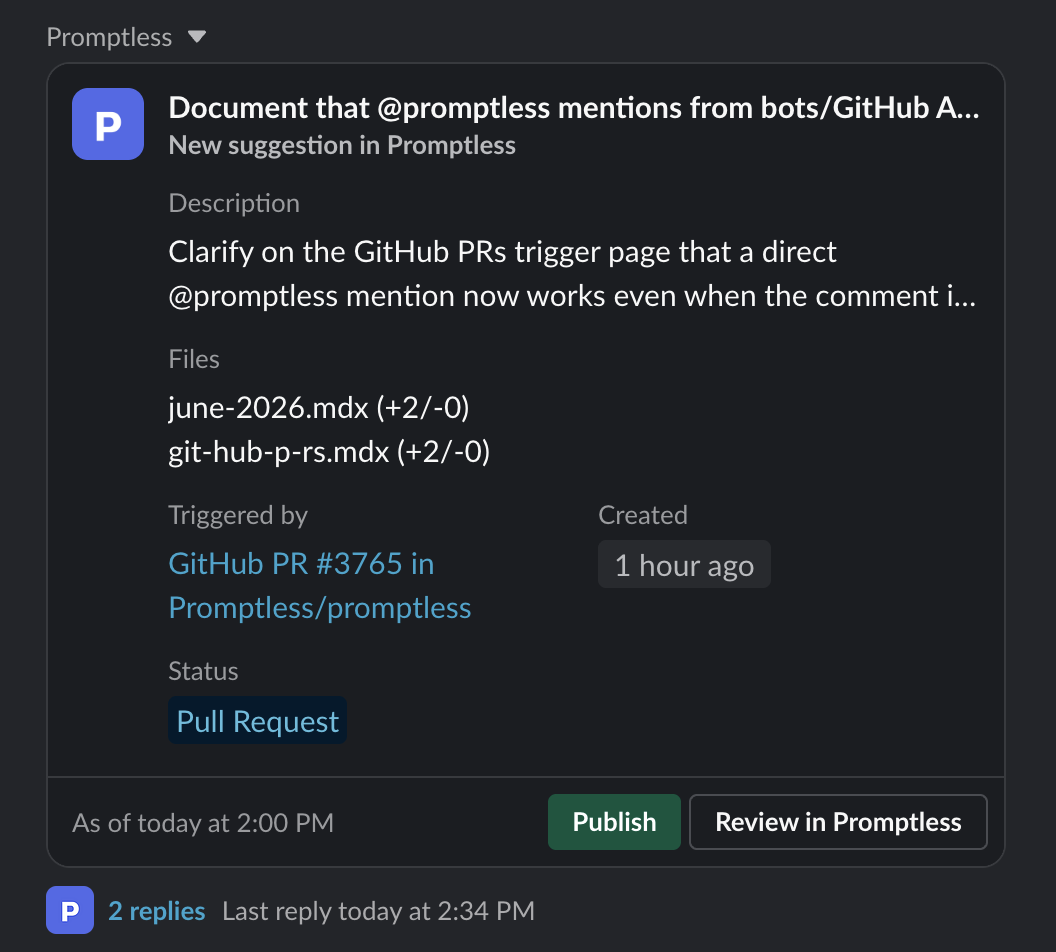
- Clickable preview cards: Suggestion notifications appear as preview cards showing the title, status, description excerpt, trigger source, and file change stats. Click anywhere on the card to open the suggestion in Promptless.
- Interactive buttons: Publish suggestions or open PRs for review directly from Slack. These actions appear within the preview card.
- Diff file attachments: View the full diff of documentation changes in a thread reply
- Channel support: Receive notifications in channels by name, not just by ID
Suggestion preview cards
Section titled “Suggestion preview cards”Slack suggestion notifications include a preview card with:
- Title: The suggestion title
- Status badge: Shows “New suggestion” for first notifications or “Updated suggestion” for follow-ups
- Description: A short excerpt of the suggestion description
- Triggered by: A descriptive label linking to the source that triggered the suggestion, such as “Merged GitHub PR #123 in acme/docs” or “Slack direct @mention”
- Files: The number of files changed
- Status: The current suggestion lifecycle status (Open, Pull Request, Published, or Rejected)
Tip
Promptless automatically detects protected branches in your documentation repository. When detected, Slack notifications show “Create PR” or “View PR” buttons instead of “Publish” to prevent merge errors.
Microsoft Teams notifications
Section titled “Microsoft Teams notifications”When the Microsoft Teams integration is connected, you can have Promptless announce documentation suggestions in a Teams channel by setting msteams_channel in your policies. Unlike Slack channels, which use a name, Teams channels are addressed by their conversation ID—a value that looks like 19:…@thread.tacv2. Copy it from Teams; it’s the same ID you use for an msteams_listen trigger.
slack_channel and msteams_channel are independent, so a single policy can notify Slack, Teams, or both.
Note
The Promptless bot needs prior activity in a Teams channel before it can deliver notifications there. If Promptless can’t reach the configured channel, it replies in the originating thread instead.
Suggestion status updates
Section titled “Suggestion status updates”When enabled, Promptless posts a follow-up reply in each suggestion’s original Slack thread when the suggestion resolves. This closes the loop for anyone who requested documentation updates via Slack.
Promptless posts a follow-up when a suggestion reaches one of these final states:
- Merged — The documentation PR was merged
- Closed — The documentation PR was closed without merging
- Rejected — The suggestion was rejected from the dashboard
- Archived — The suggestion was auto-archived for staleness
Delivery is best-effort. The lifecycle transition always completes, even if the Slack post fails.
Enable status updates
Section titled “Enable status updates”- Go to Organization Settings in the Promptless dashboard
- Find the Suggestion Status Updates section
- Check Post Slack follow-ups when suggestions are resolved
- Save your changes
Once enabled, follow-ups appear in the Slack thread where Promptless originally announced each suggestion.
Get help
Section titled “Get help”Need help configuring your notification preferences? Contact us at help@gopromptless.ai and we’ll help you set up the customizations that work best for your team.