
Build an agent knowledge base
Promptless updates these files automatically as it learns from your feedback. Organization admins can edit them directly, while other members have read-only access.
Access the Agent Knowledge Base
Section titled “Access the Agent Knowledge Base”In the left sidebar, open Configure and select Agent Knowledge Base (the book icon).
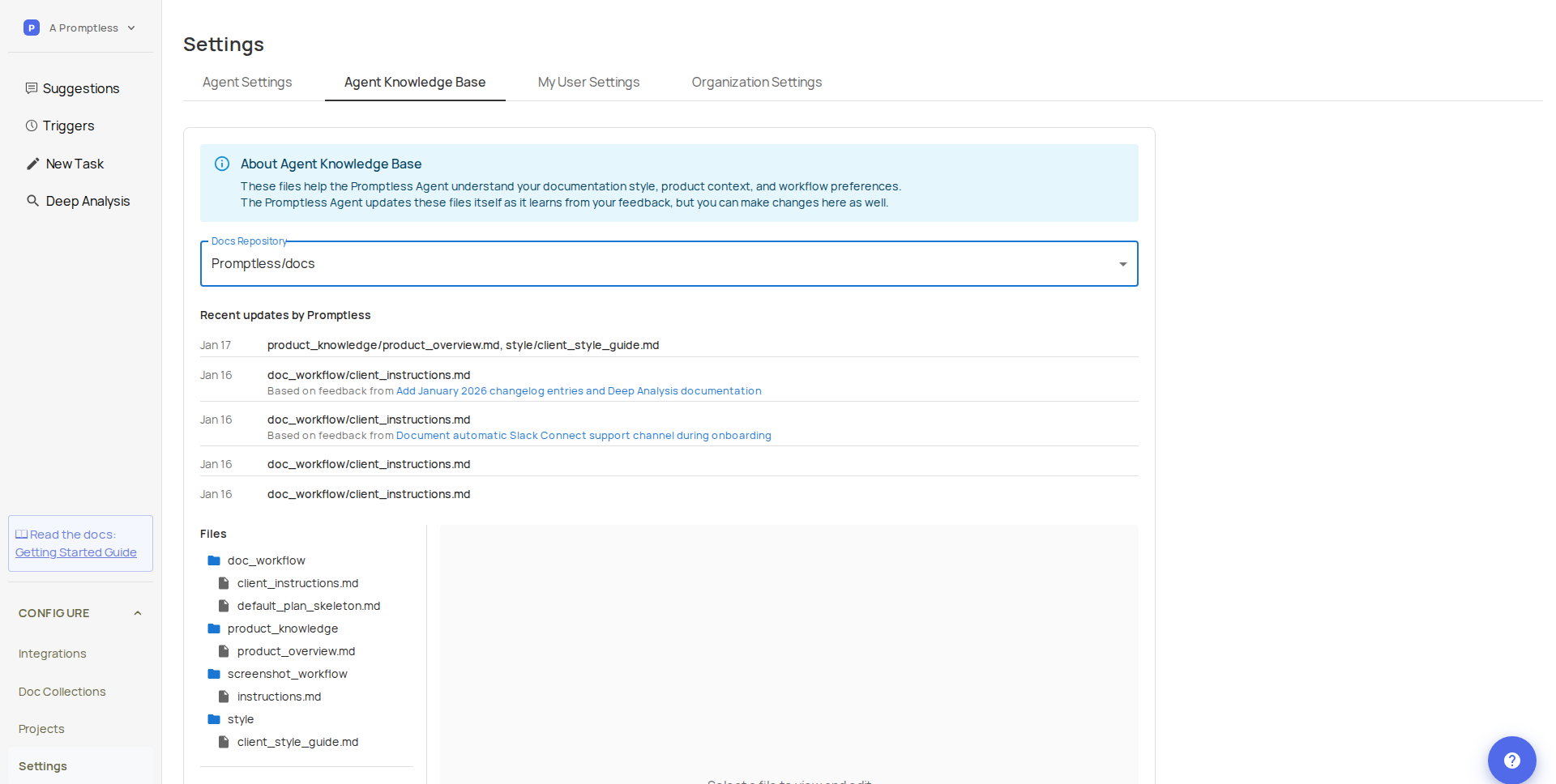
Recent updates by Promptless
Section titled “Recent updates by Promptless”View recent updates Promptless has made to these files based on your feedback.
Each update includes:
- Date of the update
- Files changed
- Link to the suggestion that triggered the update
This shows how your feedback shapes Promptless’s understanding of your documentation preferences.
Knowledge Base files
Section titled “Knowledge Base files”| File | Purpose |
|---|---|
client_instructions.md |
Guidelines for how Promptless approaches documentation tasks. Updated when Promptless learns new preferences from your feedback. |
default_plan_skeleton.md |
Template structure for documentation plans. Updated when you provide feedback on plan organization. |
product_overview.md |
High-level context about your product. Generated during initial setup—you can edit this directly or request Promptless to regenerate it. |
client_style_guide.md |
Writing style rules and conventions. If your repo includes a style guide or Vale rules, reference those files here. Promptless updates this file as it learns your style preferences from feedback. |
View files
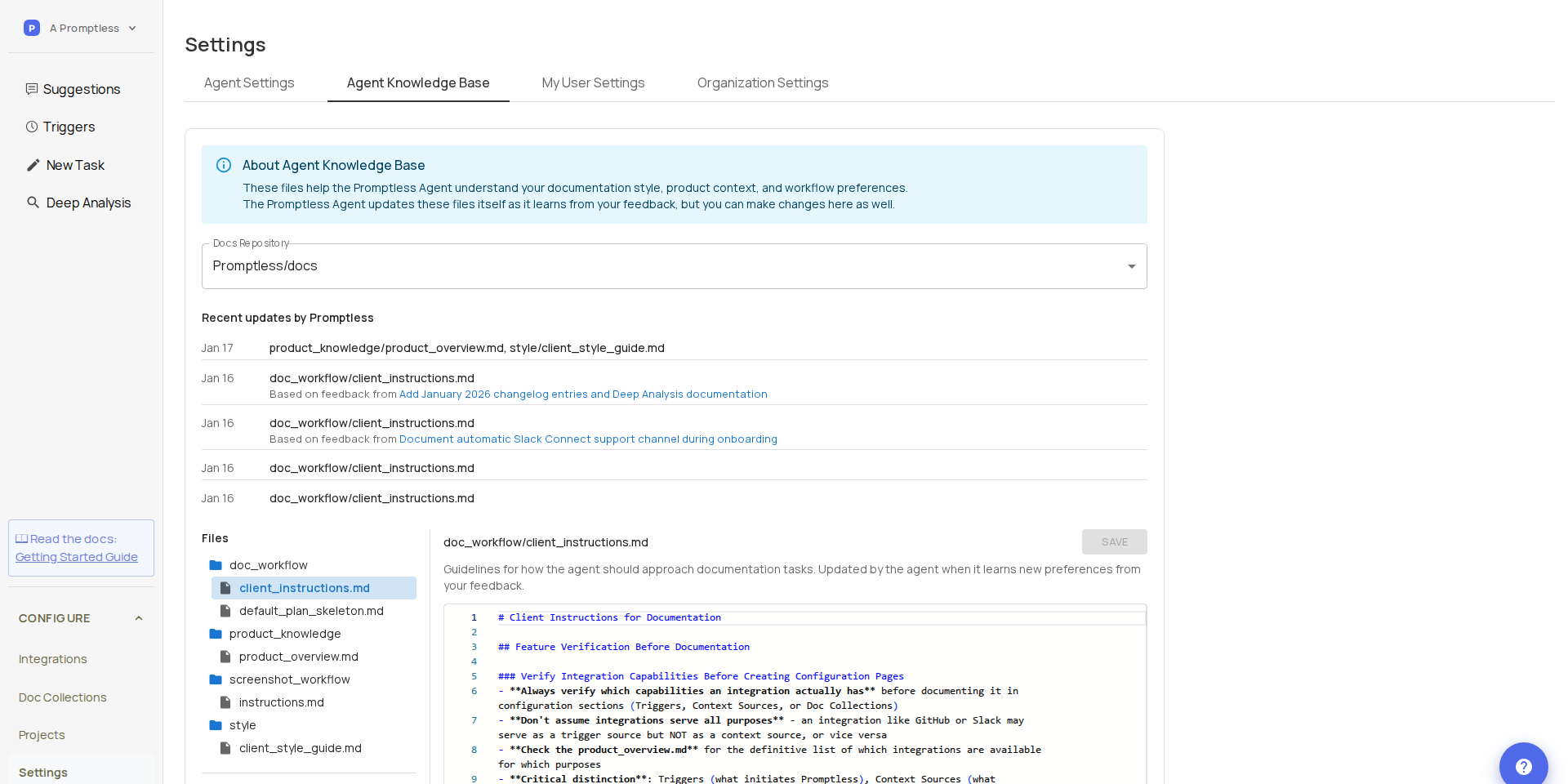
Section titled “View files”Click any file in the tree view to open it in the editor. All organization members can view these files to understand how Promptless has been configured.
Edit files
Section titled “Edit files”Only organization admins can edit Agent Knowledge Base files. If you’re not an admin, you’ll see a read-only view with “View only — admins can edit” displayed instead of the Save button.
To edit a file:
- Make your changes in the editor
- Click Save
- Your changes are committed directly to the repository
Warning
Switching files with unsaved changes will discard those changes.
Create files
Section titled “Create files”Click the + button next to any folder to create a new file inside it, or click the new-file icon at the root to create a top-level file.
In the dialog:
- Enter a file name (without the
.mdextension—Promptless adds it automatically) - Click Create
The file opens in the editor immediately. To create nested paths, enter nested/path/filename in the dialog—Promptless creates any intermediate folders automatically.
How Promptless uses these files
Section titled “How Promptless uses these files”Promptless reads these files at the start of every documentation task to understand your documentation approach, product terminology, and writing style.
When you provide feedback on suggestions—through PR comments, the web interface, or Slack—Promptless may update these files to apply what it learned to future tasks.
Need help? Contact us at help@gopromptless.ai.