
Jira Cloud
For Atlassian-hosted Jira instances. Uses OAuth 2.0 authentication through Atlassian’s secure connection process.
For the complete documentation index, see llms.txt.
Used for: Context
Promptless integrates with both Jira and Confluence through a single OAuth connection. When engineers reference Jira issue keys in GitHub PRs or commit messages (like “PROJ-123”), Promptless automatically retrieves the ticket for context. Promptless also searches your Confluence spaces for existing patterns, terminology, and architectural decisions to keep new documentation consistent.
Note
If you previously connected Jira to Promptless, reconnect to access Confluence spaces. Your existing Jira project configuration will be preserved.
Promptless integrates with both Jira Cloud and Jira Data Center instances.
Promptless supports two types of Jira integrations depending on your Jira deployment:
For Atlassian-hosted Jira instances. Uses OAuth 2.0 authentication through Atlassian’s secure connection process.
For self-hosted Jira Data Center installations. Uses username and password authentication with your organization’s instance.
Jira Data Center is in Beta. Please contact the Promptless team at help@gopromptless.ai to connect your Jira Data Center instance to Promptless.
The OAuth consent screen displays the permissions Promptless requests when you connect Atlassian. Promptless requests only the scopes needed to read Jira issues and Confluence pages for documentation context.
| Scope | Purpose |
|---|---|
read:jira-work | Read Jira issues, projects, and work data |
write:jira-work | Required by Atlassian for API access; Promptless uses read-only operations |
read:jira-user | Read user information for issue context |
| Scope | Purpose |
|---|---|
read:confluence-space.summary | Read space names and metadata |
read:confluence-content.all | Read page content for documentation context |
read:space:confluence | Read space information (granular scope) |
read:page:confluence | Read individual pages (granular scope) |
read:content:confluence | Read content body (granular scope) |
| Scope | Purpose |
|---|---|
offline_access | Allow Promptless to refresh tokens without re-authentication |
Confluence scopes include both classic and granular variants for compatibility with Atlassian’s API v2. Promptless only reads issue and page data—it does not write to Jira or Confluence. The write:jira-work scope is required by Atlassian’s OAuth system for certain read operations.
When creating a dedicated Atlassian account for Promptless, the account needs:
The account does not need administrative permissions. See Provisioning an Atlassian Account for Promptless for step-by-step instructions.
For Atlassian Cloud-hosted Jira instances:
Click “Connect Jira Cloud” from the integrations page.
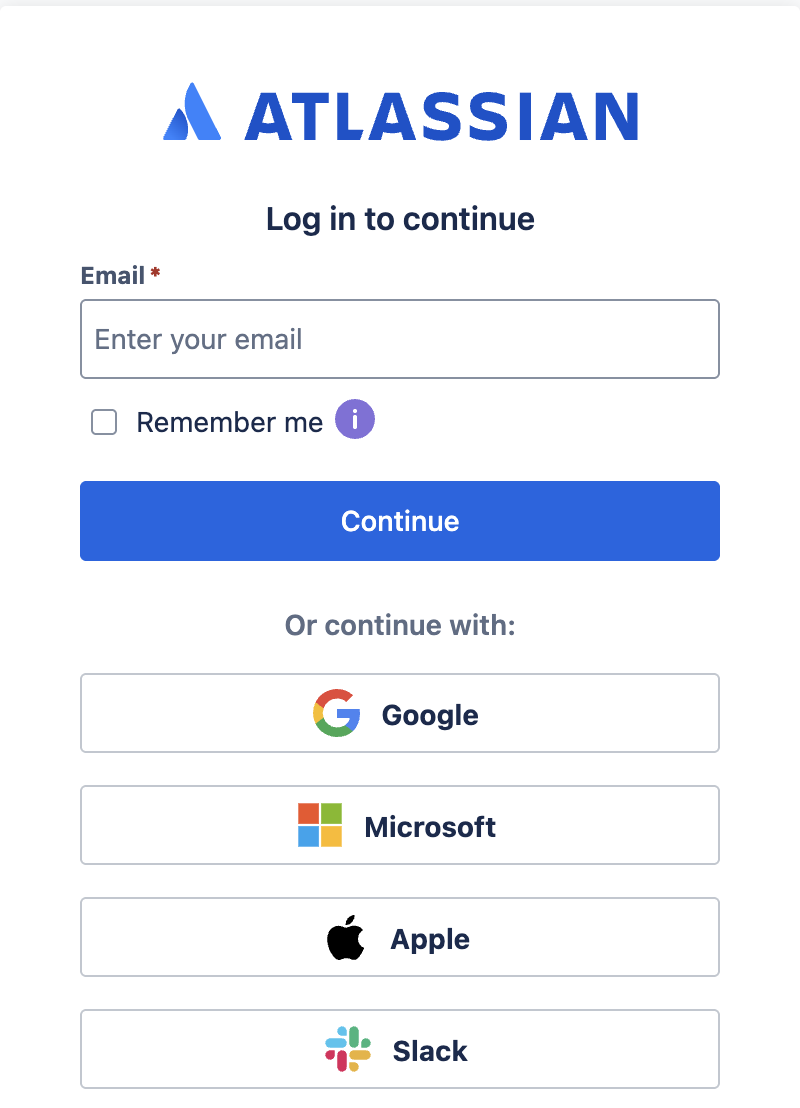
If you’re not already logged in, you’ll see the Atlassian login screen:
Review the permissions Promptless is requesting on the OAuth consent screen:
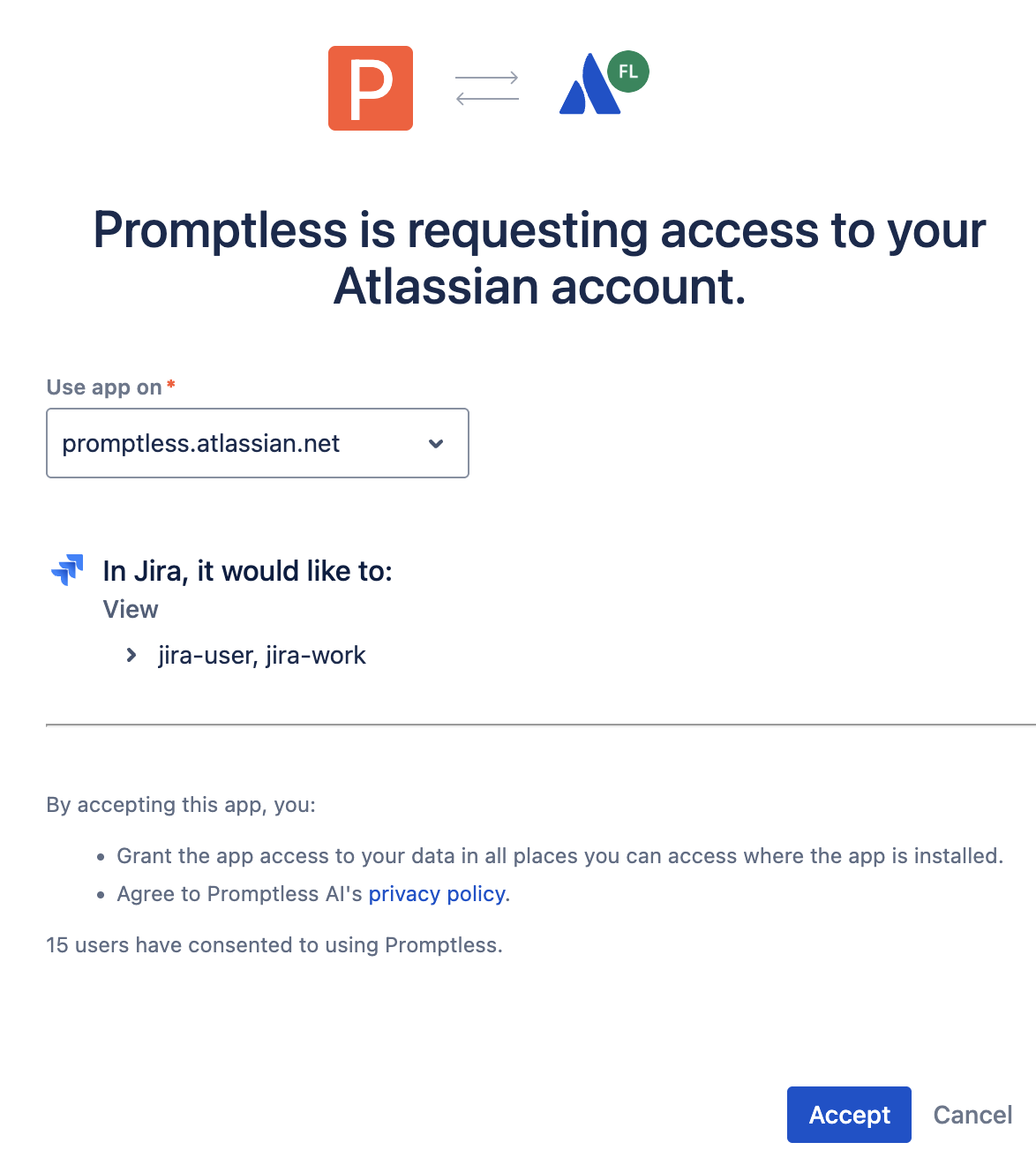
Click “Accept” and verify the connection in Promptless. If you don’t see the option to accept, you may not have the required permissions. Contact your Jira administrator or invite them to Promptless. For more information about adding new members, see our Account Management page.
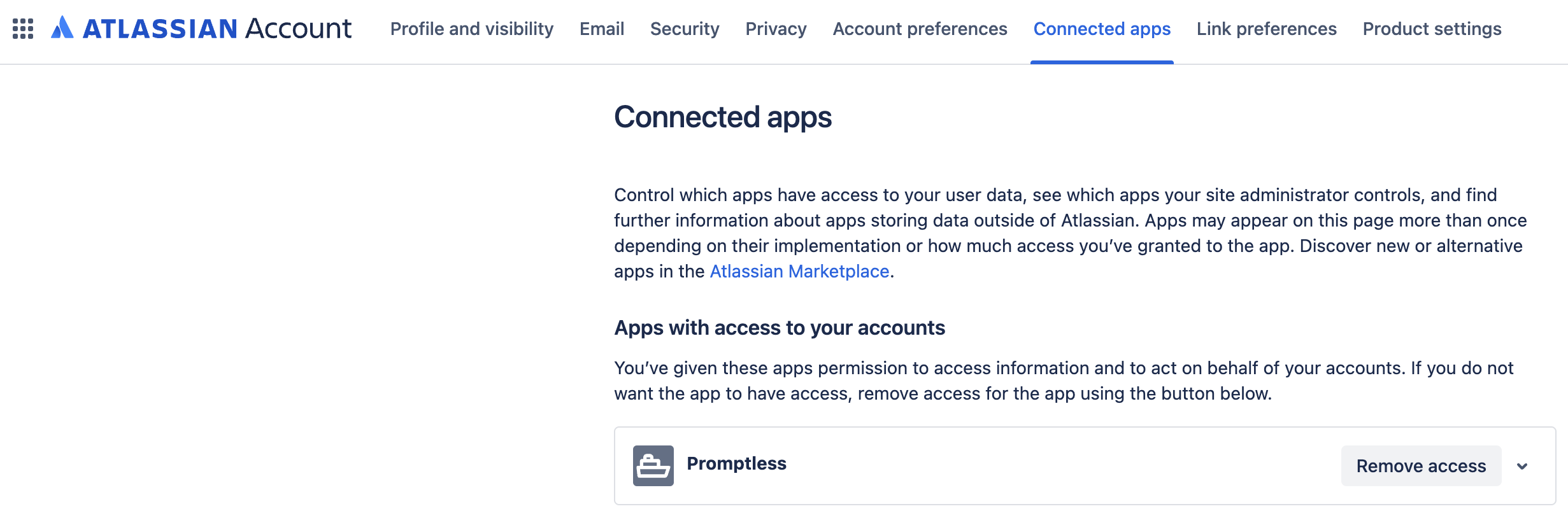
After connecting, manage Promptless access by going to your avatar > Account settings > Connected apps in Atlassian:
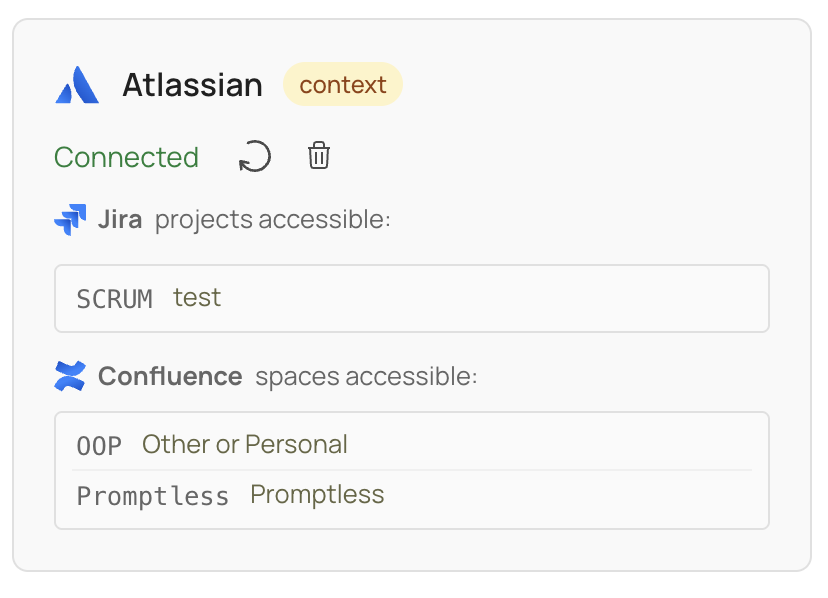
Once connected, you can use Jira and Confluence as context sources to enhance documentation suggestions:
We recommend creating a dedicated Atlassian account for Promptless to access both Jira and Confluence. A dedicated account gives you complete audit trail visibility and lets you configure fine-grained permissions for both services.
Create the account using an email alias like your_email+promptless@company.com, or ask your IT admin to provision a new email account like promptless@company.com.
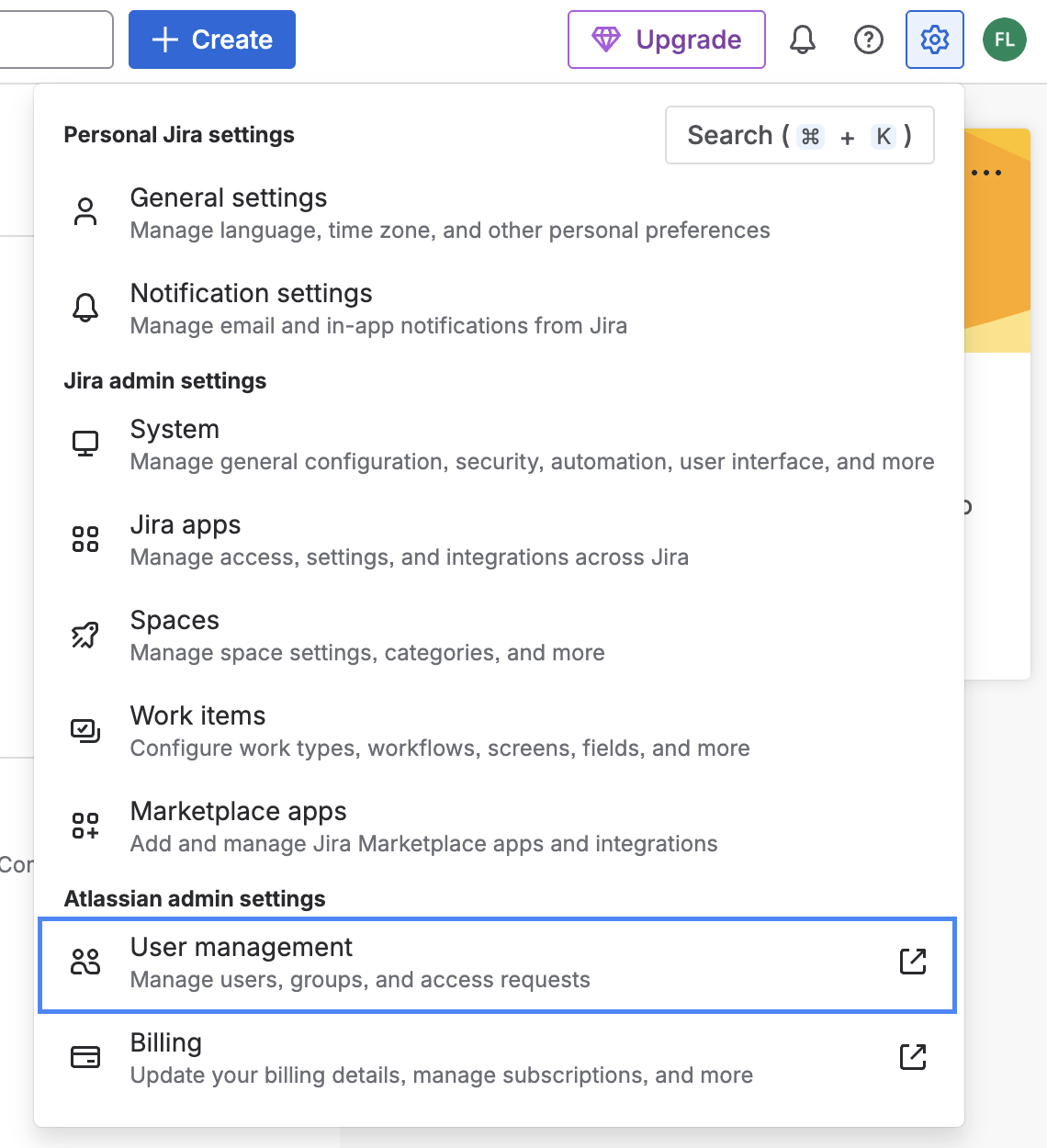
In Atlassian, go to your settings and select User management under Atlassian admin settings.
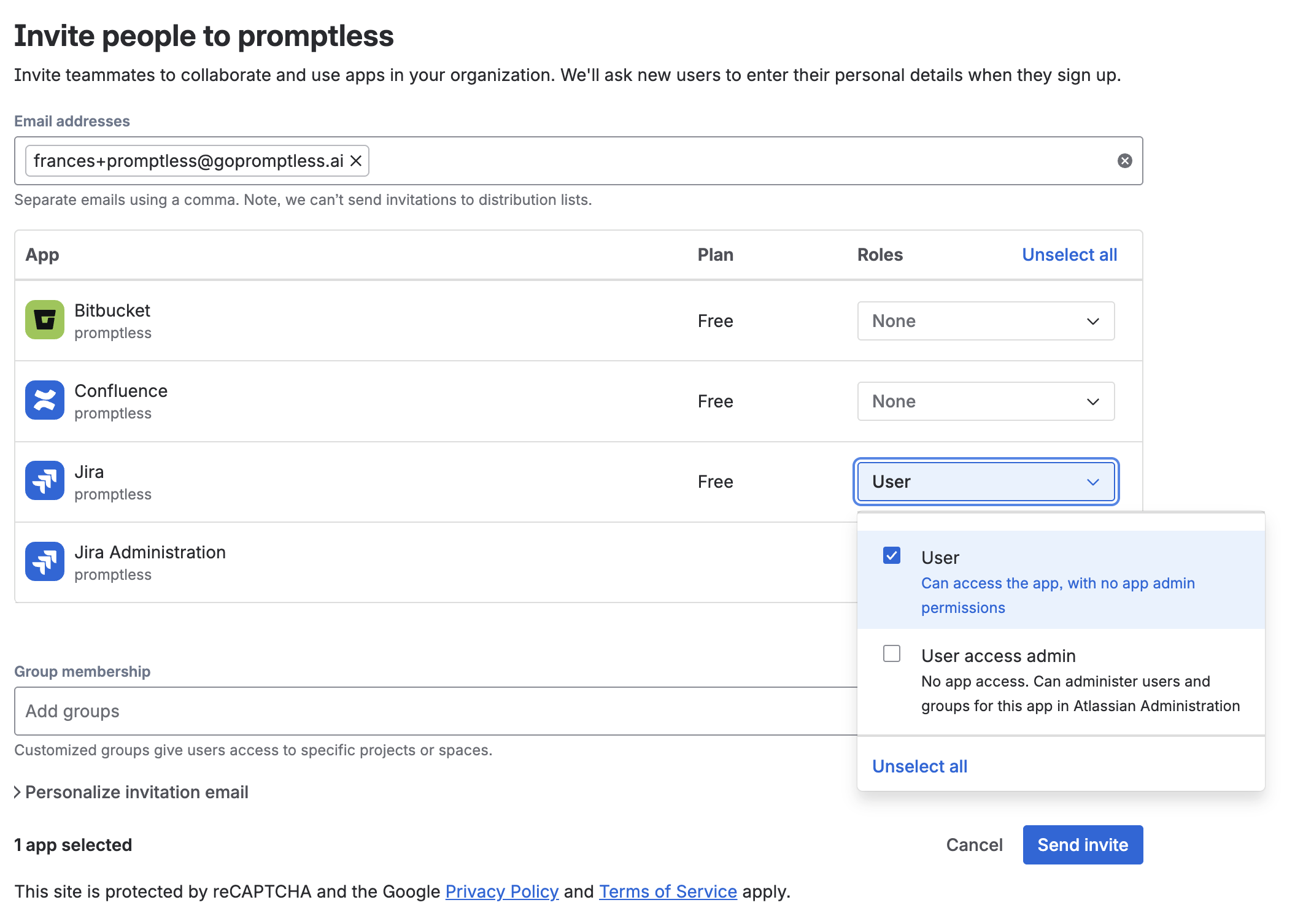
Click “Invite people” and enter the email address for your Promptless account. Under the Jira app, select the User role (not User access admin).
Warning
When accepting the invite, make sure you’re logged out of your personal account, and logged into the Jira account you created for Promptless, otherwise this won’t work.
Check your own email inbox (if you’re using the alias), or Promptless’s email inbox.

When setting up the account, you can use the name “Promptless Bot”.
Once complete, you’ll see the account listed as ACTIVE. It might take up to an hour for the status to update from INVITED to ACTIVE after you accept the invite.

For information about how Promptless processes Jira data, including redaction capabilities and privacy controls, see the Jira Context Source page.
Promptless inherits the permissions of the Atlassian account used during OAuth connection. There are several ways to manage access depending on your security requirements:
Standard approach: After connecting Atlassian, configure which Jira projects and Confluence spaces Promptless should search in your project settings. Promptless won’t access projects or spaces you don’t explicitly configure, even if the connected account has permission to see them.
For highly confidential content: Create an Atlassian user account that only has access to non-confidential projects and spaces, then connect Atlassian to Promptless using this limited-access account. This restricts access at the Atlassian permissions level, adding an extra security layer.
For granular control: Provision a dedicated Atlassian account for Promptless and configure fine-grained permissions for both Jira projects and Confluence spaces in Atlassian’s user management before connecting it to Promptless.