
Working with Slack
Note
Make sure you have the Slack integration set up before using these features.
Four Ways to Interact
Section titled “Four Ways to Interact”1. Message Actions
Section titled “1. Message Actions”Use Slack’s message actions to quickly trigger documentation updates from any message or thread. This is best used when you don’t want to interrupt the flow of the conversation.
Access Message Actions
Click the three dots (⋯) menu on any Slack message to open the message actions menu.
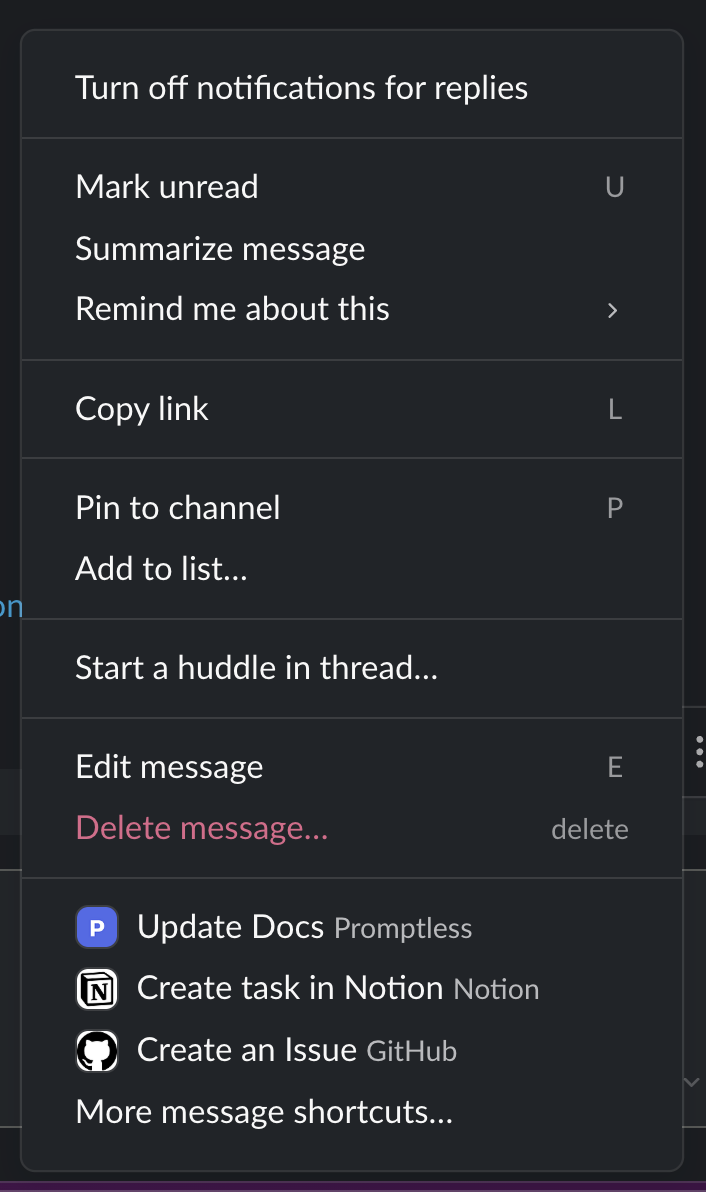
Select Update Docs
Choose “Update Docs” from the message actions menu to trigger Promptless. If you don’t see the option, click on “More message shortcuts” and search for Promptless.
Review Generated Content
Promptless will analyze the full thread to generate relevant documentation updates, and DM you once it’s done.
2. Channel Mentions
Section titled “2. Channel Mentions”Tag Promptless directly in any channel to trigger documentation updates from ongoing discussions.
Mention Promptless
Tag Promptless bot in a new message or in a thread reply in a channel, along with instructions about how to update the docs, you can add internal and external links, slack links, as well as images. Don’t forget to add Promptless bot to the channel if you’re tagging it for the first time!
Thread Context Analysis
Promptless will analyze the entire thread context to understand the discussion and generate relevant documentation. You can point Promptless to specific pages, or Promptless can infer based on the context.
Editing Suggestions in Slack
Promptless will reply in the thread once it’s done draft updates. From there, you can add follow-on instructions in the same thread to tell Promptless to edit the suggestion. You must still tag @Promptless in your follow-up messages to ensure Promptless sees and processes your additional guidance or corrections.
Example Instructions
Section titled “Example Instructions”@Promptless please also add a troubleshooting section covering the error cases we discussed earlier in this thread@Promptless make sure to mention that this feature is only available in the Enterprise plan@Promptless create a mermaid chart for the system architecture discussed in this thread`3. Direct Messages (DMs)
Section titled “3. Direct Messages (DMs)”Send direct messages to Promptless for private documentation requests or when you have very specific instructions.
Start a DM
Go to the Apps section in Slack, click on the Promptless bot.
Describe Your Request
Type your documentation request or paste content you’d like to turn into documentation. You can post internal or external links, slack links, images, etc. You don’t have to tag Promptless here.
Wait for Promptless DM
Promptless will DM you with the doc updates.
Using Images and File Attachments
Section titled “Using Images and File Attachments”You can attach images and files when you trigger Promptless in Slack to provide additional context. Include screenshots, diagrams, design mockups, API responses, or configuration files in the same thread where you tag @Promptless or use the “Update Docs” action.
When you trigger Promptless, it reviews all text and attached files in the thread. If an image or file content is valuable for the documentation, Promptless incorporates it into the suggested updates.
Examples
Section titled “Examples”Adding a screenshot to explain a feature
@Promptless please document this new export feature. I've attached a screenshot showing the new export dialog.Including an architecture diagram
@Promptless update the technical architecture page with this new system diagram (attached)Documenting an error message
@Promptless we need to add troubleshooting docs for this error. See the screenshot above for the exact error message users are seeing.Using design specs
@Promptless here's the design spec for the new onboarding flow (PDF attached). Please create documentation that matches this flow.For technical details about how images are processed and managed, see the Slack Integration page.
4. Passive Channel Listening
Section titled “4. Passive Channel Listening”Have Promptless automatically monitor specific Slack channels and create documentation updates without requiring @mentions or message actions. This is ideal for documentation-focused or support channels where discussions frequently reveal documentation needs.
When passive listening is enabled, Promptless monitors all messages in your selected channels and automatically creates documentation suggestions when threads become inactive.
Open Project Settings
Go to the projects page and click the edit button on your Slack trigger project.
Enable Passive Listening
Check the box for “Listen for all messages in specific channels” under the trigger configuration.
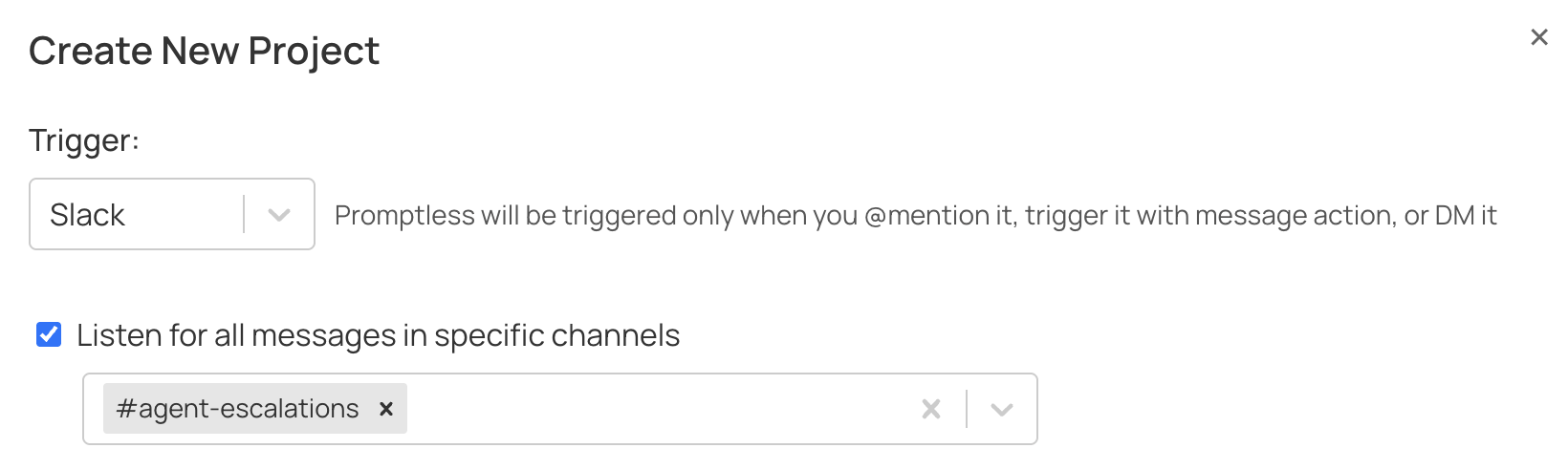
Select Channels
Choose which channels Promptless should monitor. You can select multiple channels.
Save Changes
Click “Save” to activate passive listening for the selected channels.
Will Promptless create a new suggestion for every new message in the thread?
No. When passive listening is enabled, Promptless waits for a thread to go quiet before analyzing it. This prevents creating redundant suggestions as conversations evolve.
If new messages are added to a thread that Promptless has already processed, Promptless can update its existing suggestion rather than creating a duplicate. This means even if there are multiple triggers for the same thread, you’ll see updates to a single suggestion rather than a flood of separate suggestions.
Tip: If you @mention Promptless in a thread that’s being passively monitored, it will trigger immediately rather than waiting for the thread to go quiet.
Note
Passive listening is completely opt-in. Promptless only monitors channels you explicitly select in your project configuration. You can add or remove channels at any time.
Need help with Slack interactions? Contact us at help@gopromptless.ai.